Startup Security on macOS devices helps prevent unauthorized users from accessing Recovery Mode or modifying startup settings. Apple provides two different mechanisms based on device architecture: Recovery Lock for Apple Silicon Macs and Firmware Password for Intel-based Macs. Recovery Lock protects access to macOS Recovery on Apple Silicon devices, while Firmware Password restricts booting from external drives or entering Recovery Mode on Intel Macs without proper authorization.
This guide explains how to configure, monitor, and manage Recovery Lock and Firmware Password using the Scalefusion Dashboard. By managing these settings centrally, administrators can strengthen device security, maintain password validation status, automate compliance workflows, track clear operations, and maintain a complete audit trail ensuring secure startup protection across all managed macOS devices.
Pre-requisites
macOS Device Profile should be created on Scalefusion Dashboard
You must be subscribed to the Business 2025 plan or higher, or have the Recovery Lock Management and Firmware Password Management features enabled for your account.
If Maker–Checker approval is configured:
Clear actions must be approved before execution.
Understanding Startup Security Types
Device Type | Security Feature |
|---|---|
Apple Silicon Macs | Recovery Lock |
Intel-based Macs | Firmware Password |
Configuring Recovery Lock for Apple Silicon Macs
On Scalefusion Dashboard, navigate to Device Profiles and Policies > Device Profiles
Go to macOS Device Profile
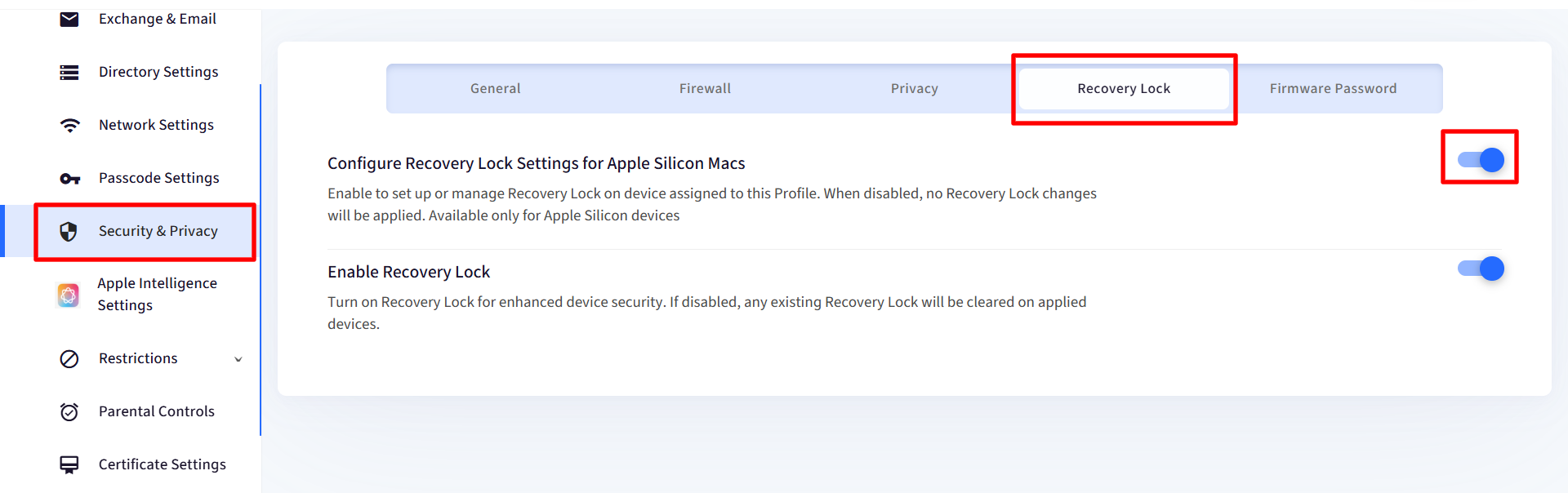
Navigate to Security & Privacy and click on Recovery Lock tab
Enable Configure Recovery Lock Settings for Apple Silicon Macs
Turn on Enable Recovery Lock
If enabled → Recovery Lock is applied to devices.
If disabled → Existing Recovery Lock is cleared.
Configuring Firmware Password for Intel Macs
On Scalefusion Dashboard, navigate to Device Profiles and Policies > Device Profiles
Go to macOS Device Profile
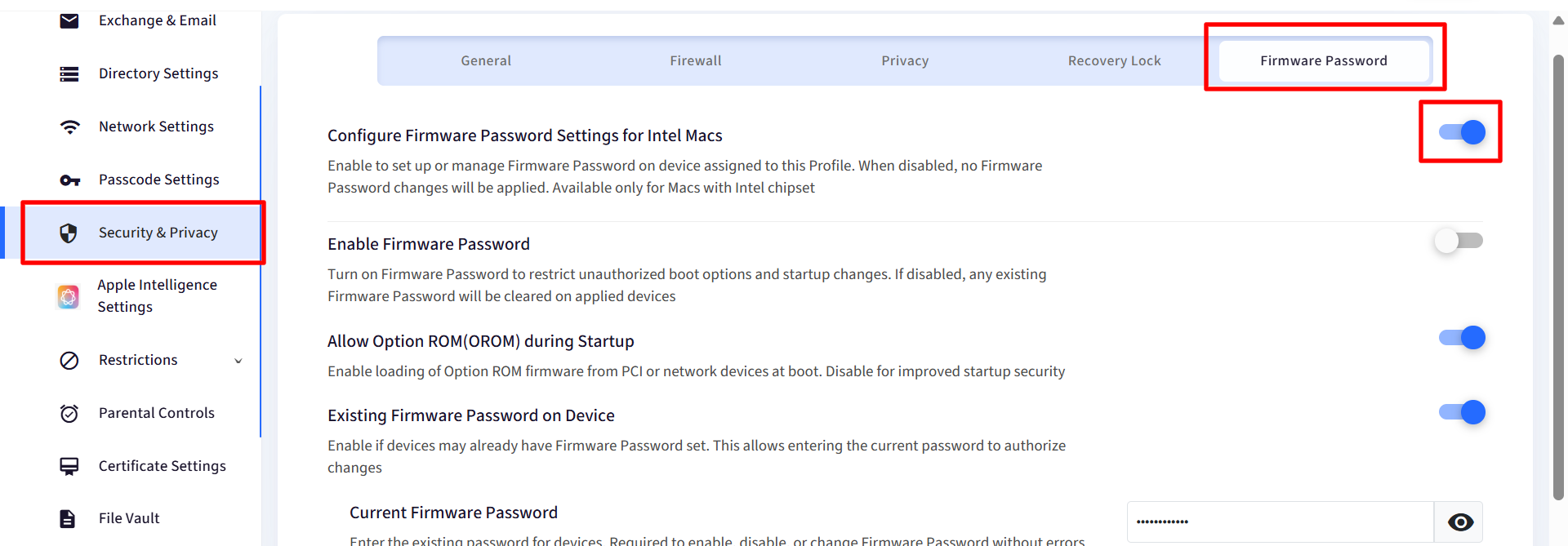
Navigate to Security & Privacy and click on Firmware Password tab
Enable Configure Firmware Password Settings for Intel Macs
Turn on Enable Firmware Password
Allow Option ROM (OROM) during Startup
Allows loading external firmware at boot
Recommended OFF for better security
Existing Firmware Password on Device
Enable if devices already have a password set
Current Firmware Password: Enter the existing firmware password for the device. This is required to enable, disable, or change the firmware password without errors.
Viewing Startup Security Information
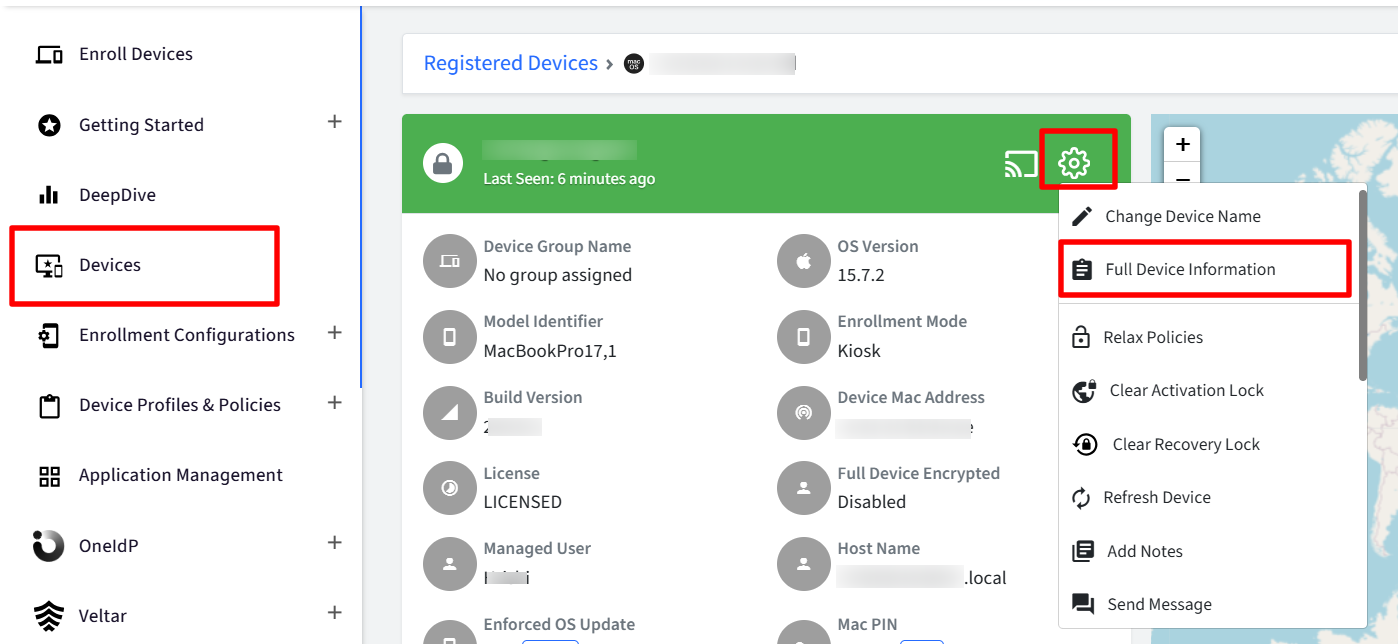
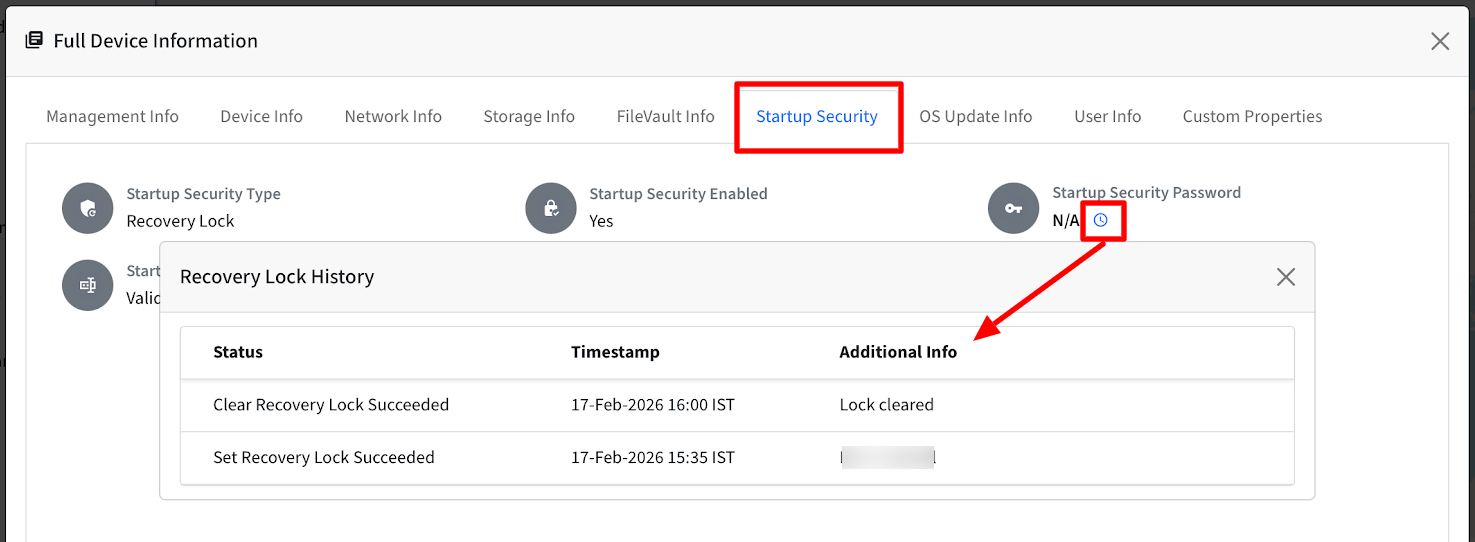
On Scalefusion Dashboard, navigate to Devices section and click on a particular device which takes you to Device Details page
Click on the gear icon and select Full Device Information
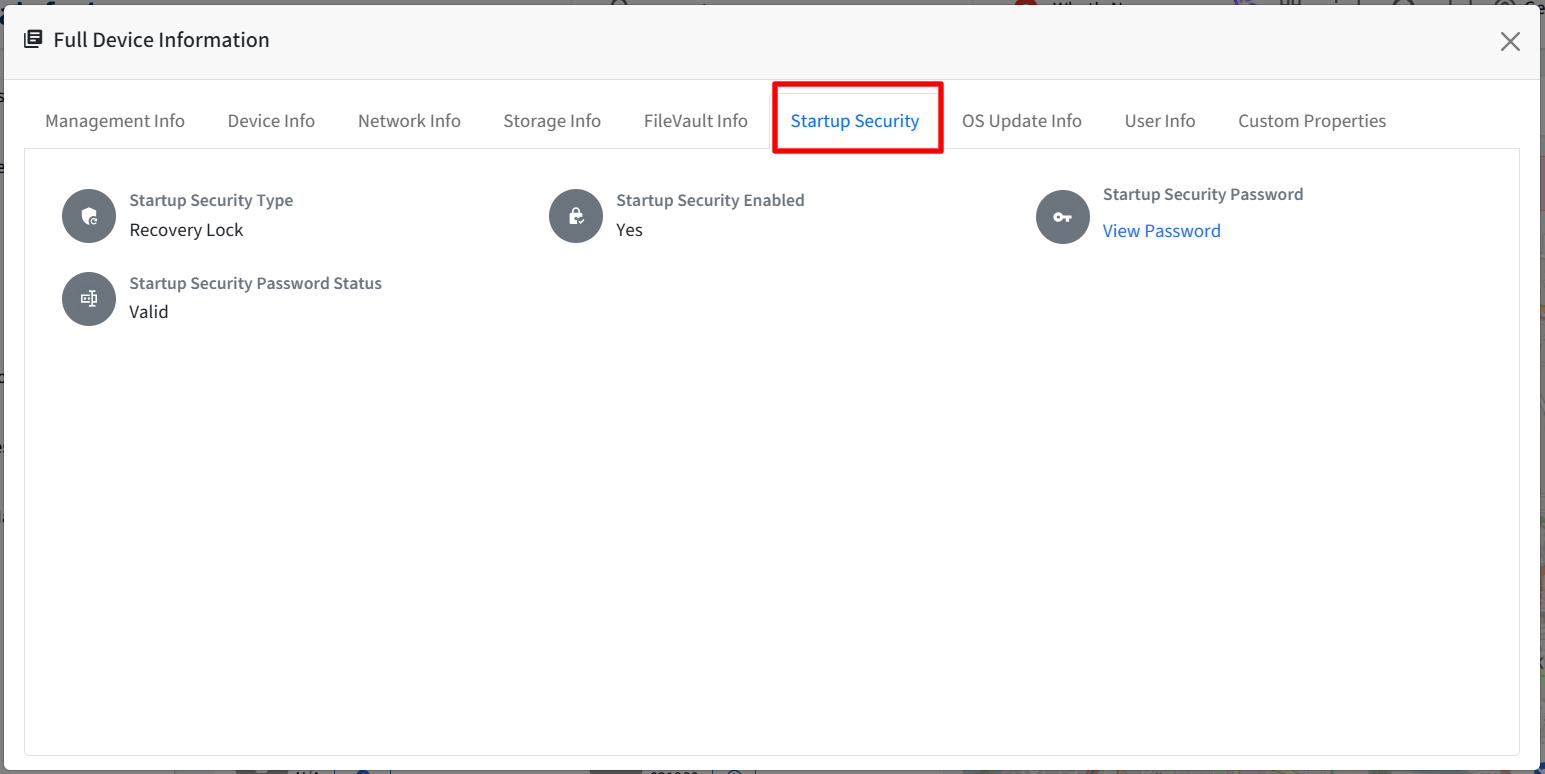
All information is displayed under Startup Security tab
Startup Security Type: Based on the device type, it will show one of the following:
Recovery Lock (Apple Silicon)
Firmware Password (Intel)
Startup Security Enabled: Yes / No
Startup Security Password
View Password (if available)
N/A (if not available)
Viewing password requires admin authentication.
Password Status
Valid
Invalid
Missing
Change Pending: Yes / No
Option ROM Allowed: Yes / No
Viewing Password History
Password History is available under Startup Security → Clock Icon. Following information is displayed:
Set Success / Failure
Clear Success / Failure
Timestamp
Additional details
Failure reasons (if any)
Clearing Recovery Lock or Firmware Password
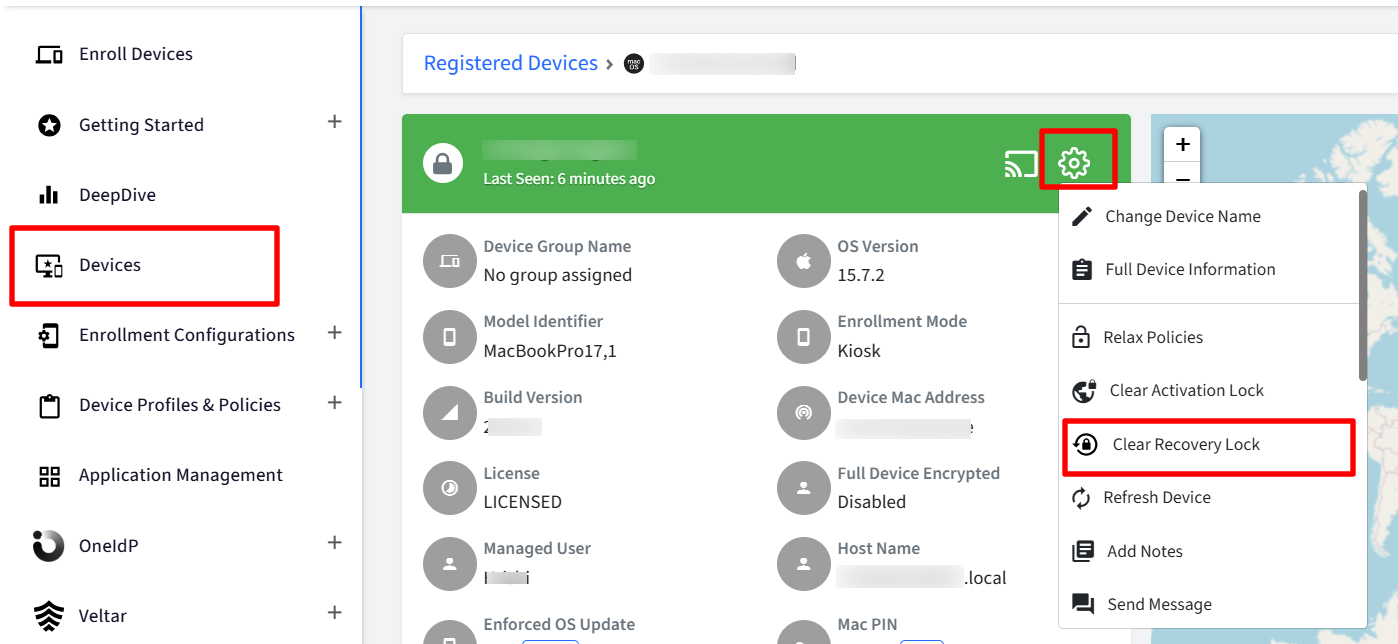
Navigate to Devices section and click on a particular device which takes you to Device Details page
Click on the gear icon and select the option.
Clear Recovery Lock (For Apple Silicon Macs)
Clear Firmware Password (For Intel Macs)
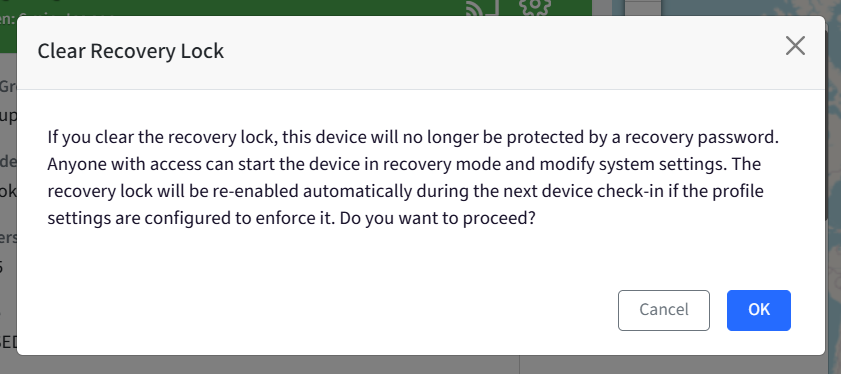
If Password Exists & Is Valid, you will see confirmation popup. Click OK to proceed.
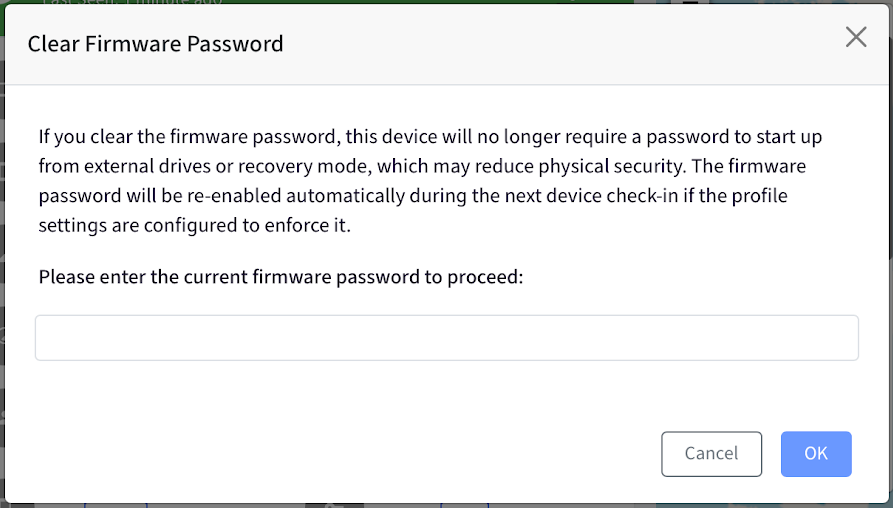
If Password Is Missing or Invalid, you must enter the current password.
Additional Actions from Dashboard
Track Recovery Lock and Firmware Password Actions
This can be done from:
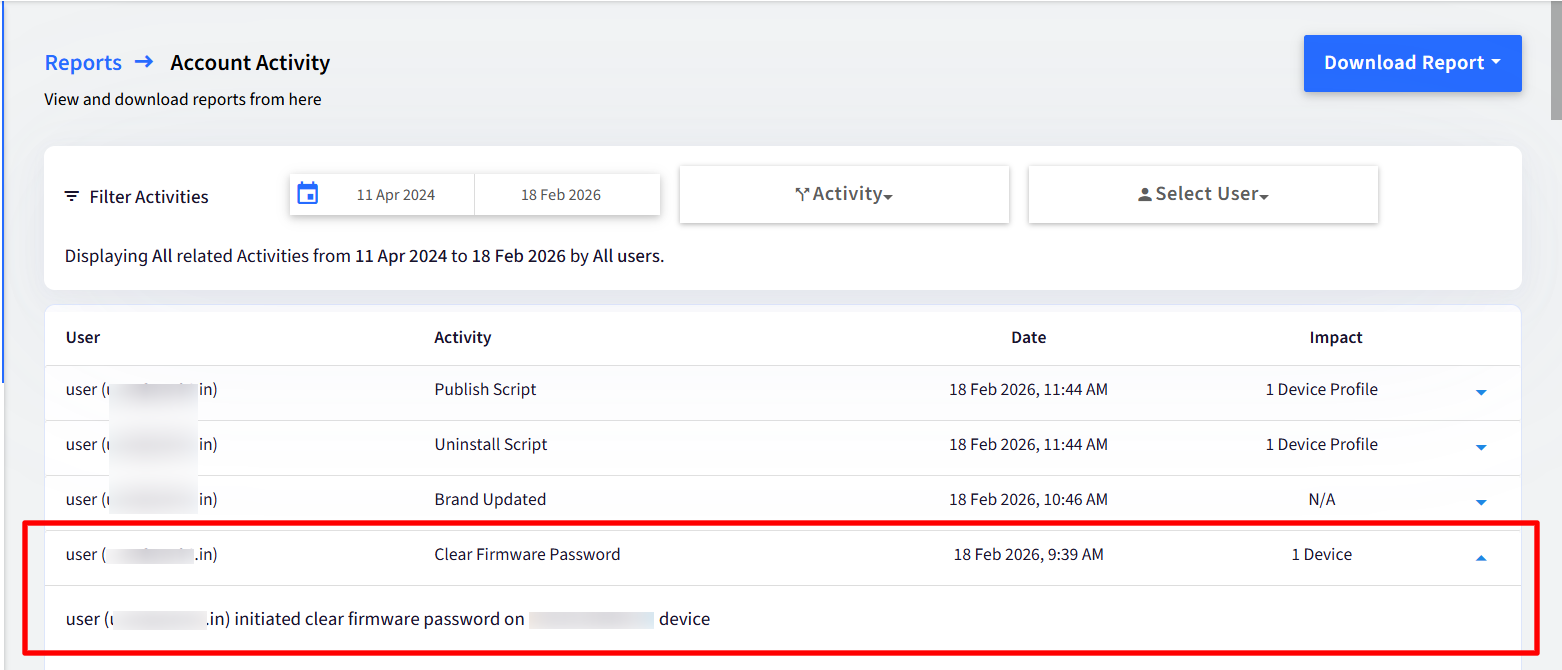
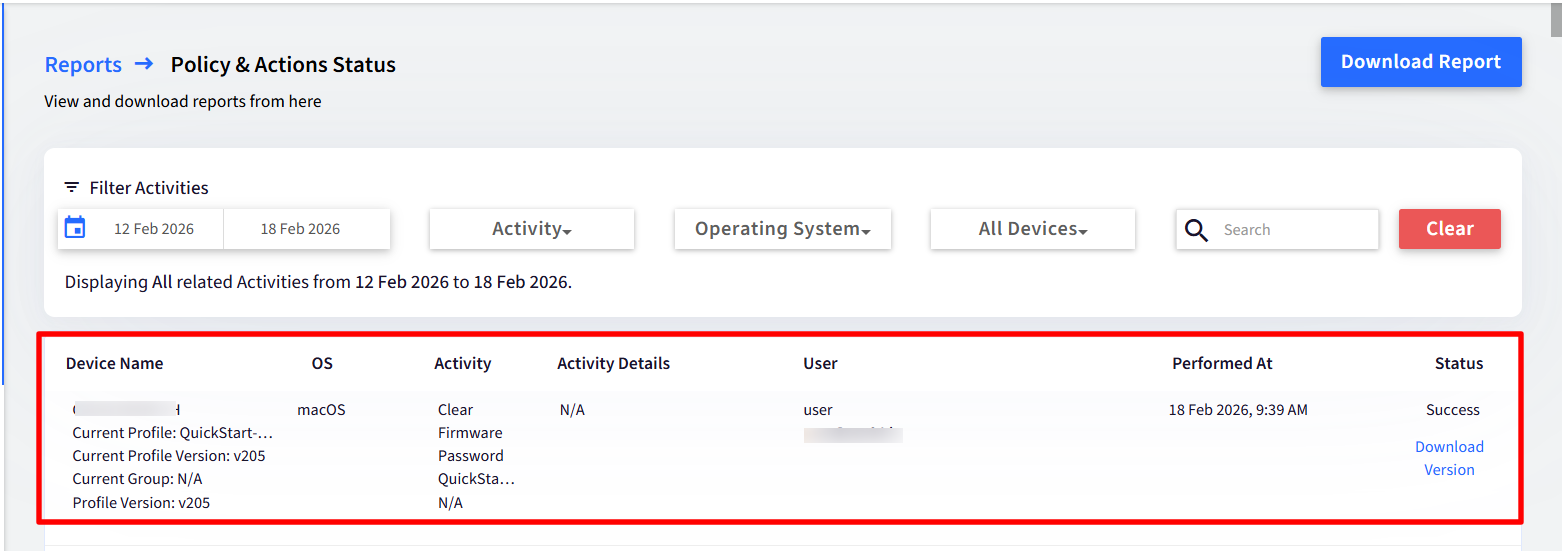
Policies & Actions Status Report: Under this, you can track:
Clear Recovery Lock / Clear Firmware Password (under Activity)
Status (Pending / Success / Failure)
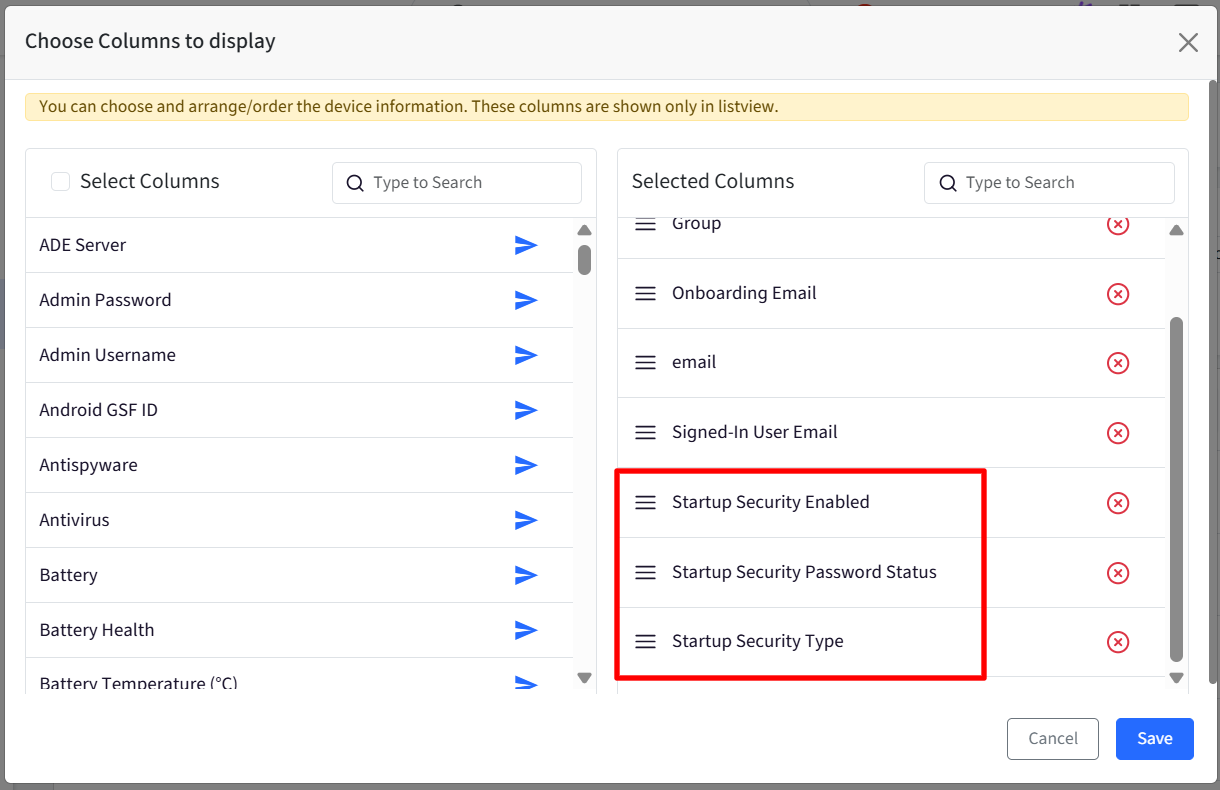
View Startup Security Details in the Device List
On the Device List page, you can choose the following columns to display in the device list:
Startup Security Type
Startup Security Enabled
Startup Security Password Status
These fields are also included in downloaded reports.
Startup Security Fields in Device Inventory Reports
In The Device Inventory Report, you can select the following fields for the report:
Startup Security Type
Startup Security Enabled
Password Status
Password (if available)
Change Pending
Option ROM Allowed
For unsupported devices, the value will display as N/A.
Automate Compliance Using Startup Security Settings
Under Group Automation → Compliance, you can create rules based on:
Startup Security Type
Startup Security Enabled
Password Status (Valid / Missing / Invalid)
Change Pending
Option ROM Allowed
Access Startup Security Details via API
The following APIs include Startup Security details:
/api/v2/devices.json/api/v2/devices/{id}.json/api/v3/devices.json/api/v3/devices/{id}.json
They include a new object: startup_security_details
Security Information in Device Deletion or Factory Reset Emails
When deleting or factory resetting a Mac device, the notification email includes:
Firmware Password
Mac PIN
Device-generated bypass code
Managed Admin details
If a value does not exist, it will be displayed as N/A.
If the Admin is unavailable, it will display Not Available.
FAQ
When does the status in Firmware Password History show Clear Firmware Password as Failed?
The Clear Firmware Password action may fail in the following scenarios:
A firmware password change is already pending. The device must be rebooted before any additional change requests can be processed.
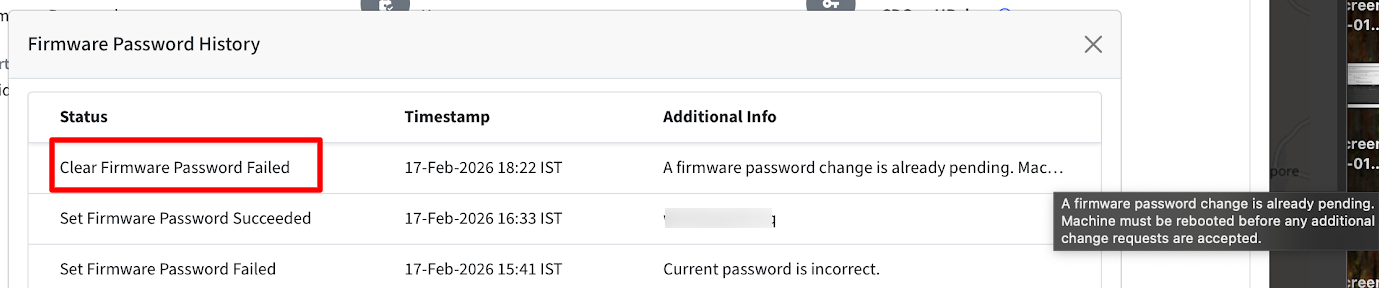
The Startup Security → Change Pending status in Full Device Information is set to Yes.
In these cases, complete the pending change (typically by rebooting the device) before attempting the clear action again.