Operations are used to deploy operating system updates to managed Apple devices. Each operation defines which update should be installed, the devices that will receive the update, and how the installation should be carried out.
The Operations section provides a centralized view of all update deployments, allowing administrators to create new deployments, monitor ongoing installations, review completed deployments, and track update activity across their device fleet.
The dashboard also provides visibility into deployment status, installation progress, and update protocols being used for each operation.
Operations Dashboard
The Operations dashboard provides a high-level summary of macOS update deployments.
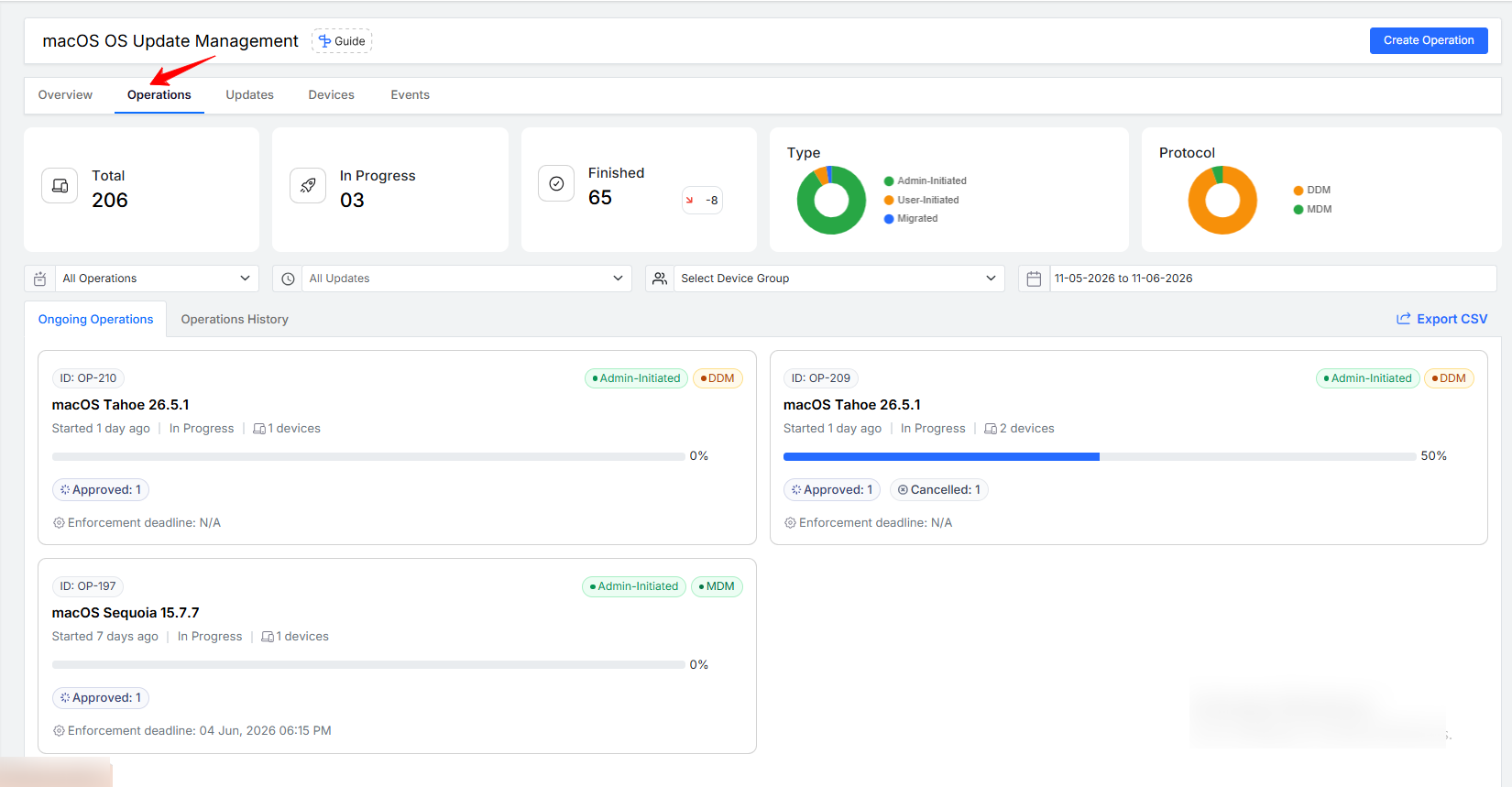
Administrators can quickly review deployment activity through the summary widgets displayed at the top of the page.
Total: Displays the total number of update operations created within the selected time period.
In-Progress: Displays operations that are currently in-progress and being processed on one or more devices.
Finished: Displays operations that have completed their deployment lifecycle.
Type: Provides a distribution of operations based on deployment type, such as:
Admin-Initiated
User-Initiated
Migrated Operations
This helps administrators understand how updates are being deployed throughout the organization.
Protocol: Displays the distribution of operations based on the deployment protocol used. Depending on device compatibility, operations may be deployed using:
Declarative Device Management (DDM)
Mobile Device Management (MDM)
Clicking on each card takes you to the respective tab for viewing more details
Filtering Operations
The dashboard includes filtering options that help administrators locate specific deployments.
Operations can be filtered using:
Operation Status
Update Version
Device Group
Date Range
These filters simplify the process of identifying deployments, troubleshooting issues, and reviewing update activity.
Administrators can also export operation data using the Export CSV option for reporting and audit purposes.
Ongoing Operations
The Ongoing Operations tab displays deployments that are currently in progress.
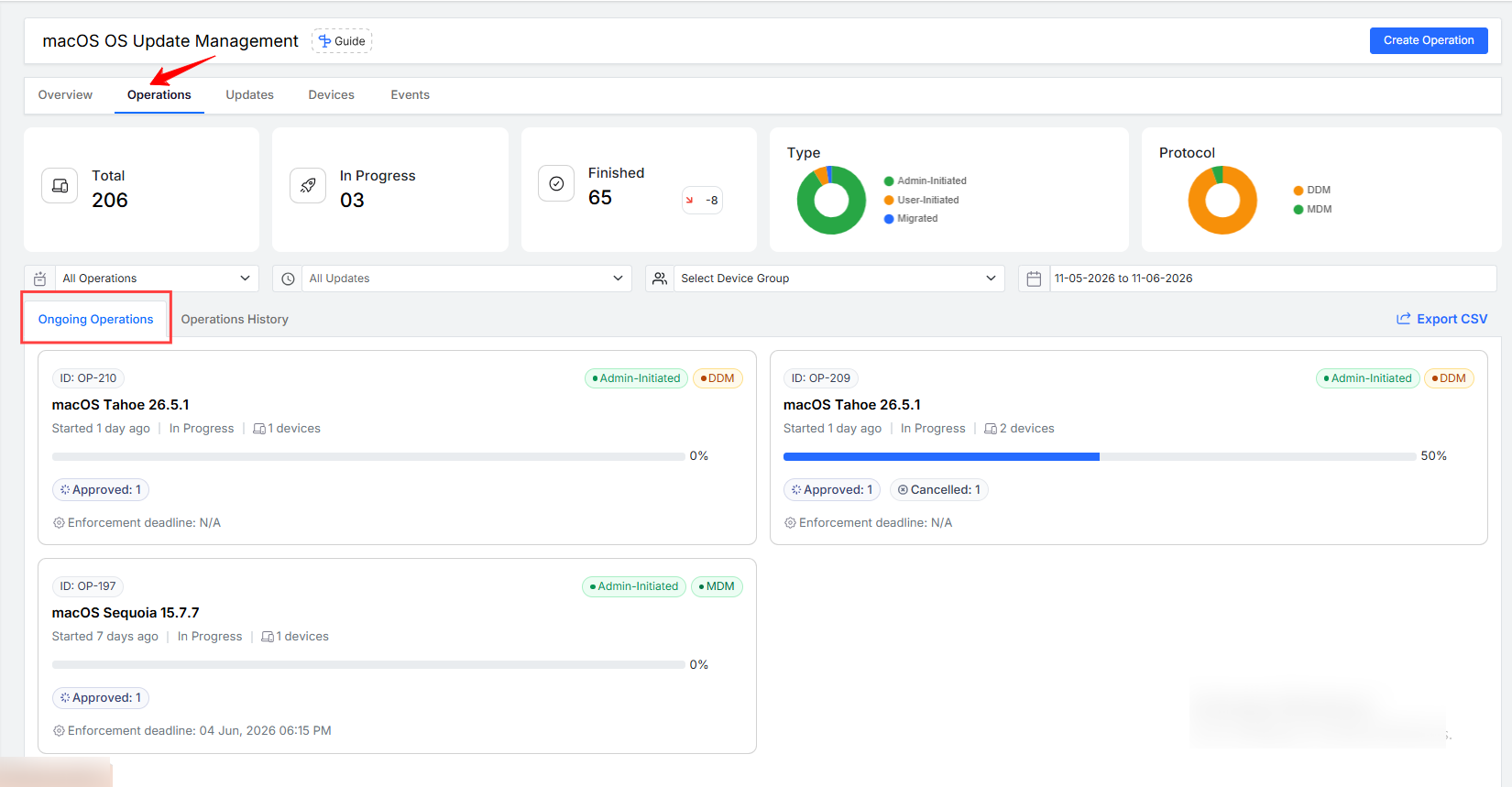
For each operation, administrators can monitor:
Deployment status
Target devices
Update version
Installation progress
Protocol used
This view provides real-time visibility into active deployments and helps administrators track update rollouts as they occur.
Operations History
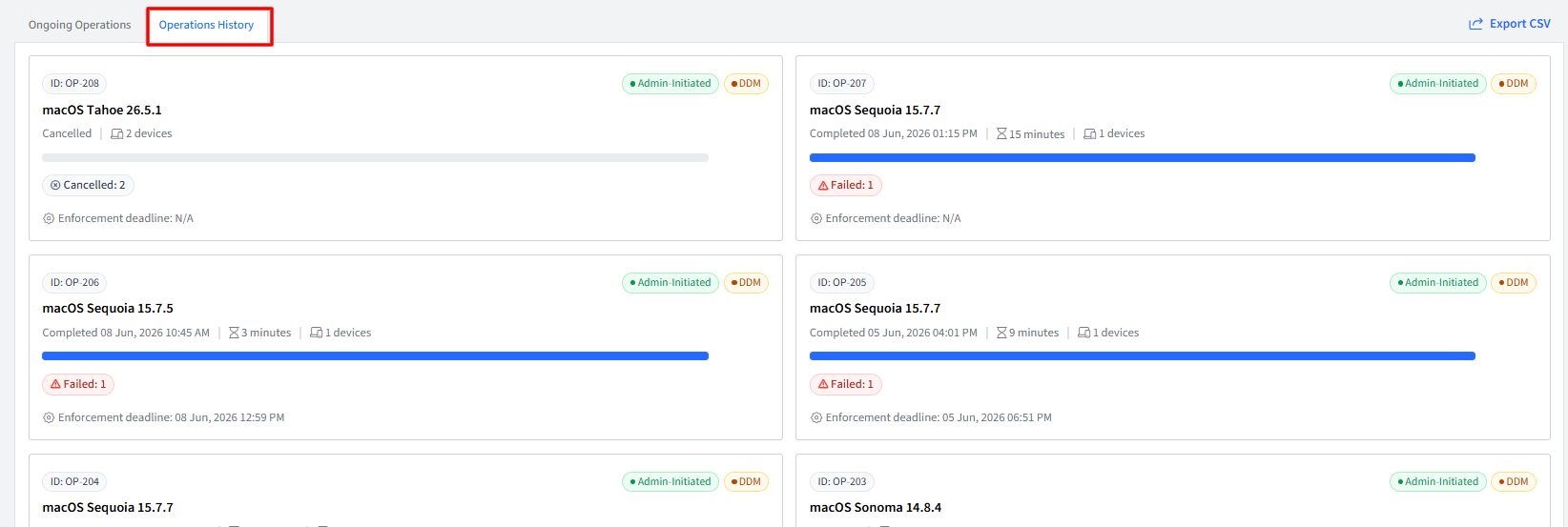
The Operations History tab provides a record of completed, cancelled, and previously executed deployments.
This section can be used to:
Review historical deployments
Verify deployment outcomes
Audit update activities
Investigate installation issues
Track organizational update compliance
Historical records remain available for future reference and reporting.
Creating an Operation
To create an operation:
Navigate to Operations.
Click Create Operation.
Select the update to deploy.
Choose target devices.
Configure deployment settings.
Review the configuration.
Click Create Operation.
The operation creation workflow consists of four guided steps.
Step 1 : Select Update
The first step allows administrators to select the operating system update that will be deployed.
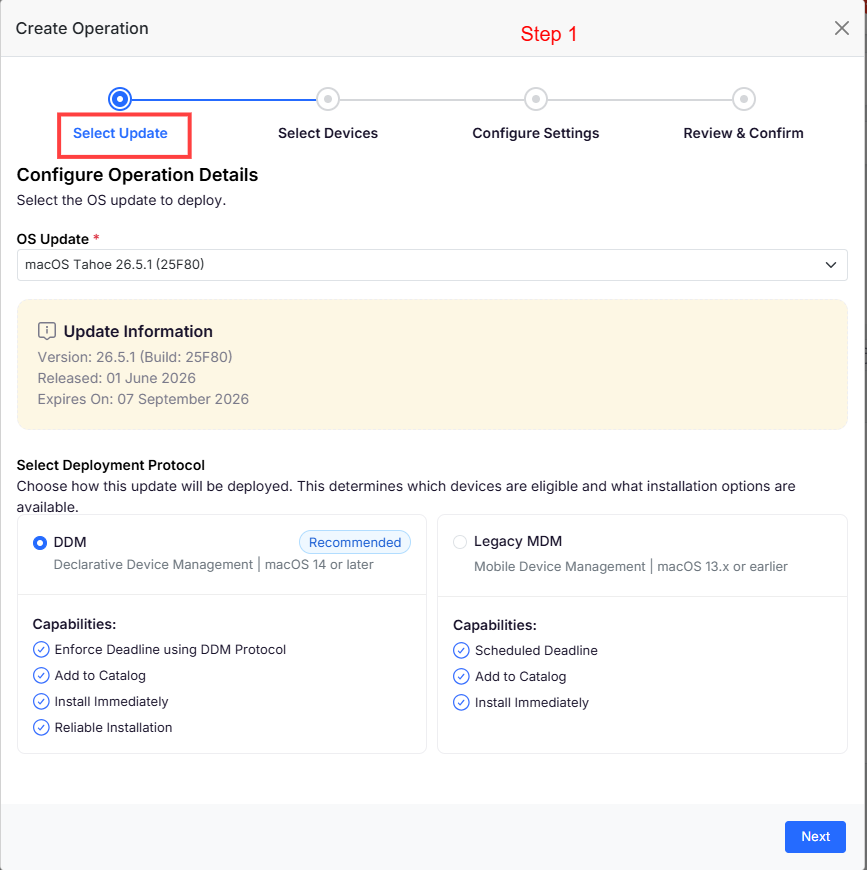
The available update list displays updates that are currently supported for deployment on managed devices.
Update Information
After selecting an update, detailed information is displayed, including:
Version
Build Number
Release Date
Expiration Date
This information helps administrators validate the update before proceeding with deployment.
Select Deployment Protocol
Administrators can choose the deployment protocol that will be used for the operation.
1. Declarative Device Management (DDM)
DDM enables devices to receive update declarations and process them directly on the device. This deployment method provides a modern update experience and is recommended for supported devices. Key capabilities include:
Update enforcement deadlines
Catalog availability
Immediate installation workflows
Improved deployment reliability
DDM is available for compatible devices running supported macOS versions.
2. Legacy MDM
Legacy MDM uses Apple's traditional update management framework and is available for older device versions that do not support DDM. Key capabilities include:
Scheduled installations
Immediate installation
Catalog availability
The available protocol options may vary depending on device operating system compatibility.
Step 2: Select Devices
The Select Devices step allows administrators to choose the devices that will receive the selected update.
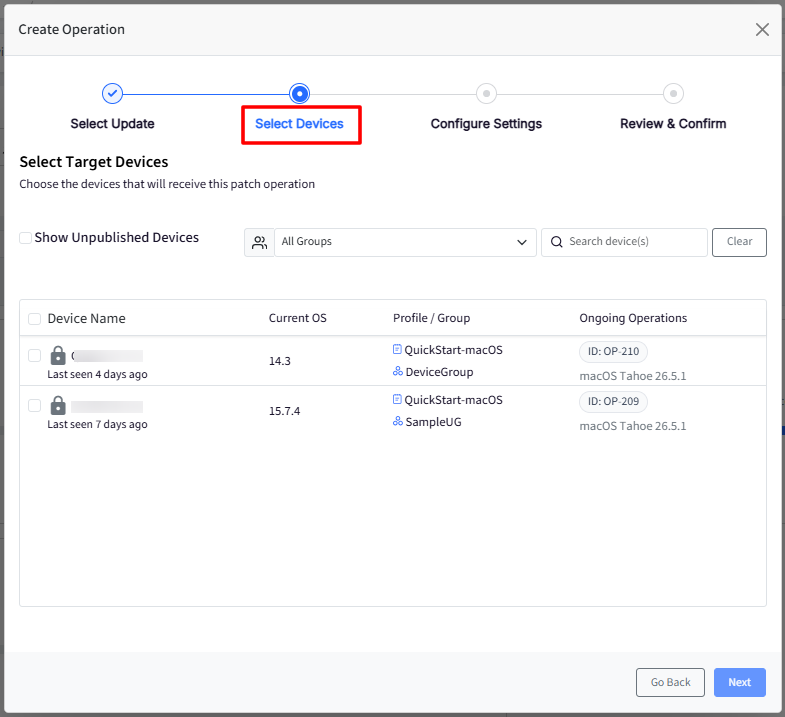
The device inventory displays information such as:
Device Name
Current Operating System Version
Associated Profile or Group
Existing Operations
Administrators can use search and filtering options to quickly locate specific devices.
Updates can be deployed to:
Individual devices
Multiple devices
Entire device groups
This flexibility allows organizations to perform phased rollouts or organization-wide deployments as required.
Step 3: Configure Settings
The Configure Settings step determines how the update will be delivered and installed on the selected devices.
Administrators can choose between different deployment methods depending on organizational requirements.
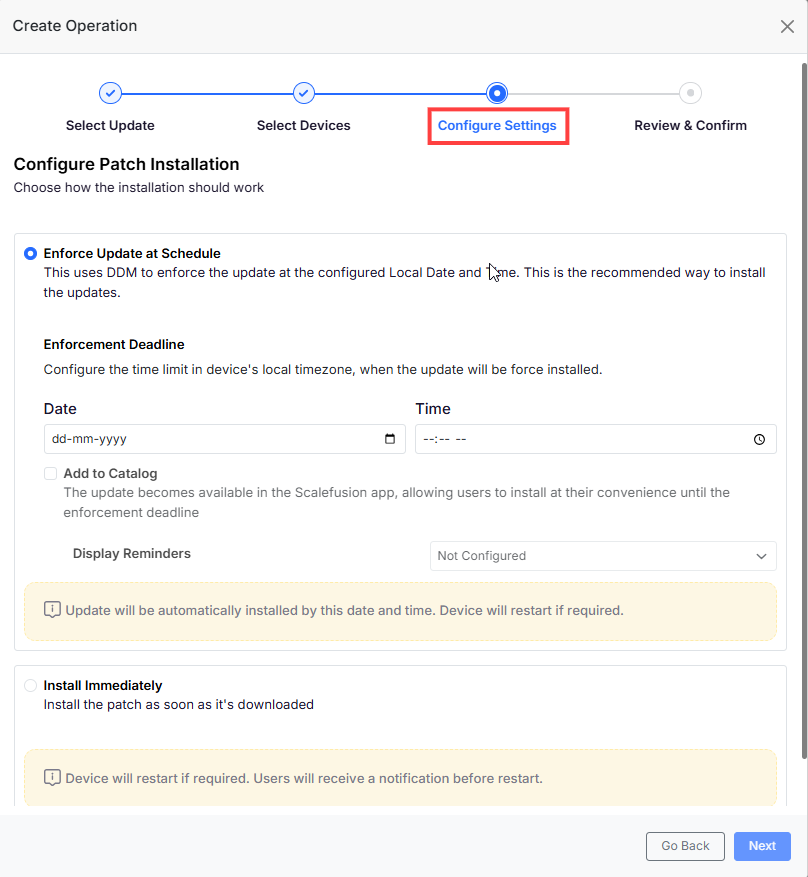
Enforce Update at Schedule
This option schedules a mandatory installation at a specified date and time.
The selected schedule is enforced using the chosen deployment protocol.
Administrators can configure:
Enforcement date
Enforcement time
Device local timezone execution
When the scheduled deadline is reached, the update installation begins automatically. If required, the device may restart to complete the installation process.
This deployment method is commonly used for planned update rollouts and compliance-driven update strategies.
Add to Catalog
When enabled, the update is made available through the Scalefusion application catalog.
Users can view the available update and choose to install it before the configured enforcement deadline.
This option provides users with flexibility while ensuring that updates remain visible and accessible.
Display Reminder
Administrators can configure reminder notifications that inform users about available updates and upcoming enforcement deadlines.
Reminders help improve update adoption and reduce the likelihood of missed installations.
Install Imeditately
This option initiates update installation as soon as the required update files become available on the device.
The installation process begins without waiting for a scheduled deadline.
This deployment method is typically used for:
Critical security updates
Urgent patch deployments
Time-sensitive operating system updates
If a restart is required, users receive the appropriate notification before the device reboots.
Step 3: Review & Confirm
The final step presents a summary of the entire deployment configuration.
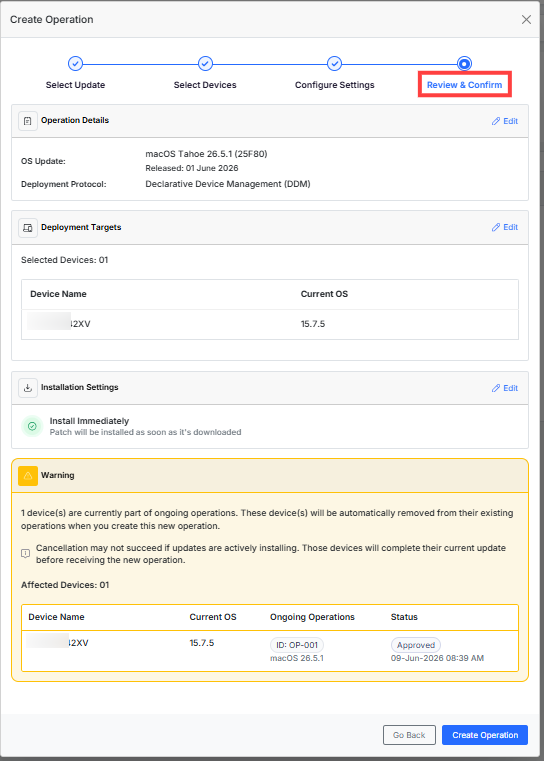
Administrators can review:
Selected update
Deployment protocol
Target devices
Installation method
Enforcement settings
Reminder configuration
This review step helps ensure that the deployment has been configured correctly before execution.
After verifying the details, click Create Operation to start the deployment.
Note: If you choose a device that is already having another operation going the device would be removed from the earlier operation list and queued in the newer operation list.
Operation Details
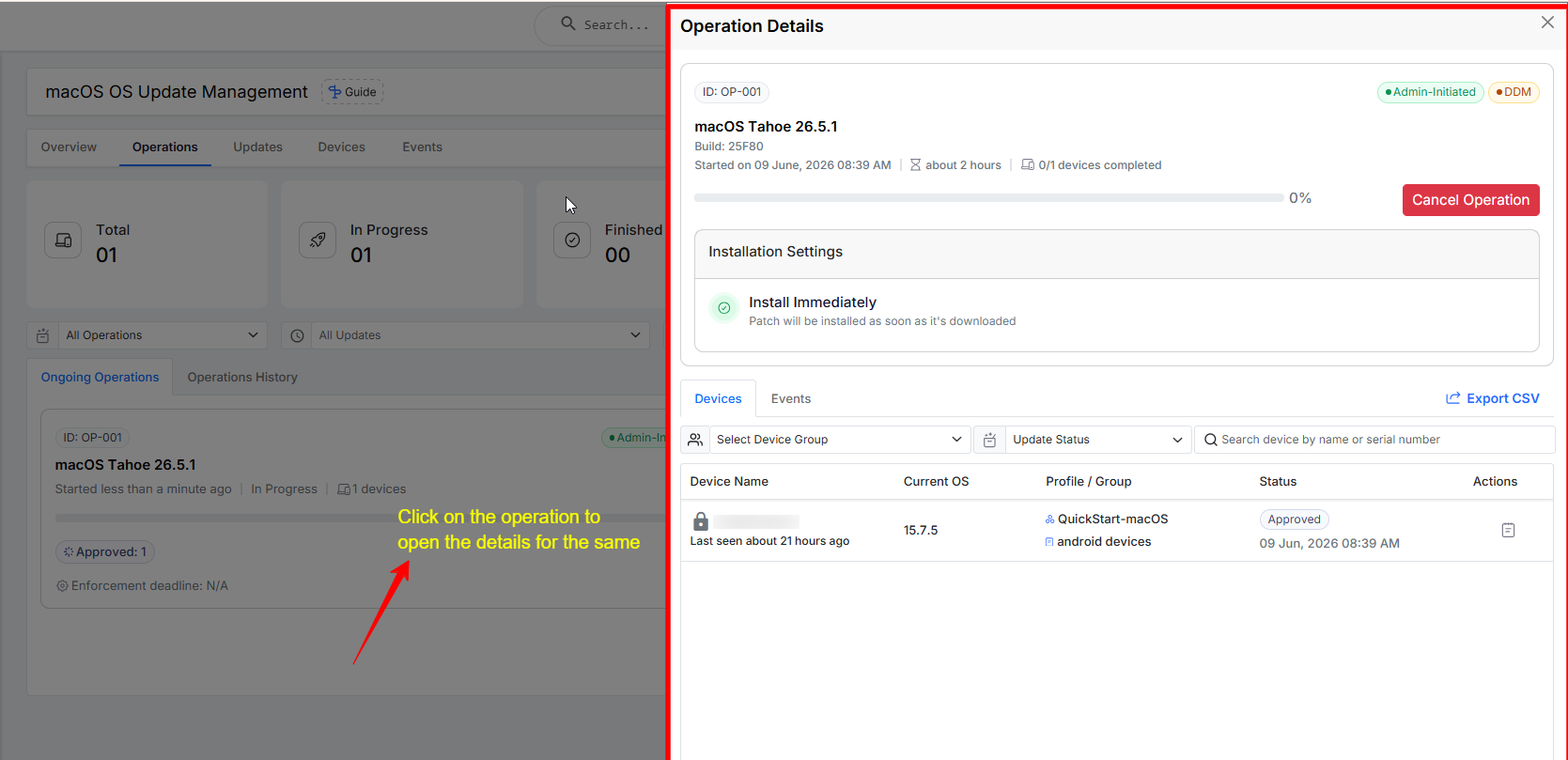
The Operation Details Panel opens when you select an operation from the Operations list. It slides in from the right side of the screen and provides detailed information about the selected update operation. This view helps administrators monitor deployment progress and identify devices that may require attention.
Operation Overview
The panel displays key operation information, including:
Operation ID
Operation Type (for example, User-Initiated)
Operation Protocol (for example, MDM)
Update Name and Version
Build Number
Operation Start Date and Time
Elapsed Time
Device Progress showing completed devices versus total targeted devices
Cancel Operation
For eligible in-progress operations, administrators can cancel the operation directly from the panel by clicking on Cancel Operation. On doing so:
A confirmation dialog is displayed before cancellation.
Devices that have already completed the update or are actively installing are not affected.
This option is not available for completed, cancelled, or MDM-based operations.
Installation Settings
This panel displays the update deployment method and related settings. Supported deployment methods include:
Scheduled Installation: Shows the enforced installation date and time, catalog settings, and reminder configuration.
Install Immediately: Indicates that the update will be installed as soon as it is downloaded.
Devices Tab
The Devices tab provides visibility into all devices targeted by the operation.
Filtering and Search
You can narrow results using:
Device Group filter
Update Status filter
Search by device name or serial number
A Clear Filter option appears whenever filters are applied.
Device Status Table
The table displays:
Device Name
Current OS Version
Assigned Profile or Group
Current Update Status
Device Actions
Supported update statuses include:
Pending
Approved
User Approved
Downloading
Downloaded
Preparing
Installing
Retry
Installed
Obsolete
Failed
Cancelled
Deprecated
You can open a device's details page directly from the table.
Export CSV
Export device status information to a CSV file for reporting and analysis.
Events Tab
The Events tab provides a chronological audit trail of all activity related to the operation.
Events can be filtered by:
Specific Device
Event Type
A Clear Filter option is available when filters are active.
Event Log
The events table includes:
Event Type
Event Details
Associated Device
Timestamp
Logs older than 90 days are automatically removed.
Common event types include:
Operation Created
Operation Completed
Operation Cancellation Requested
Download Started / Completed / Failed
Installation Started / Completed / Failed
Retry Events
User Approval Events
Device Migration Events
Event Details
Each event provides additional contextual information, such as error messages, retry attempts, installation progress, and other operation-specific details.
Export CSV
Export event history to a CSV file for auditing and troubleshooting.