Introduction
License Manager (LicenseMgr) in Zebra devices is a system service used to manage, activate, and monitor software licenses for Zebra’s enterprise features and add-on capabilities. It ensures that licensed features on Zebra Android devices are properly validated and enabled.
With Scalefusion, you can create an XML configuration (MXConfig) for License Manager to activate or release a license on your Zebra device(s).
Pre-requisites
The device should be enrolled in Company-Owned mode with Scalefusion.
Download and install Zebra StageNow software on a Windows PC.
Basic knowledge of how to configure, export, and download XML config from StageNow to the PC.
Step 1: Create an XML file
Get the MX version of your device.
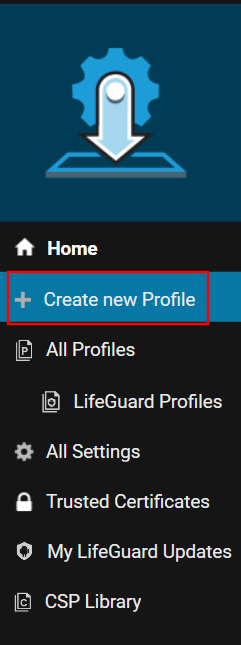
Open the StageNow application and ‘Create new Profile’.
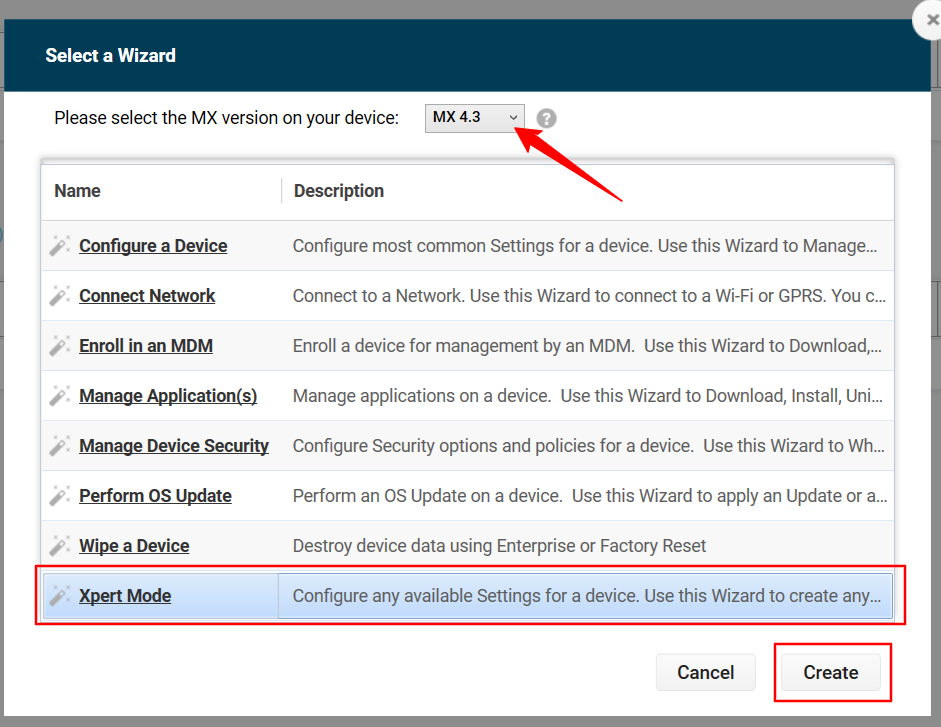
Select the required MX version based on your device's MX version.
Click the Xpert Mode, then Create.
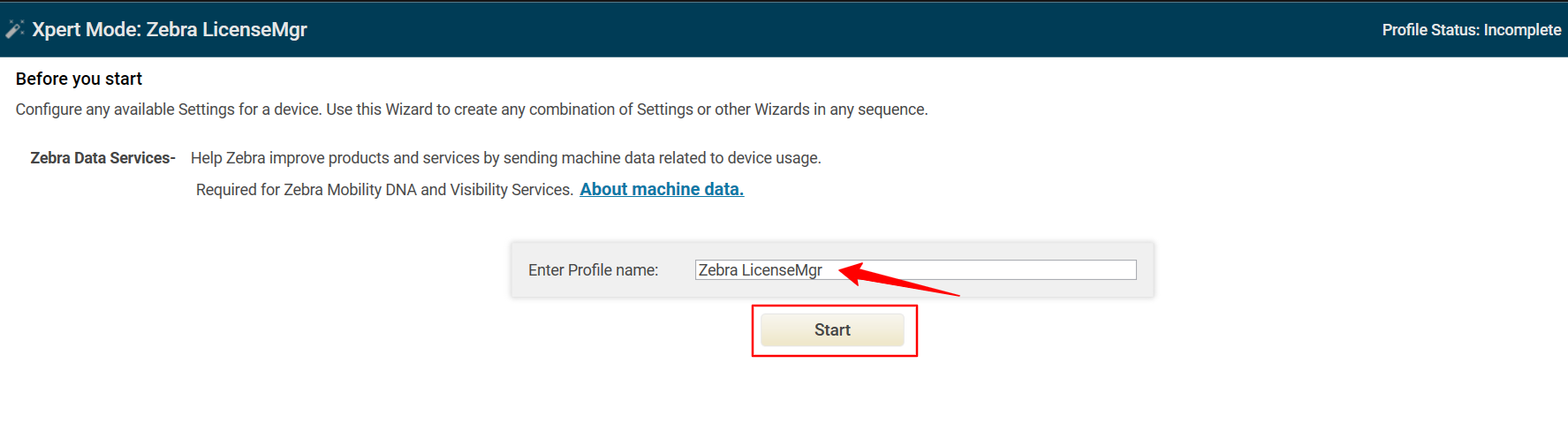
Enter the name of your StagNow Profile and click Start.
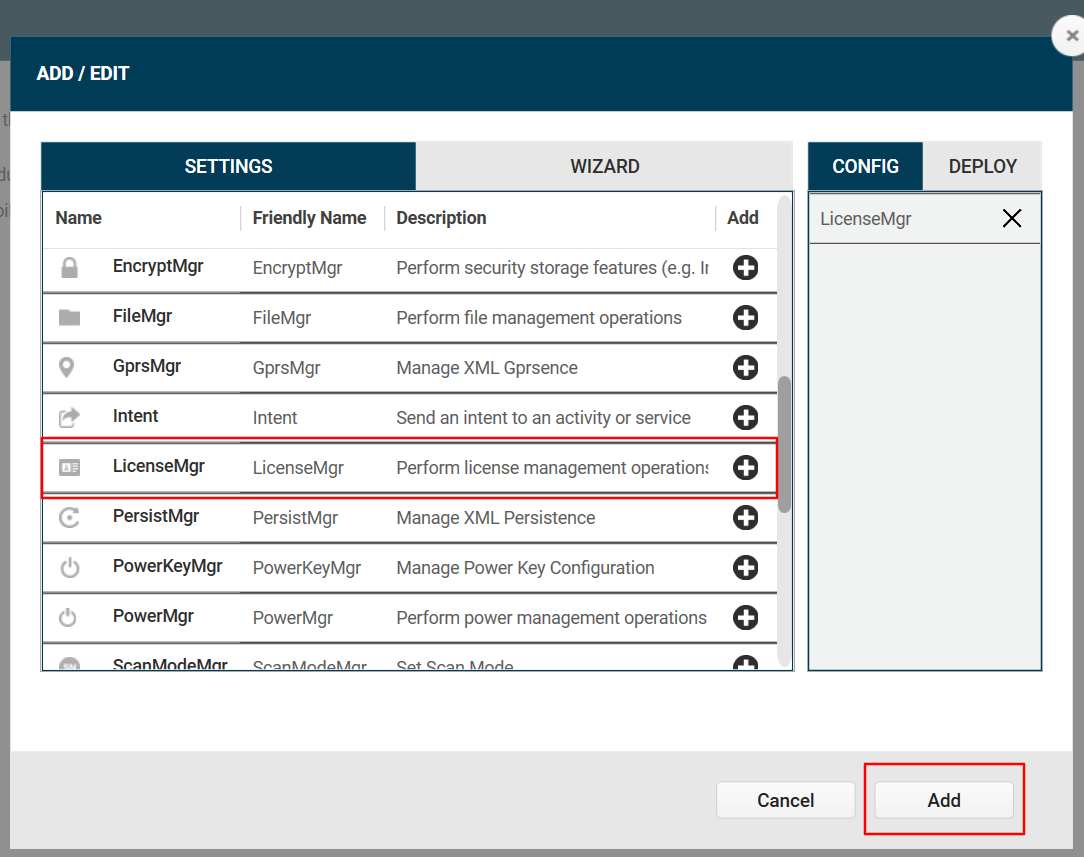
Select LicenseMgr configuration and click Add.
Enter the license details as shown in the image below.
Enter the license Activation ID in the marked section and select Quantity.
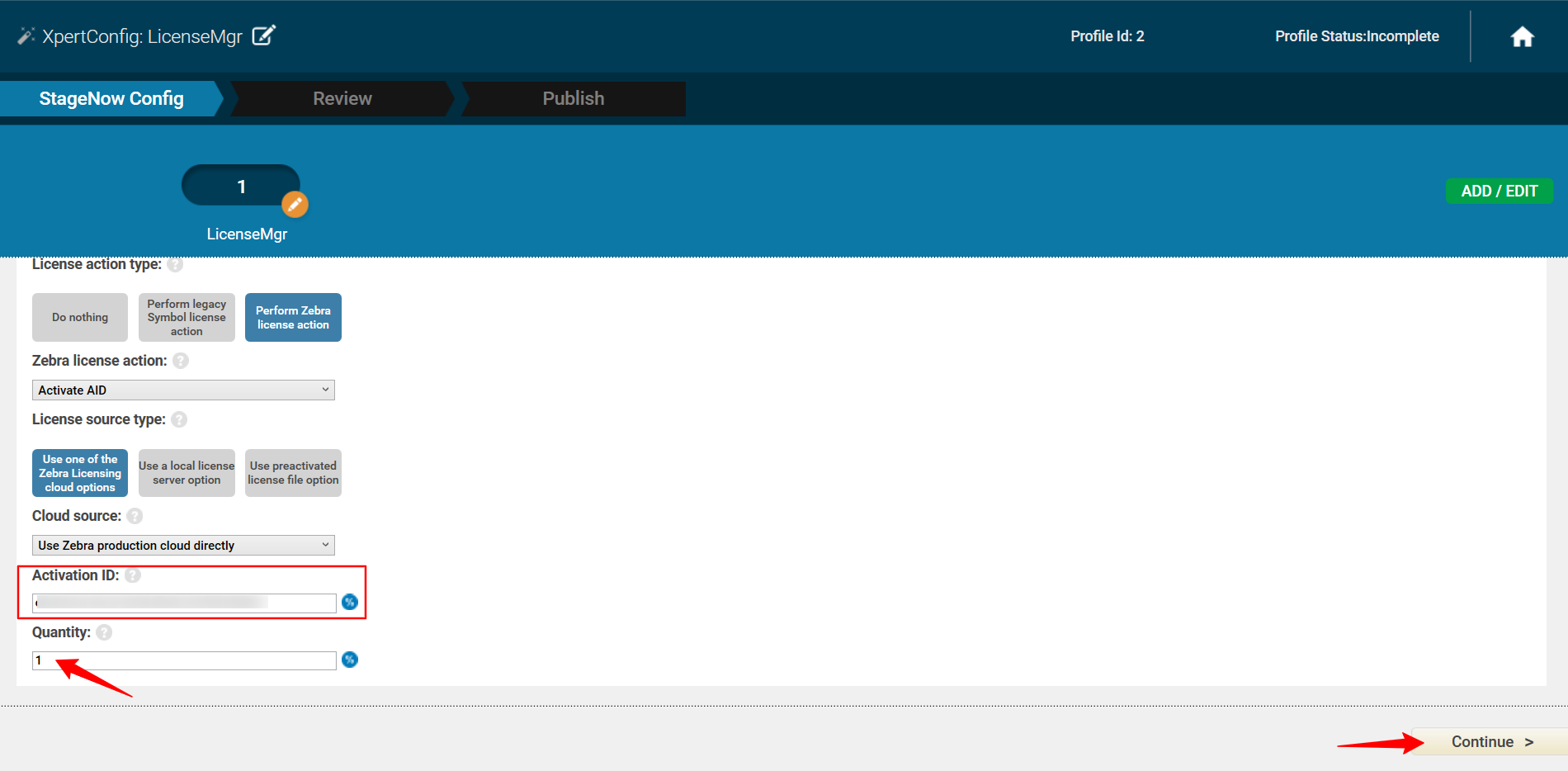
Click the Continue button, then the Complete Profiles button.
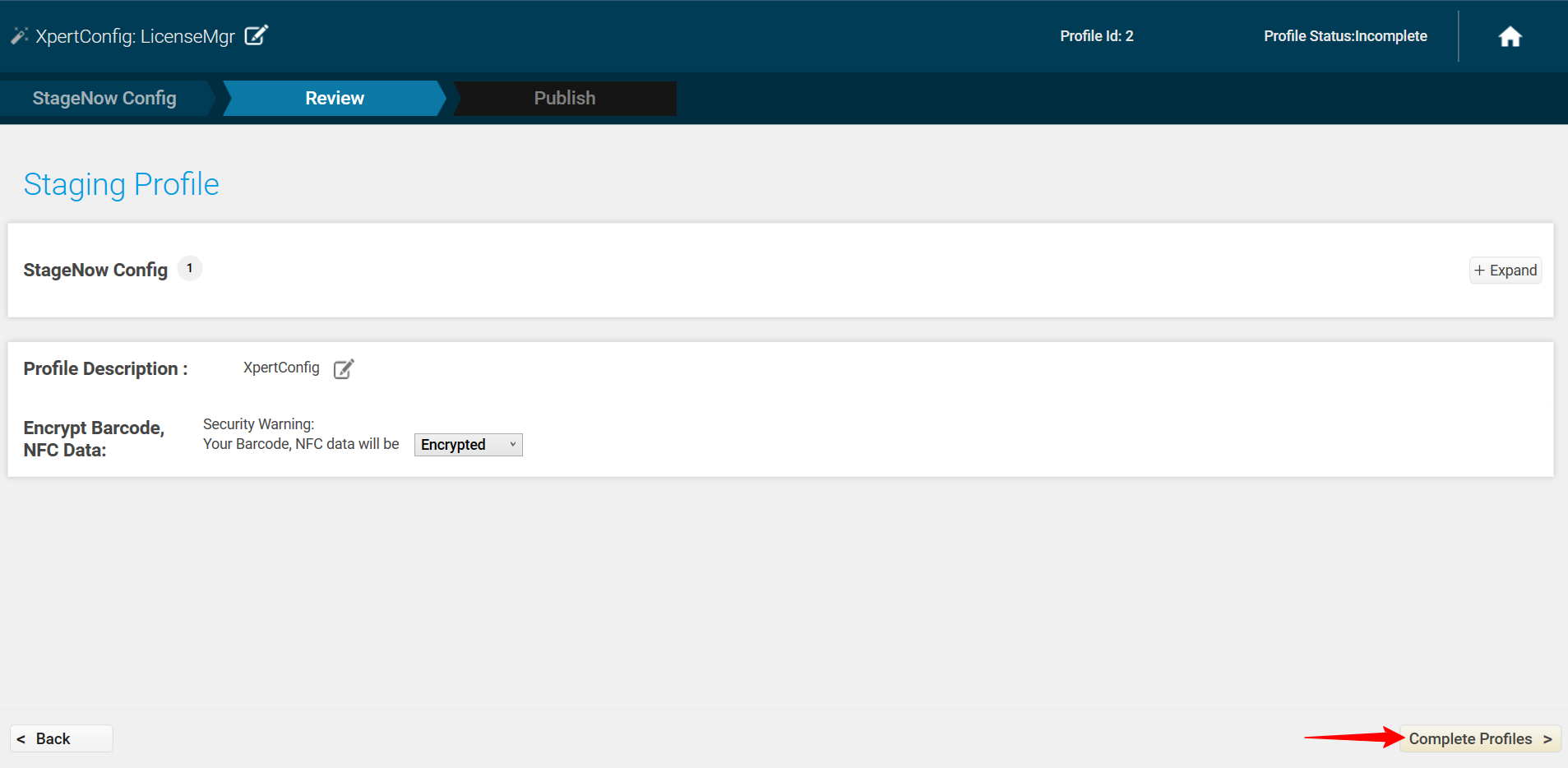
Select Export for MDM.

Deploy the XML configuration from the Scalefusion dashboard.
Step 2: Create Zebra StageNow Config Remote Command
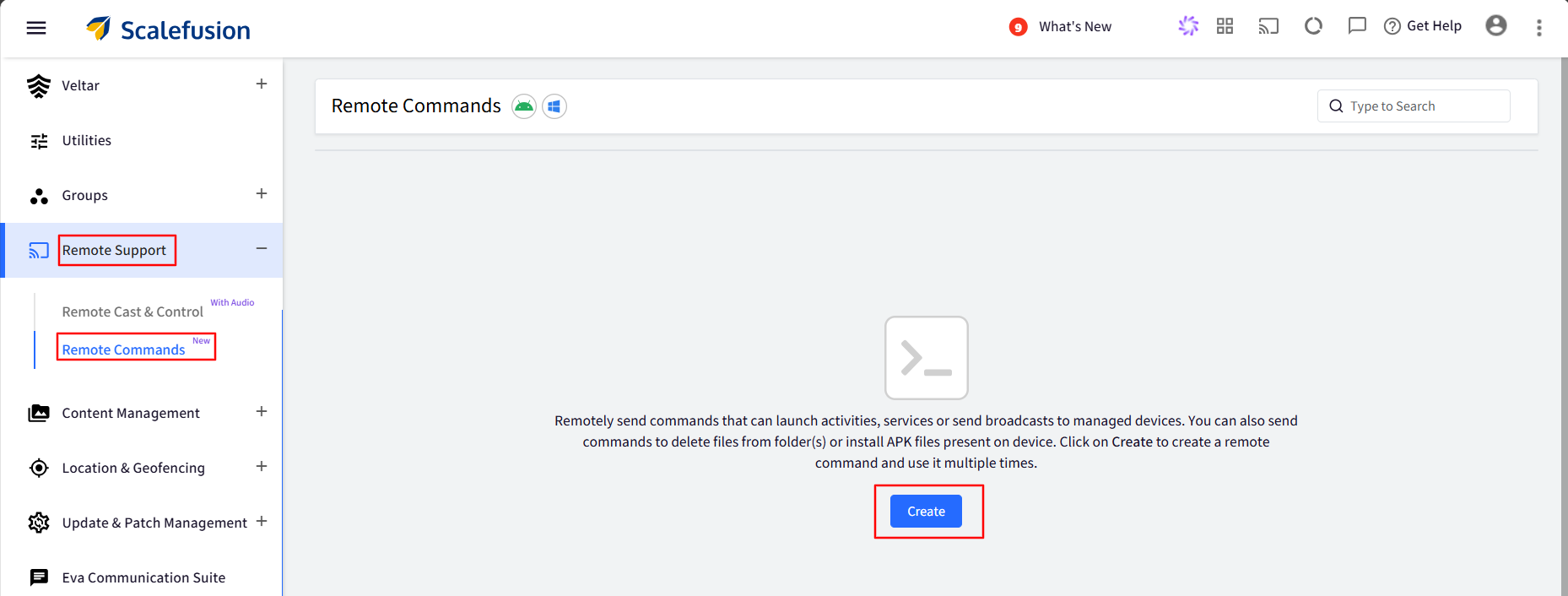
On the Scalefusion Dashboard, navigate to Remote Support > Remote Commands and click Create.
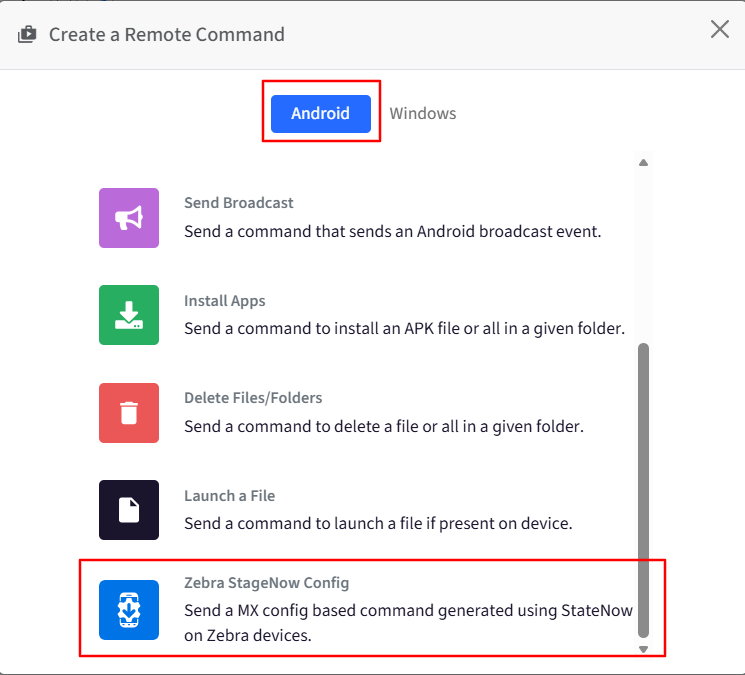
This would bring up a pop-up with a list of commands to select from. Under Android, scroll down and choose Zebra StageNow Config.
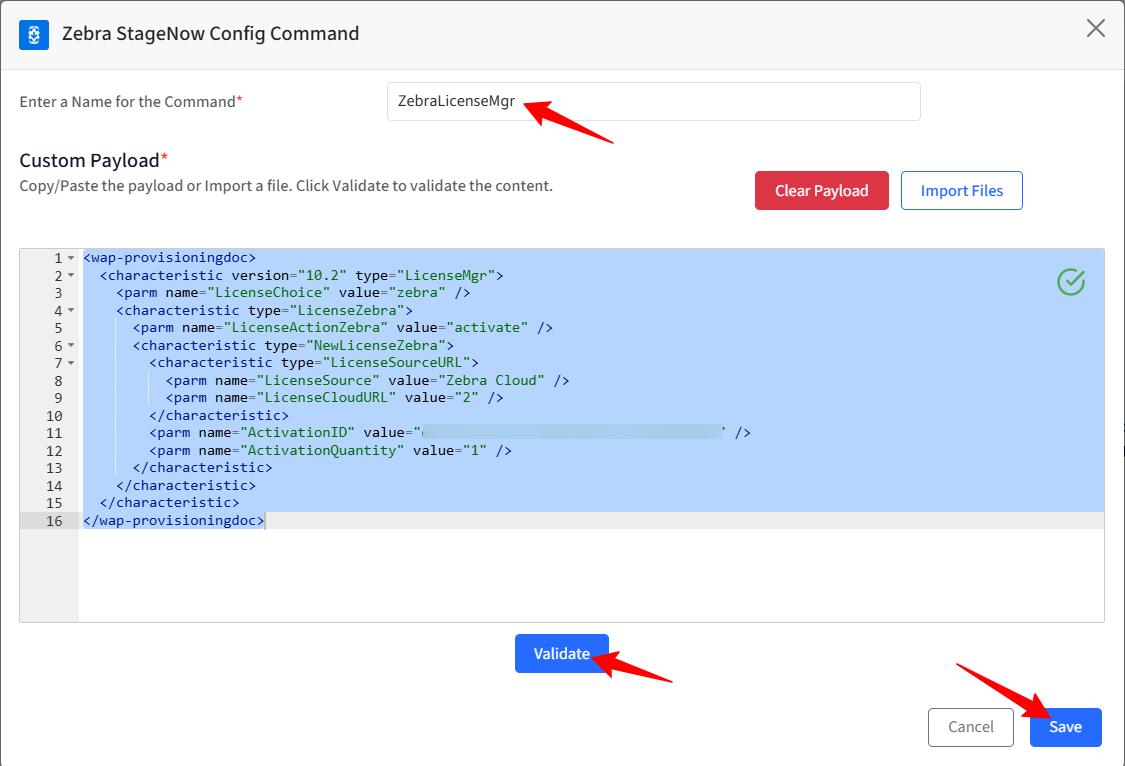
In the config creation window, enter the following:
Enter a name for the command.
Custom Payload: You can copy/paste the payload or import it.
Click Validate.
Once it is validated, click Save.
Step 3: Run the command
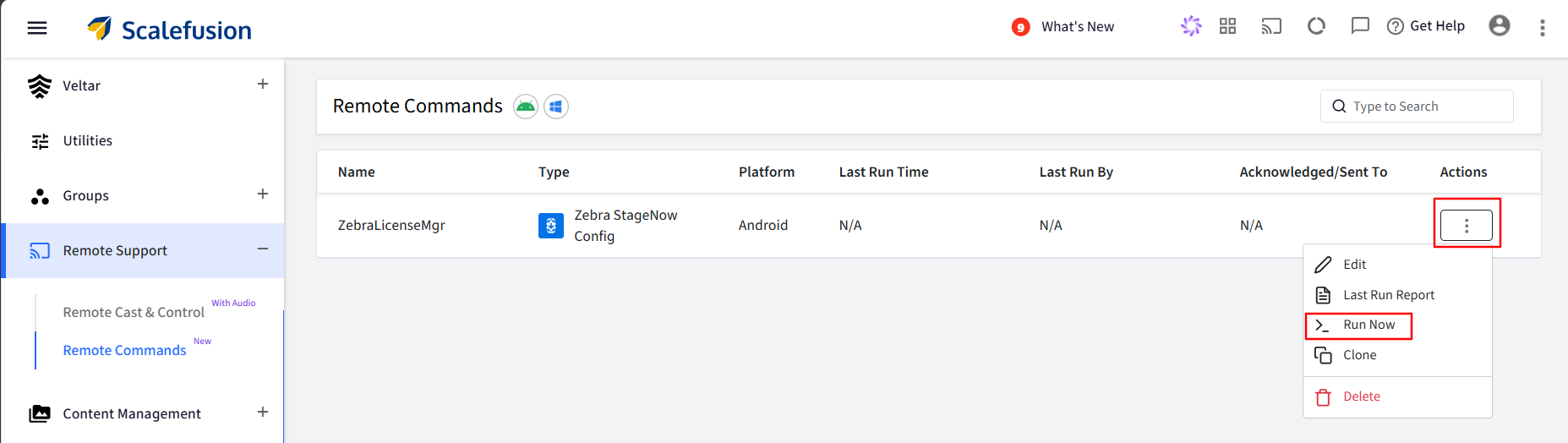
To execute this remote command on the device, run it from the Dashboard.
Click the 3 dots under the Actions column and click Run Now.
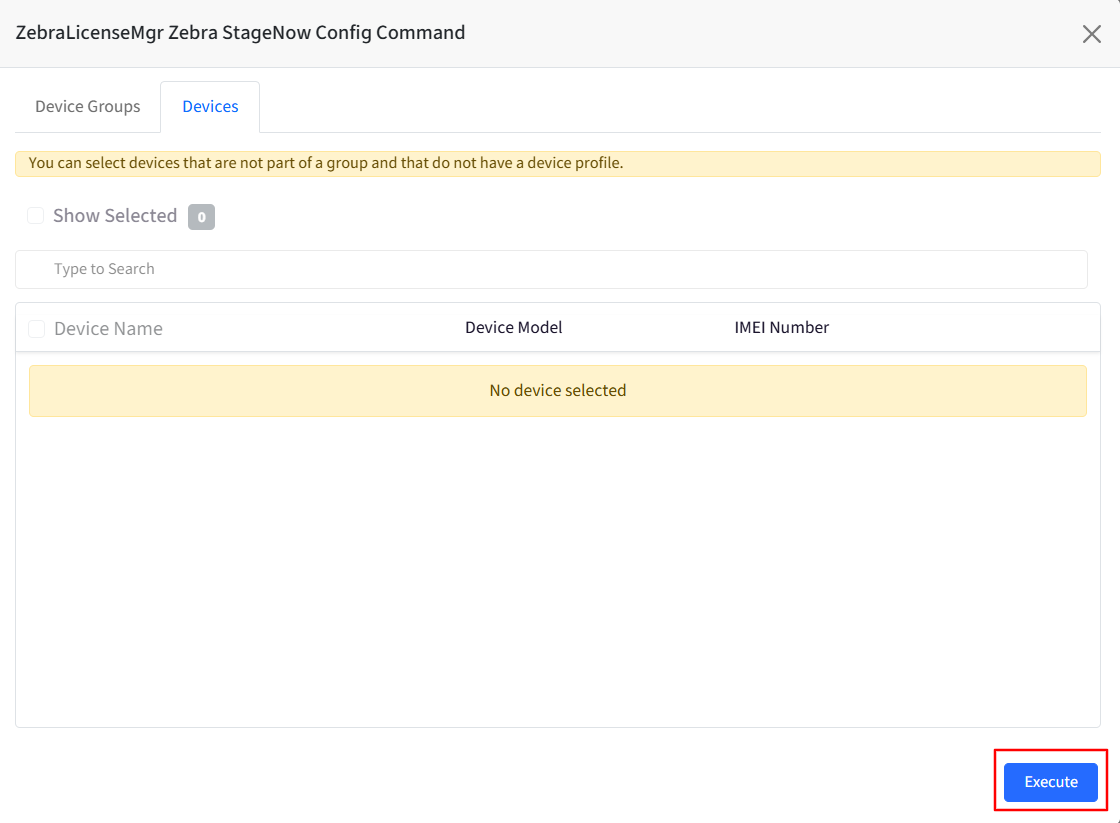
Select Device Group or Device and click Execute.
Once done, you will be able to see the Last Run time and Acknowledgment status.
Click the 3 dots under the Actions column and click Last Run Report to see the Status of the command.
If the command executes successfully, the Status will display as ‘Success’, and the Result will show as ‘NA’, as no output is returned upon successful execution.
If the command fails, the Status will show as 'Failed', and you can click on 'View Details' under Results to see the reason.