Return to Service is an Apple feature introduced in iOS/iPadOS 17 and tvOS that streamlines the process of resetting and preparing managed iPhones/iPads and tvOS for reuse. It enables IT teams to automatically erase user data and quickly ready devices for the next user by skipping setup steps such as Language, Region, and Wi-Fi selection (when a Wi-Fi profile is preconfigured). The feature also supports preserving apps for faster setup on supported Automated Device Enrollment (ADE) devices, reducing downtime and manual effort in shared-device environments.
The Return to Service feature in Scalefusion makes it easy to reset and reuse managed iOS/iPadOS and tvOS devices for shared-use environments. It securely erases user data and prepares devices for the next user with minimal setup, ensuring devices are clean, compliant, and ready to use. Let us understand how Return to Sevice feature can be configured through Scalefusion Dashboard.
Pre-requisites
The iOS/iPadOS device must be enrolled in Scalefusion and running iOS/iPadOS 17 or later.
tvOS device must be enrolled in Scalefusion and running tvOS 18 or later.
Return to Service feature should be enabled for your account.
Enabling Return to Service on Scalefusion Dashboard
Steps to Enable Return to Service via Factory Reset
Navigate to Devices and select the device for which you want to enable Return to Service
Click on the gear icon and select Factory Reset
The devices should support the factory reset action
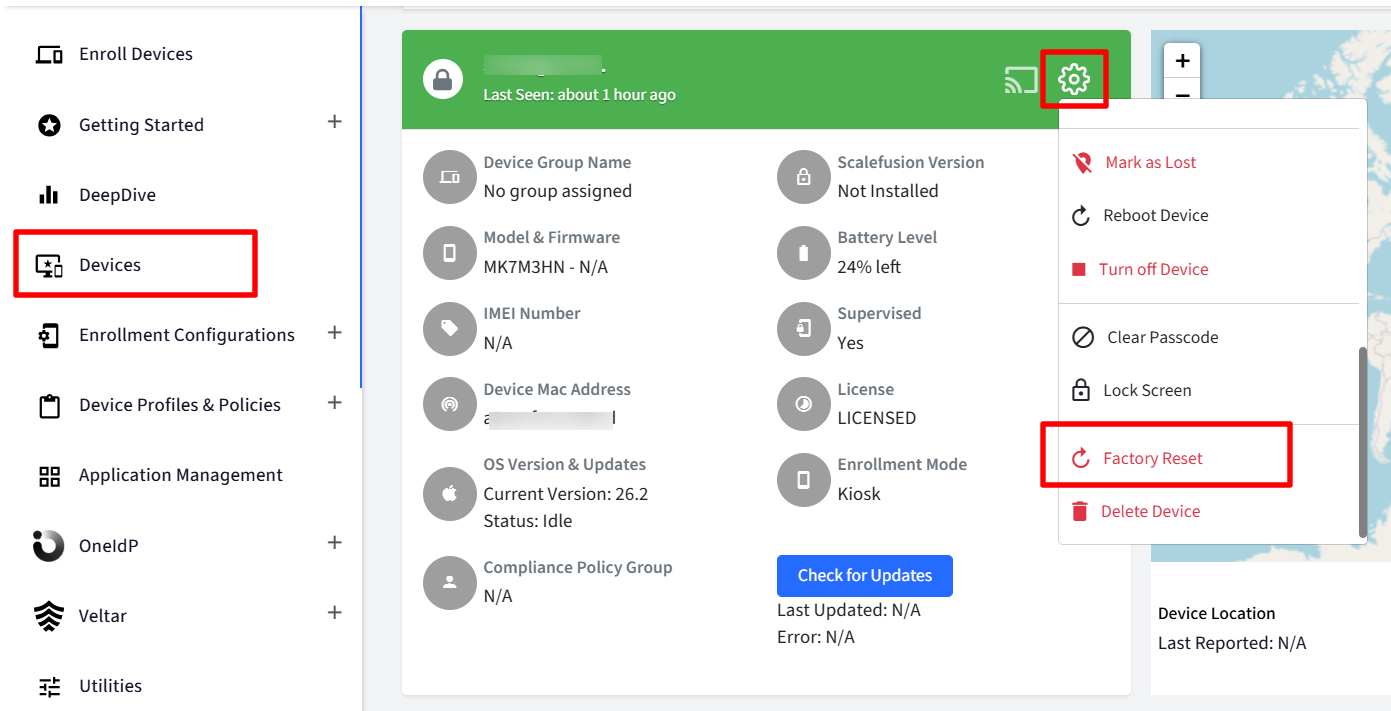
The Factory Reset dialog is displayed.
Select the checkbox Trigger Return to Service.
Target Profile: Displays the device profile which will be applied to the device during Return to Service
Select a Wi-Fi Network (Optional): If Return to Service is enabled, you can choose a Wi-Fi network to be used during device setup. Choose a Wi-Fi profile from the dropdown list. It shows a list of Wi-Fi configurations which are published on the target device profile for iOS and iPadOS devices.
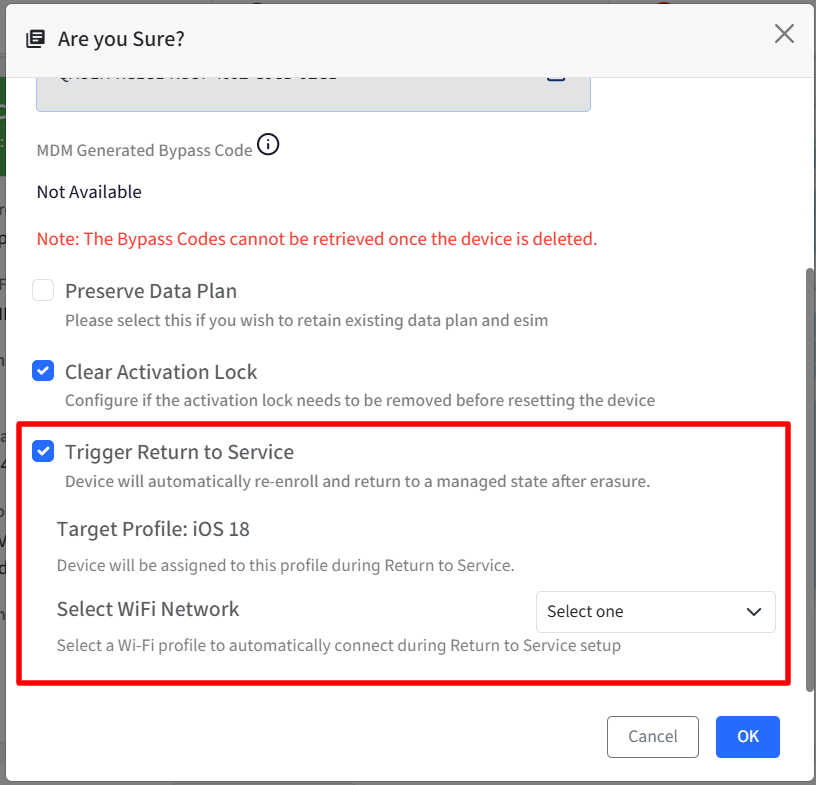
Click Ok
By completing these steps, Return to Service is successfully triggered during the factory reset, ensuring the device is securely erased, automatically reconnects to the selected Wi-Fi network if configured, and is quickly re-enrolled into management in a ready-to-use, managed state.
Configuring Return to Service During User Assignment
Navigate to Devices and select the device for which you want to enable Return to Service
Click on the gear icon and select Assign User
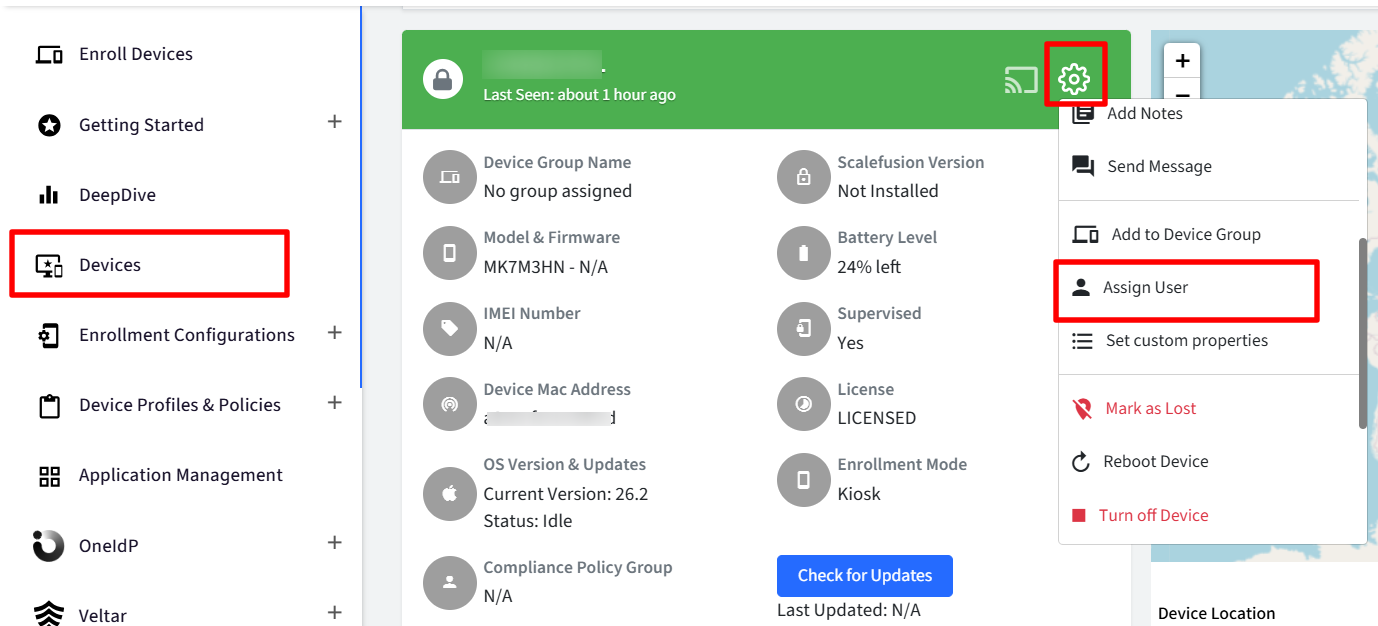
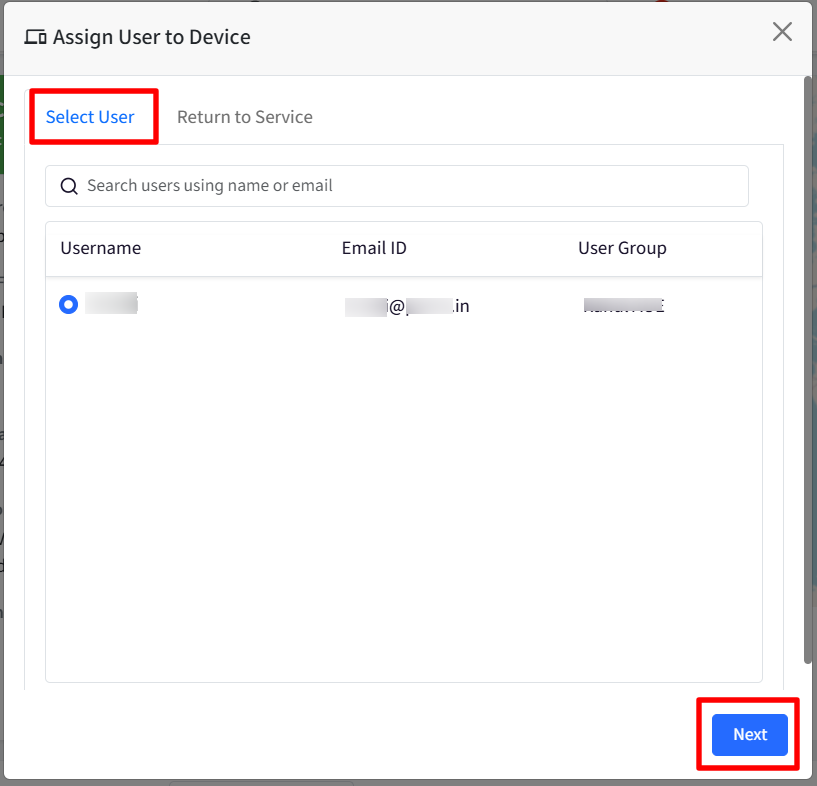
The Assign User dialog opens with two tabs:
Select Users
Return to Service
In the Select Users tab, choose the user to assign to the device and click Next to proceed to the Return to Service tab.
In the Return to Service tab, configure the following options:
Trigger Return to Service: On enabling this, device will automatically re-enroll and return to service to a managed state after erasure. Under this, you can also configure following:
Preserve Data Plan: Enable this option to keep the current data plan when the device is erased.
Clear Activation Lock: Configure whether Activation Lock should be removed before resetting the device.
Target Profile: Displays the device profile which will be applied to the device during Return to Service
Select Wi-Fi Network: Selecting a Wi-Fi profile allows the device to connect to the network automatically during Return to Service setup.
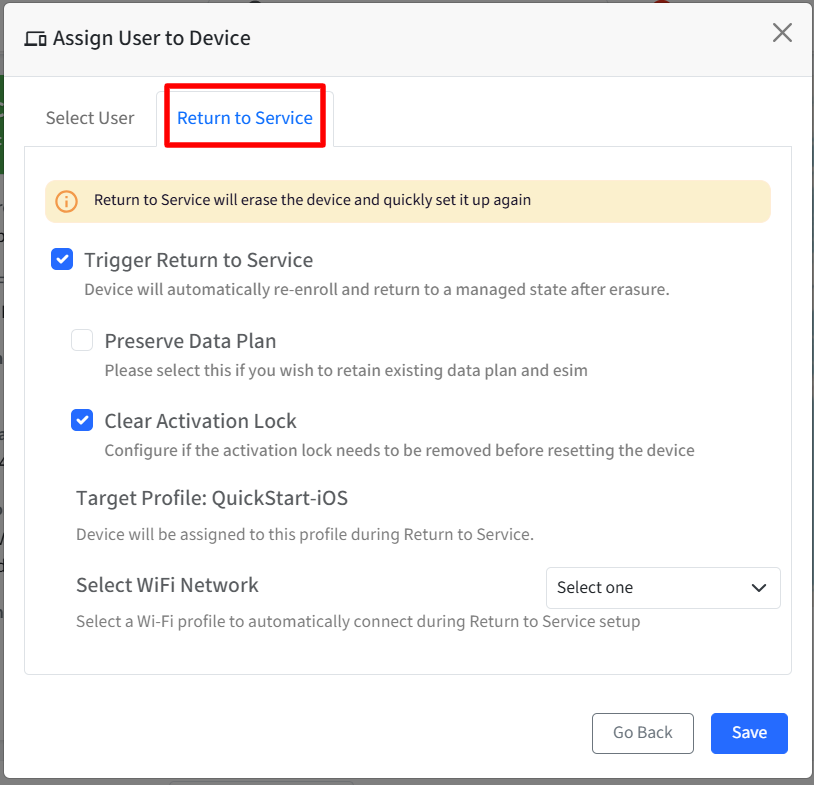
After configuring click Save.
After the process completes, the device is erased if Return to Service is enabled, automatically reconnects to the configured Wi-Fi network, re-enrolls into management, and is prepared in a managed state for the newly assigned user.
Configuring Return to Service During User Unassignment
Navigate to Devices and select the device for which you want to enable Return to Service
Click on the gear icon and select Unassign User
Configure the following options:
Trigger Return to Service: On enabling this, device will automatically re-enroll and return to service to a managed state after erasure. Under this, you can also configure following:
Preserve Data Plan: Enable this option to keep the current data plan when the device is erased.
Clear Activation Lock: Configure whether Activation Lock should be removed before resetting the device.
Target Profile: Displays the device profile which will be applied to the device during Return to Service
Select Wi-Fi Network: Selecting a Wi-Fi profile allows the device to connect to the network automatically during Return to Service setup.
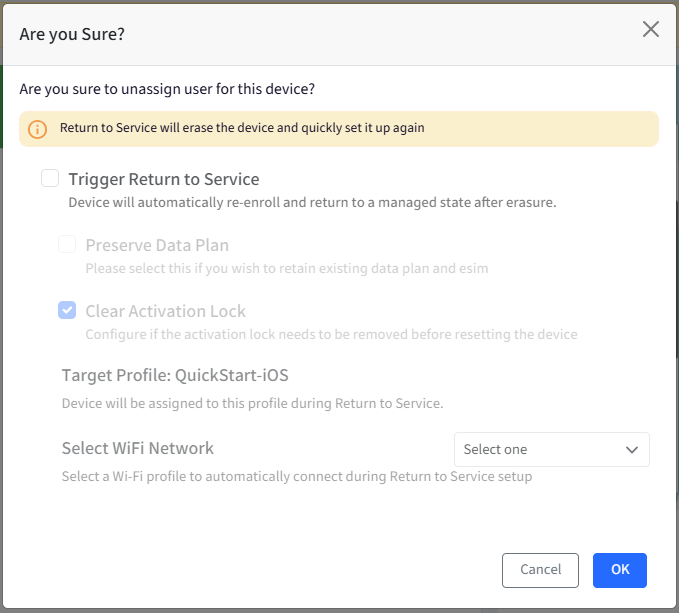
After configuring click Ok.
By completing these steps, Return to Service is successfully triggered during user unassignment, ensuring the device is securely erased, and the device automatically re-enrolls into management in a clean, ready-to-use managed state.
Device Listing and Device Details Page on Scalefusion Dashboard
When a device is reset or a user is assigned with Return to Service enabled, you will see the device’s updated state on the Device Listing page, as shown below.

On the Device Details page, the note is updated as follows when Return to Service is enabled:
Factory reset with Return to Service enabled:“This device has been factory reset with Return to Service enabled.”
User assigned with Return to Service enabled: “This device is assigned to a user with Return to Service enabled.”
User unassigned with Return to Service enabled: “This device has been unassigned from the user with Return to Service enabled.”

Preserve Apps during Return to Service
Preserve Apps during Return to Service is a feature for Automated Device Enrollment (ADE) devices that allows managed applications to remain on the device when it is reset and reassigned to a new user through Return to Service. Instead of fully removing all apps during the erase process, the device keeps eligible managed apps installed, which significantly reduces setup time and bandwidth usage.
When this feature is enabled, the ADE device is still erased and returned to a managed state, but previously installed managed apps (such as required business apps) do not need to be re-downloaded after re-enrollment.
This feature is supported on iOS/iPadOS 26 or later
To enable,
On Scalefusion Dashboard, navigate to Getting Started > Apple Setup > ADE/DEP section
Click on Configure Device Settings under the ADE server
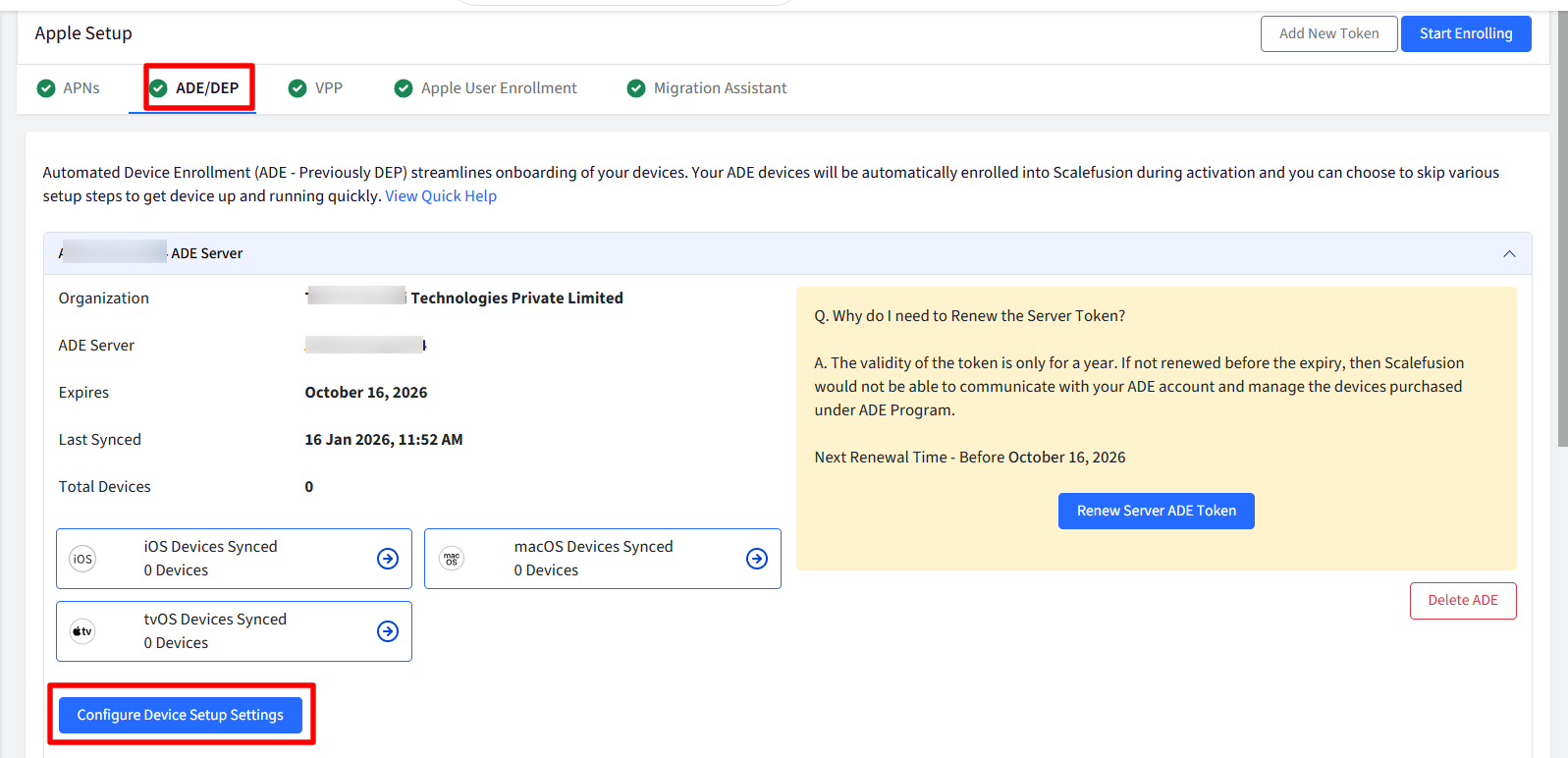
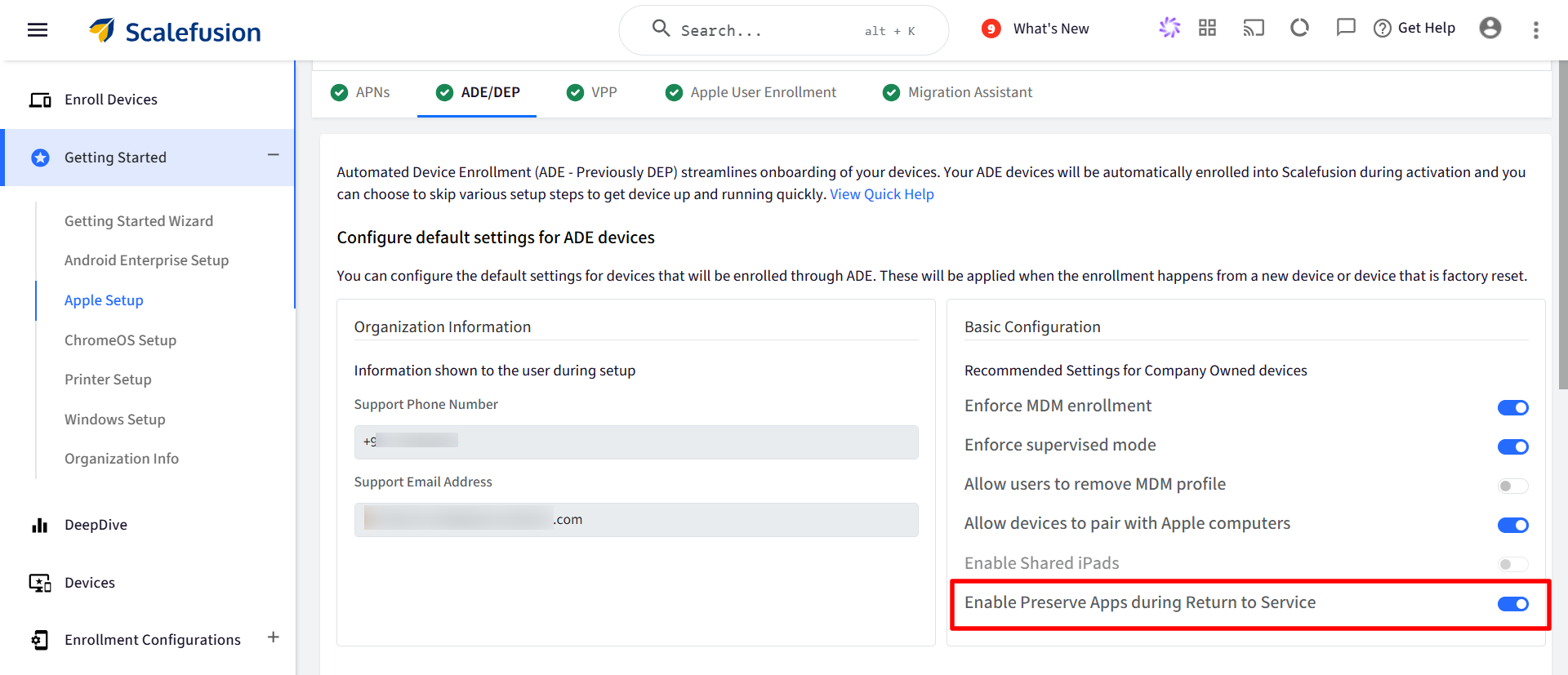
Under Basic Configuration you will find the following setting:
Enable Preserve Apps during Return to Service: Enable this if you want to preserve the previously installed apps on the device.
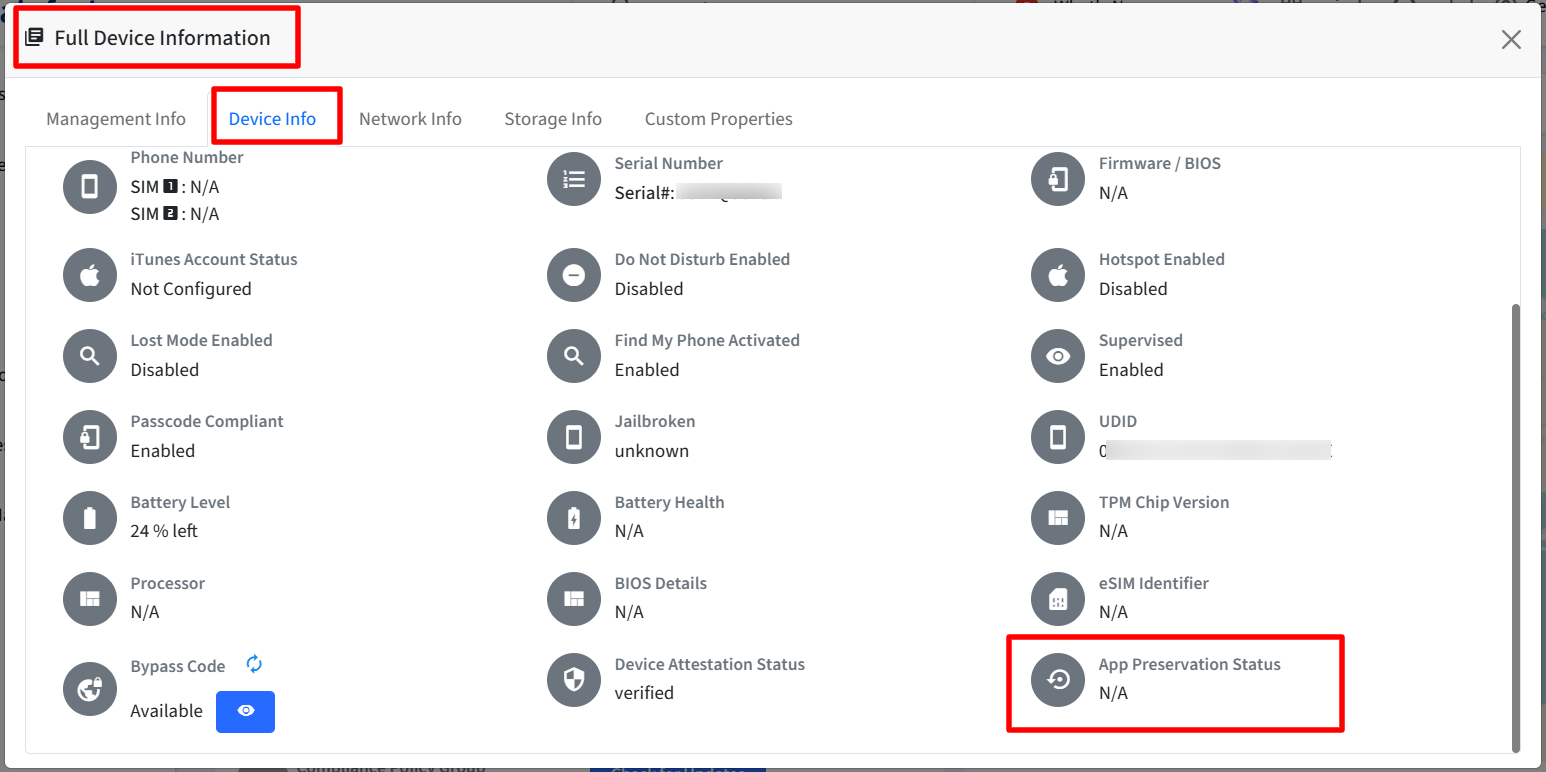
App Preservation Status
App Preservation Status indicates whether a device is ready to preserve apps during the Return to Service (RTS) process. You can find App Preservation Status in the Full Device Info > Device Info section of an eligible iOS or iPadOS device. The App Preservation Status can display one of the following values:
Status | Description |
|---|---|
N/A | The device is not eligible for app preservation. This may occur if the iOS or iPadOS version is not supported. |
Pending Bootstrap | The bootstrap token has not yet been synced with the backend. |
Pending Snapshot | An application snapshot has not yet been taken, that is, if Bootstrap token is fetched and device is not erased with RTS ON in order to create a snap shot. |
Ready | The application snapshot has been successfully taken, and the device is ready for app preservation during Return to Service. |
FAQs
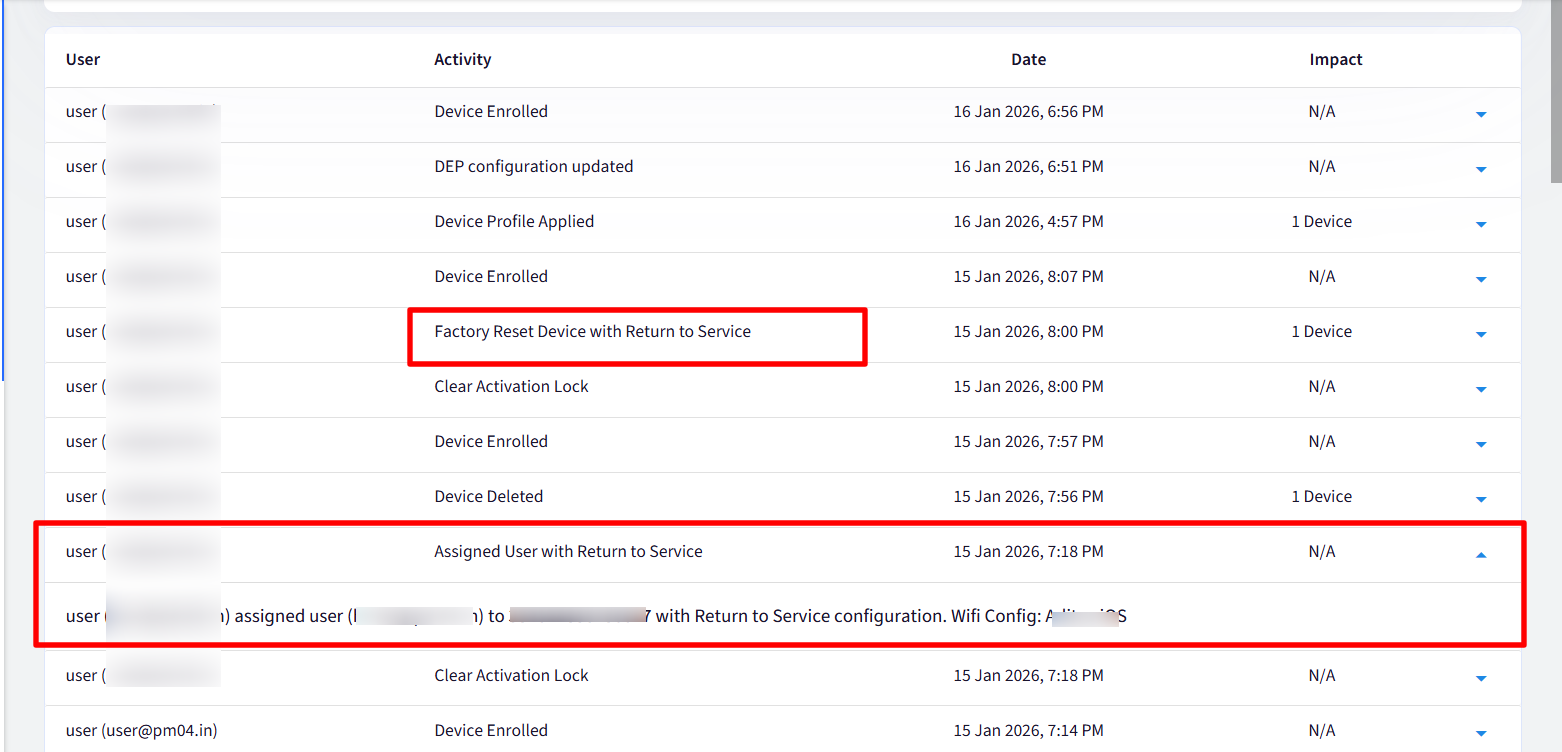
Where can I view logs for user assignment actions, including Return to Service?
You can view these logs in the Account Activity Report. For example, when a user is assigned to a device with Return to Service enabled, the action is recorded in the report and indicates that Return to Service was applied during the assignment.
Known Behaviors
For a seamless Return to Service experience, Activation Lock must be cleared and user-authenticated enrollment should be disabled.
If the device management service installs managed apps after the device takes its snapshot, those apps will not be preserved in the next Return to Service cycle with app preservation enabled. To ensure preservation in subsequent cycles, the device management service must reinstall those apps, allowing the device to download them again and include them in the new snapshot.
When app preservation is enabled, the device disables both automatic and user-initiated software updates while the Return to Service with app preservation state is active. This is because any OS updates would be reverted when the device restores the snapshot taken.