Passkeys provide a faster, more secure way to sign in without entering a password. Once enabled by your organization and registered on your account, a passkey can be used to authenticate using a trusted device, biometric verification (such as fingerprint or face recognition), a PIN, a security key, or a supported password manager.
This article explains the registration process, supported registration methods, sign-in experience, and known limitations of passkey authentication in OneIdP.
Before You Begin
Passkey settings should be enabled for your Directory (from Directory Settings)
How Passkey Registration Works
Enter your OneIdP credentials on the respective SSO Application or User Portal, and sign in.
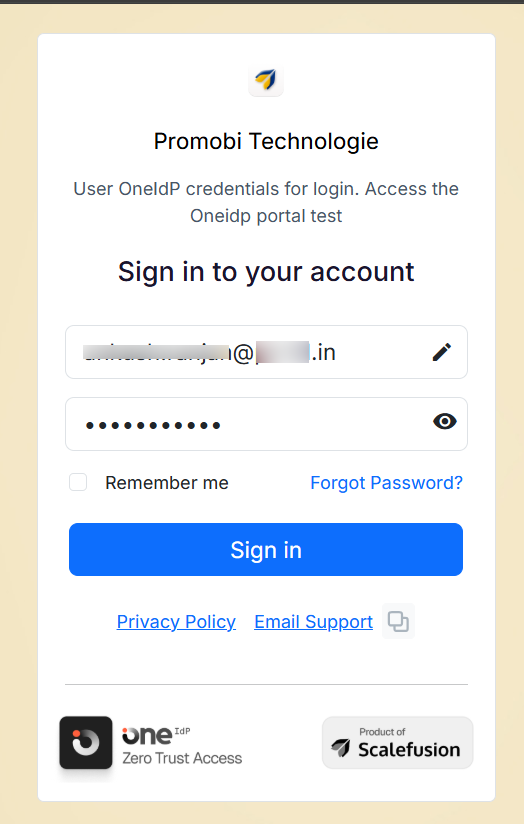
To register, complete any required authentication steps, such as:
Password verification
Managed device verification
One-time password (OTP) verification
Other configured sign-in requirements (Compliance etc.)
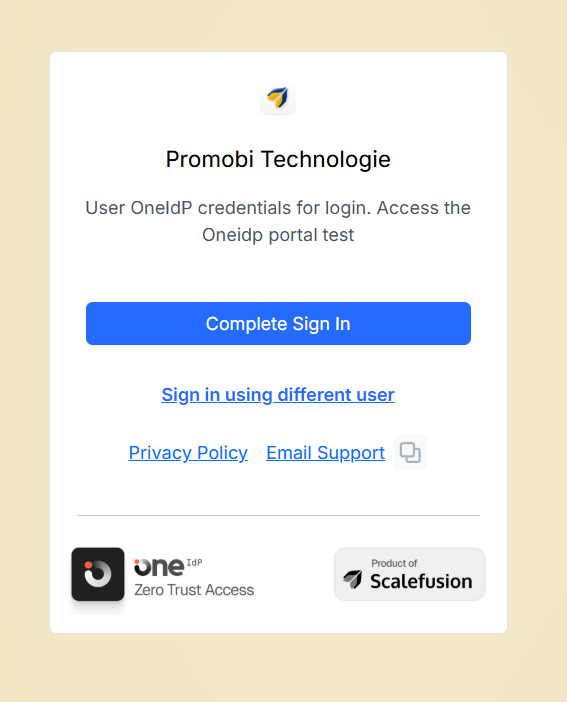
After the required verification steps are completed, you will see a prompt to register a passkey. You can choose one of the following:
Set Up a Passkey: This will prompt you to register a passkey (explained below).
Skip for Now: This will allow you to continue signing in without registering a passkey using your existing authentication requirements. You can register a passkey during a future sign-in when prompted.
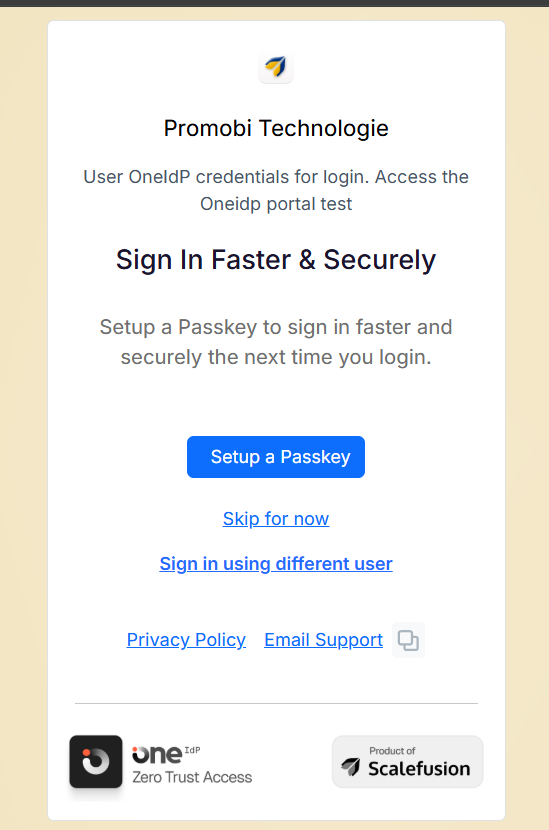
Setting Up a Passkey
When you select Set Up a Passkey, your browser or device (based on platform) will display a passkey registration prompt.
Depending on your device and organization settings, you can register a passkey using:
Windows: A built-in authenticator such as fingerprint, face recognition, or device PIN
iPhone, iPad or Android: This option requires scanning a QR code with your phone or tablet. When prompted, tap Use passkey or use the QR scanner on your device. If you choose to save the passkey on your phone or tablet, Bluetooth pairing may be required to verify the device.
Security key: You will get a prompt to insert the key in the device and set up key
Password Manager: You can store your passkey in Google Password Manager or any other credential manager that supports syncing.
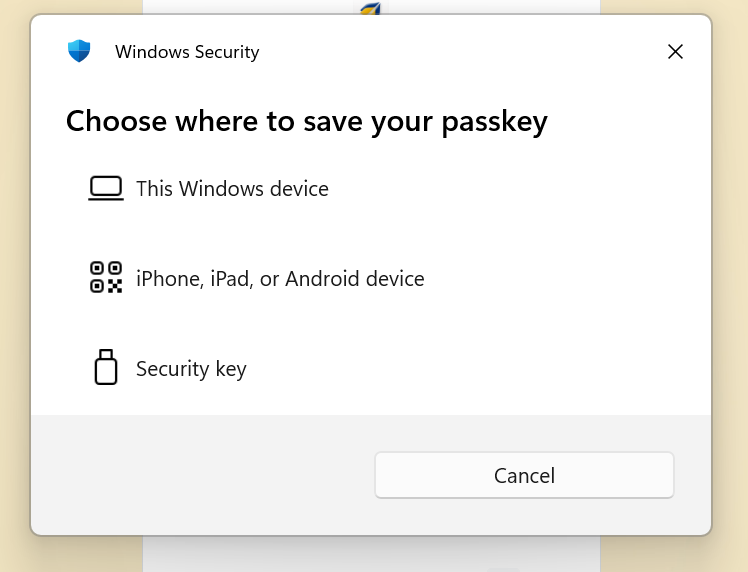
Follow the on-screen instructions to complete registration.
End User Experience
Here is how you can login using passkey (with security key):
Enter OneIdP credentials and click Continue

Click on USB security key
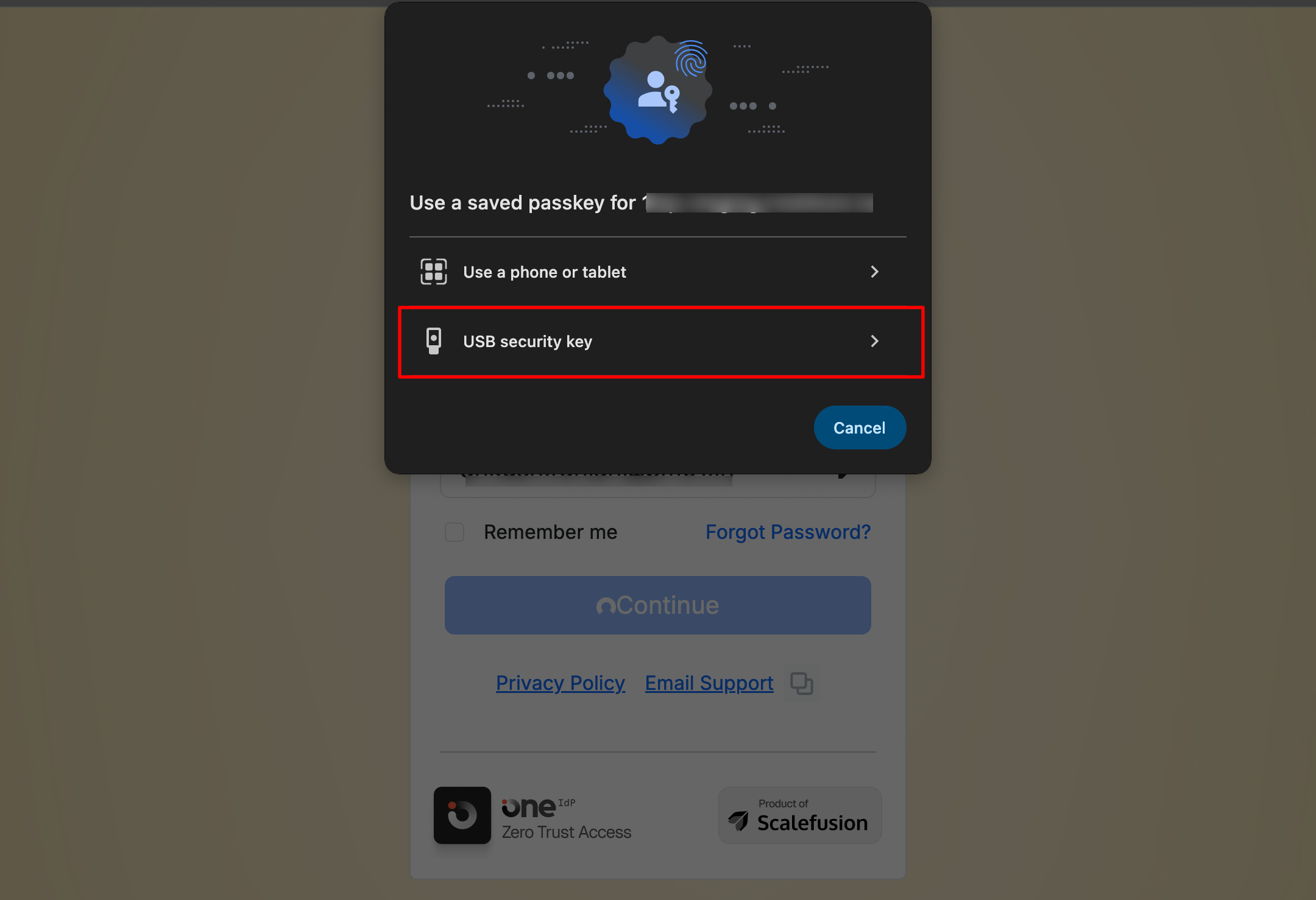
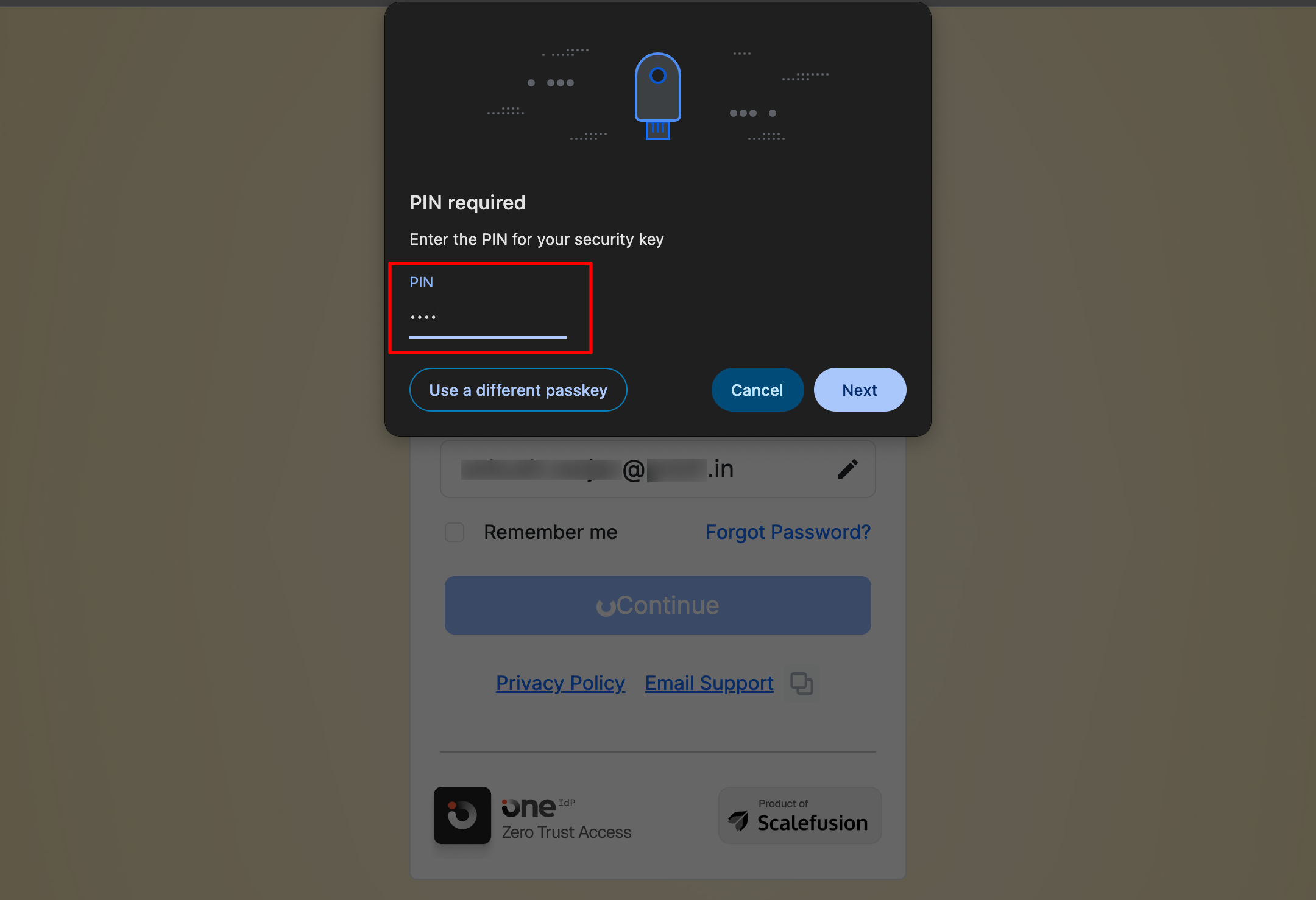
Next, you will get a prompt to enter the PIN after inseting the security key in the USB port of your device. Enter PIN and click Next
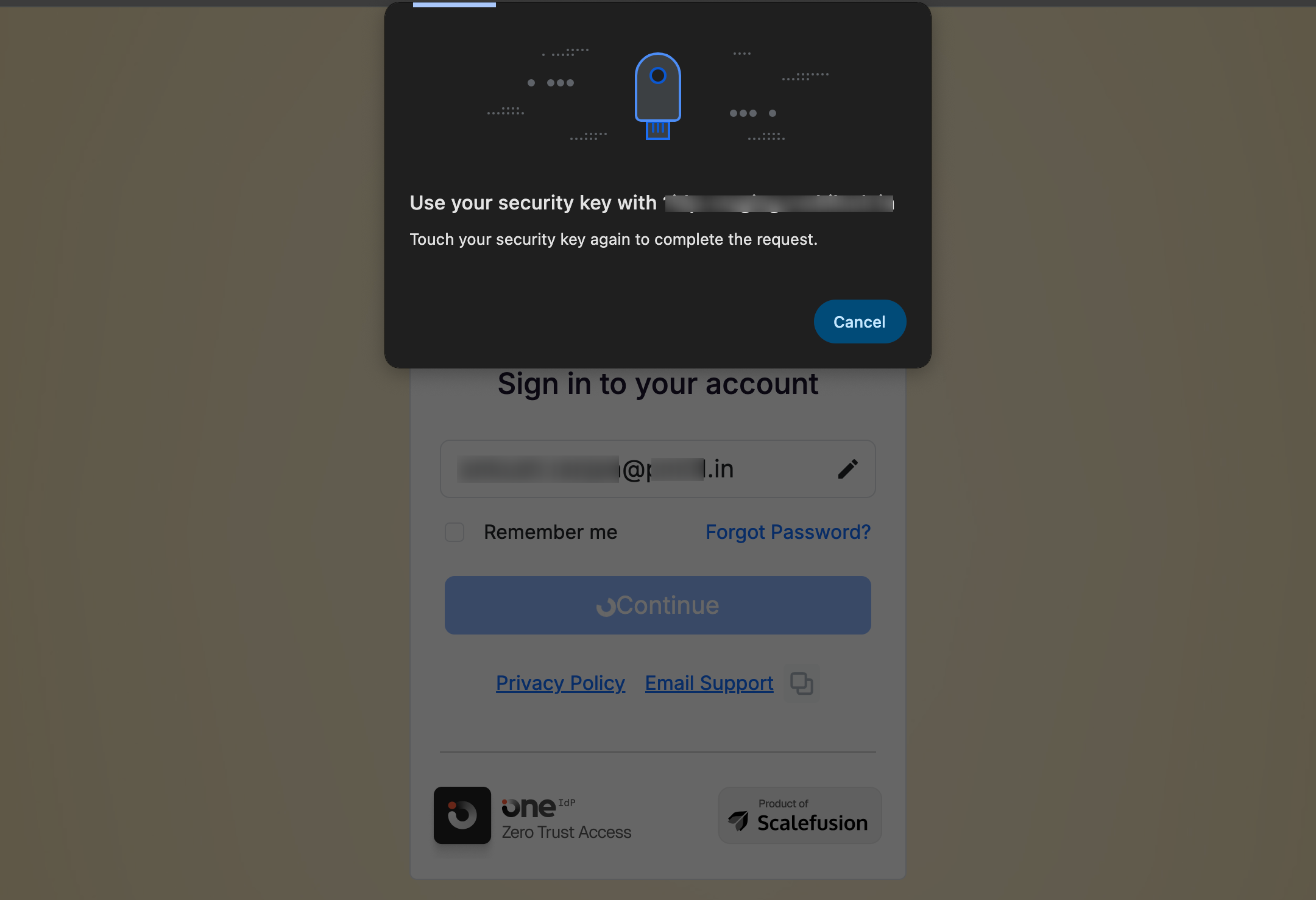
Next, you will get the following screen. Touch on the security key device to complete request.
Once verification is complete, click on Complete Sign In. At this stage, compliance checks take place.

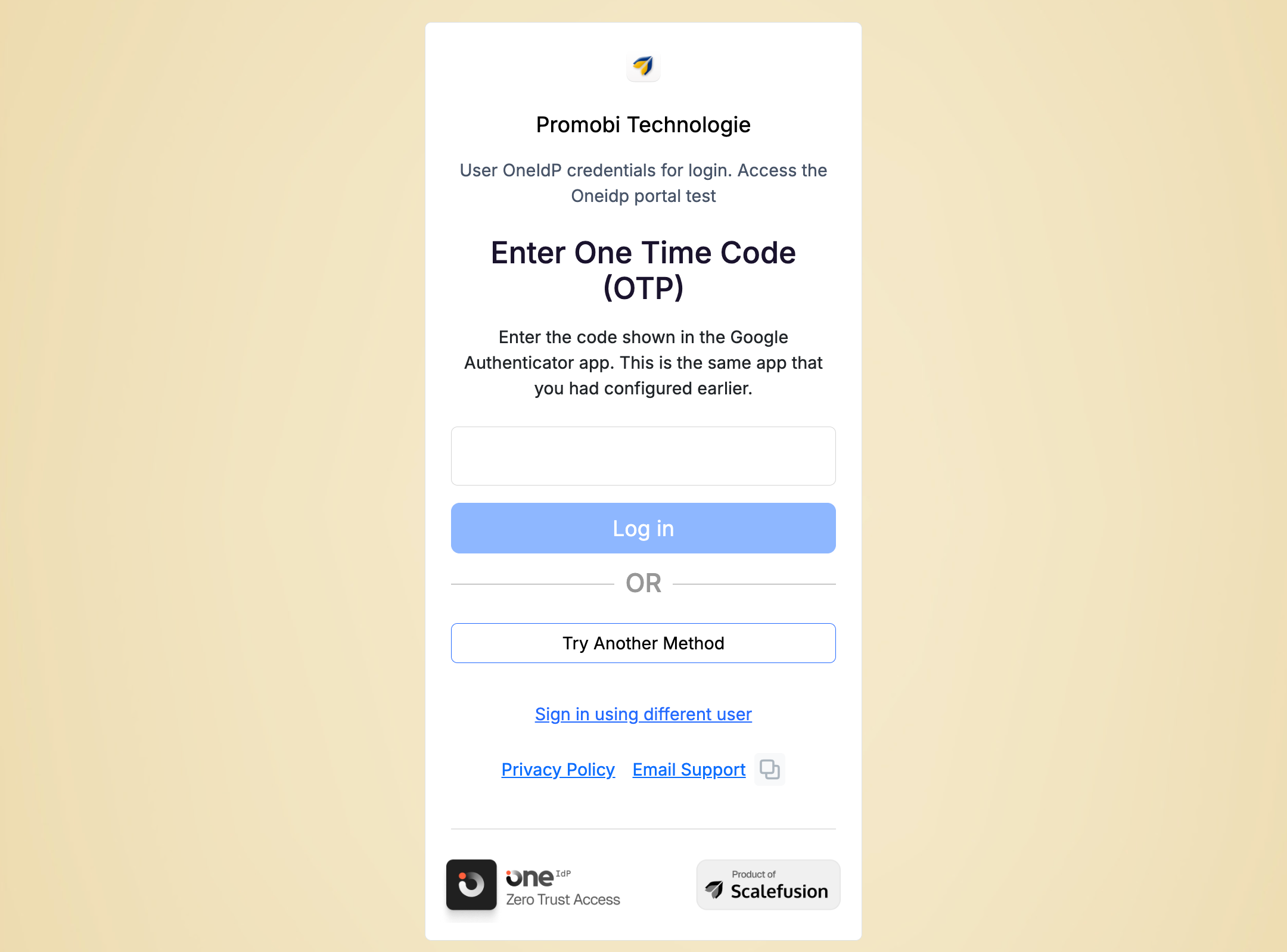
Enter the OTP you have received in the authenticator app and click LogIn
Known Behaviors
Passkey authentication is not currently supported in most native applications.
Users cannot register a passkey on Windows devices when both Keycard and Just-In-Time (JIT) provisioning are enabled.
Passkey registration using NFC on Android devices is currently not supported. However, NFC-based passkey authentication works as expected for previously registered passkeys.
Users can continue to sign in using a registered passkey even when a different Identity Provider (IdP) is configured for authentication.