The Hardware Inventory feature in Scalefusion helps IT administrators gain clear and reliable visibility into the hardware configuration of managed Windows devices. It captures detailed information about built-in and connected components enabling IT administrators to maintain accurate asset records, simplify compliance audits, and make informed decisions for infrastructure planning and reporting.
In addition, IT administrators can stay informed of any hardware changes through timely notifications delivered via email, dashboard alerts, or other supported channels. These alerts cover events such as the addition or removal of components and the connection or disconnection of USB devices.
This article explains how hardware information is collected and displayed on the Scalefusion Dashboard, along with the available workflows, notifications, and reports that help you monitor hardware changes effectively across your device fleet.
Pre-Requisites
Scalefusion MDM Agent’s (agent app for Windows) latest version (v16.8.0 or above) should be installed on Windows Devices
You should be subscribed to Enterprise 2025 or Scalefusion360 licence
Supported OS:
Windows 10, 11: Pro, Home, Education
Windows server 2019 and above
Overview
Once a Windows device is enrolled and the Scalefusion agent is authenticated, the Hardware Info feature automatically begins collecting hardware details from the device.
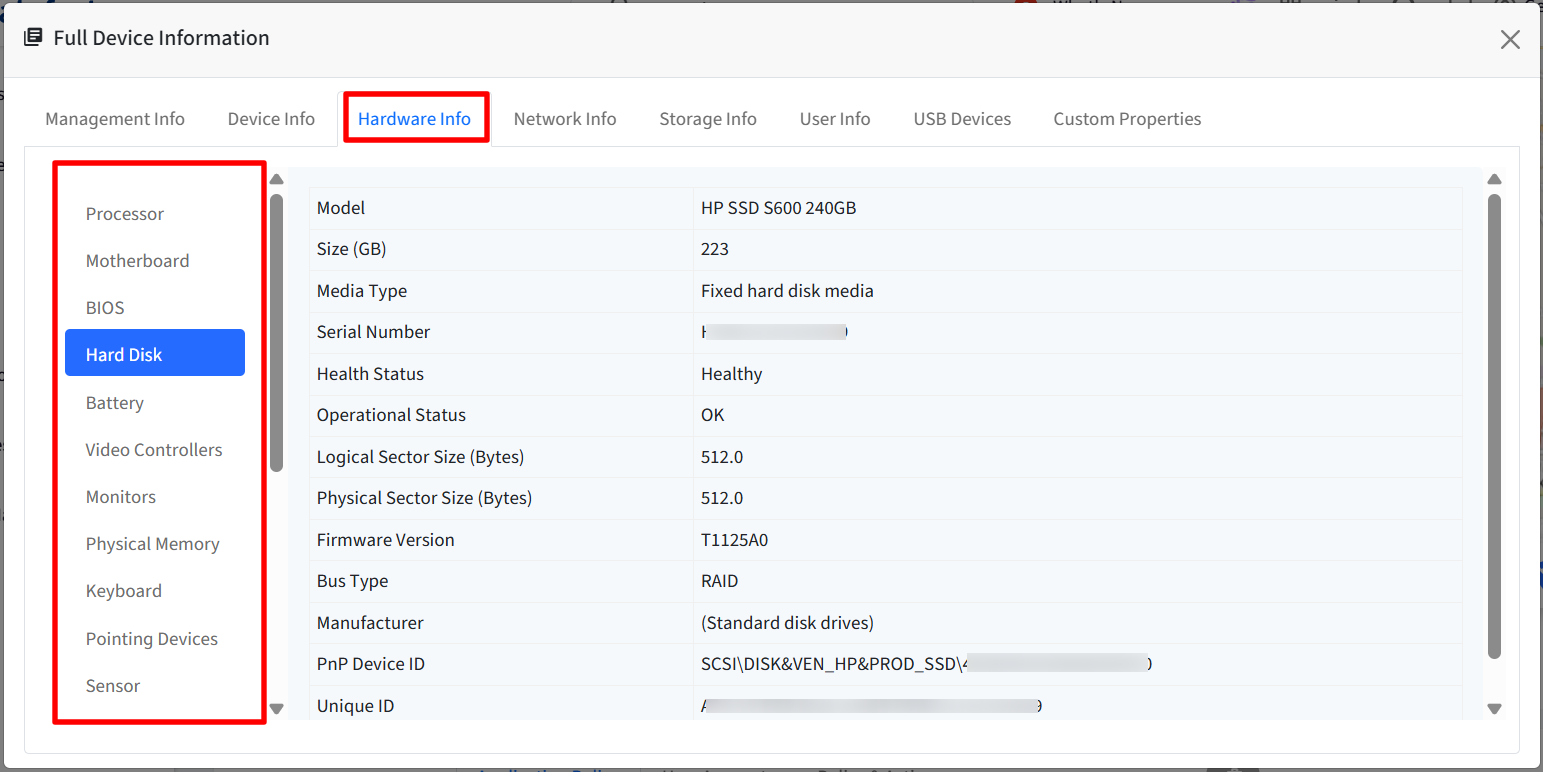
You can view details for 19 hardware components such as the processor, motherboard, BIOS, and hard disk under Full Device Info → Hardware Info.
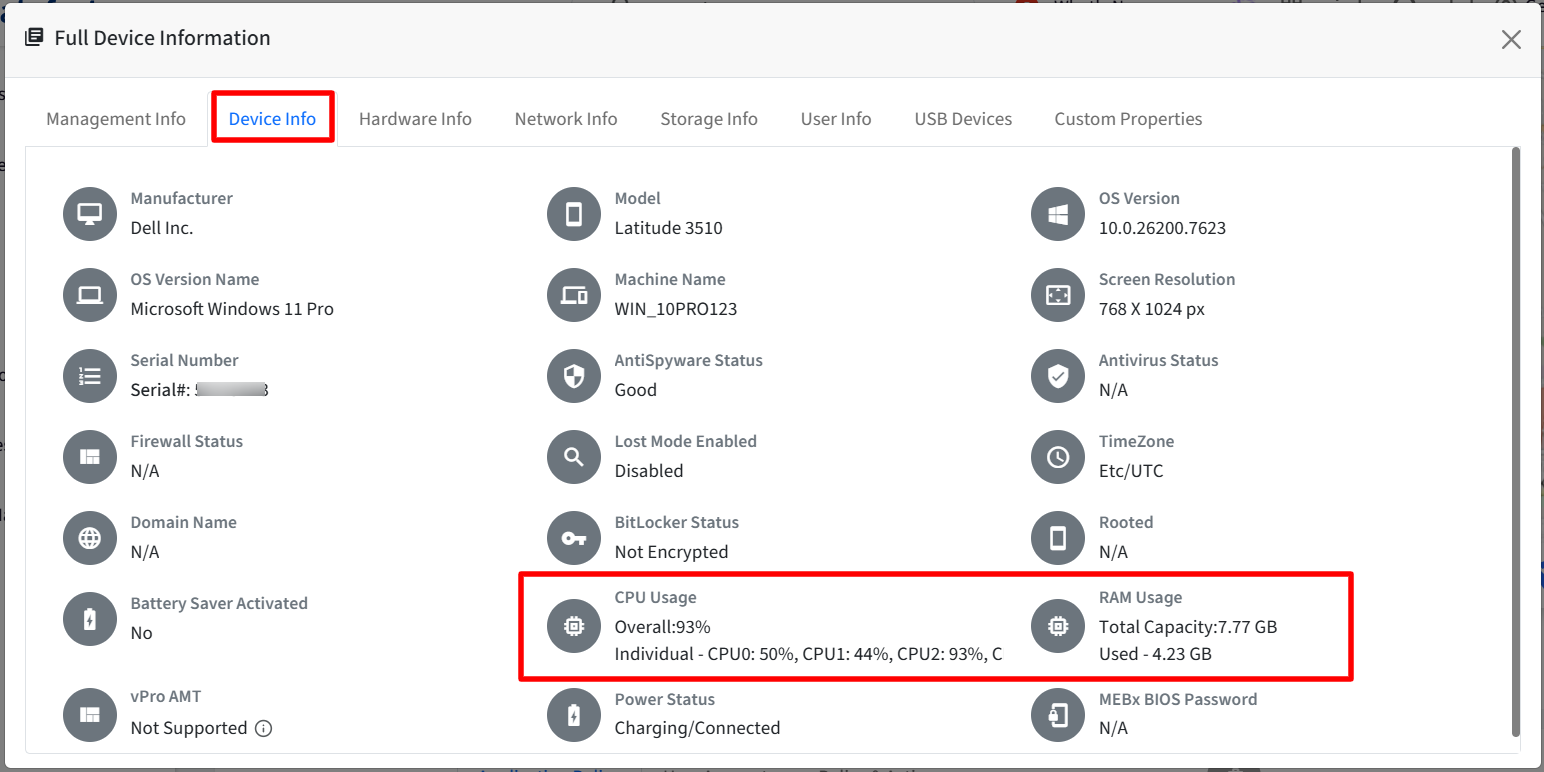
CPU usage and RAM usage are displayed under Full Device Info → Device Info.
Only physical hardware components are included in the hardware inventory. Virtual components (for example, Hyper-V virtual adapters) are not reported.
Workflow reports capture hardware changes only when a component is added or removed since the last full device info sync. If no change is detected, the workflow report will not be generated for that particular device.
The Extended Hardware Insights report provides detailed insights into the hardware components connected to your managed Windows devices.
Steps to View Hardware Info
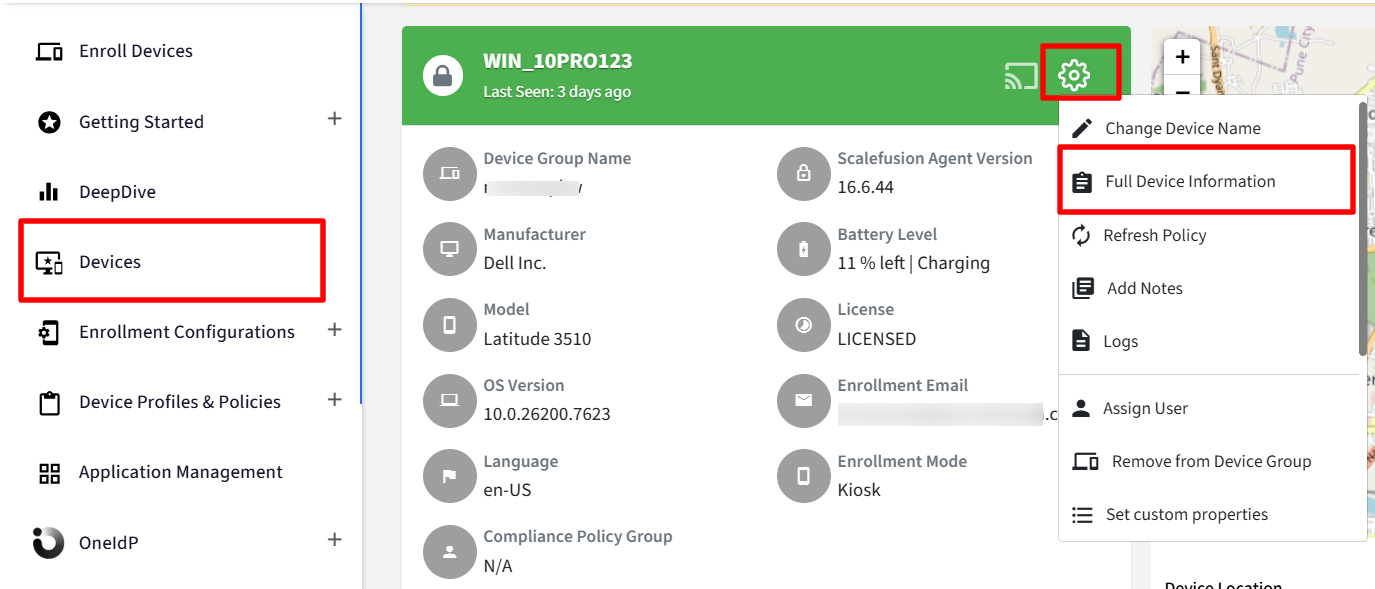
On Scalefusion Dashboard, navigate to Devices and click on the device for which you want to view Hardware Info.
On Device details, click on the gear icon > Full Device Information
Click on the Hardware Info tab. All the hardware information is listed under separate tabs.
On selection of a particular Hardware type, right side pane will display all properties of that hardware. As for example, selecting hard disk will display all hard disk related details on the right panel.
Under Device Info tab, you can view CPU usage and RAM usage
Hardware Change Compliance Workflow
By configuring this workflow you can set a schedule to receive notifications when there is a hardware change (addition or removal)
How to Create
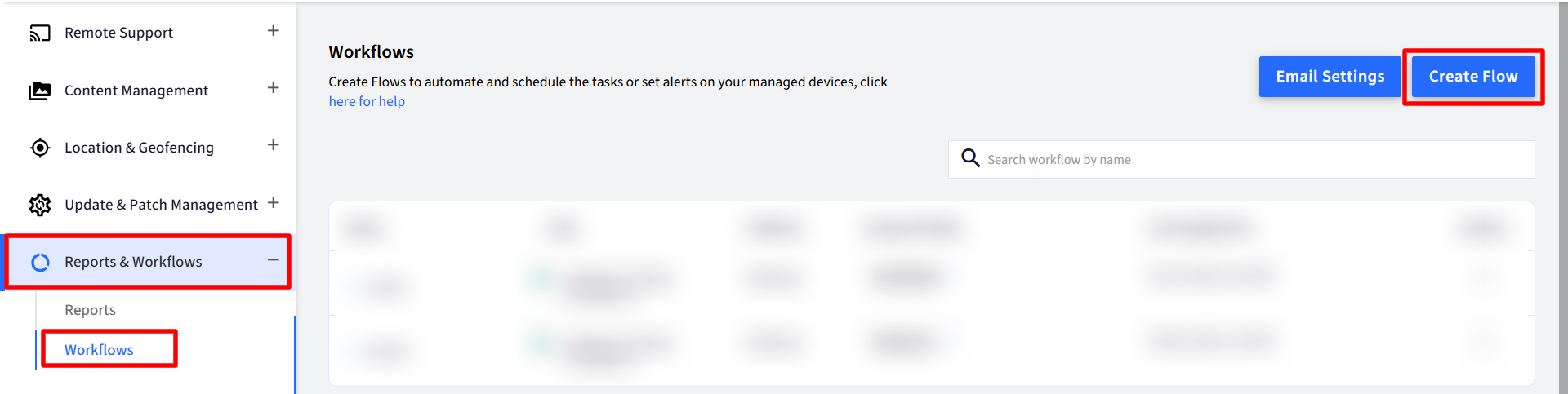
Navigate to Reports & Workflows > Workflows
Click on Create Flow
Under Windows tab click on Hardware Change Compliance.
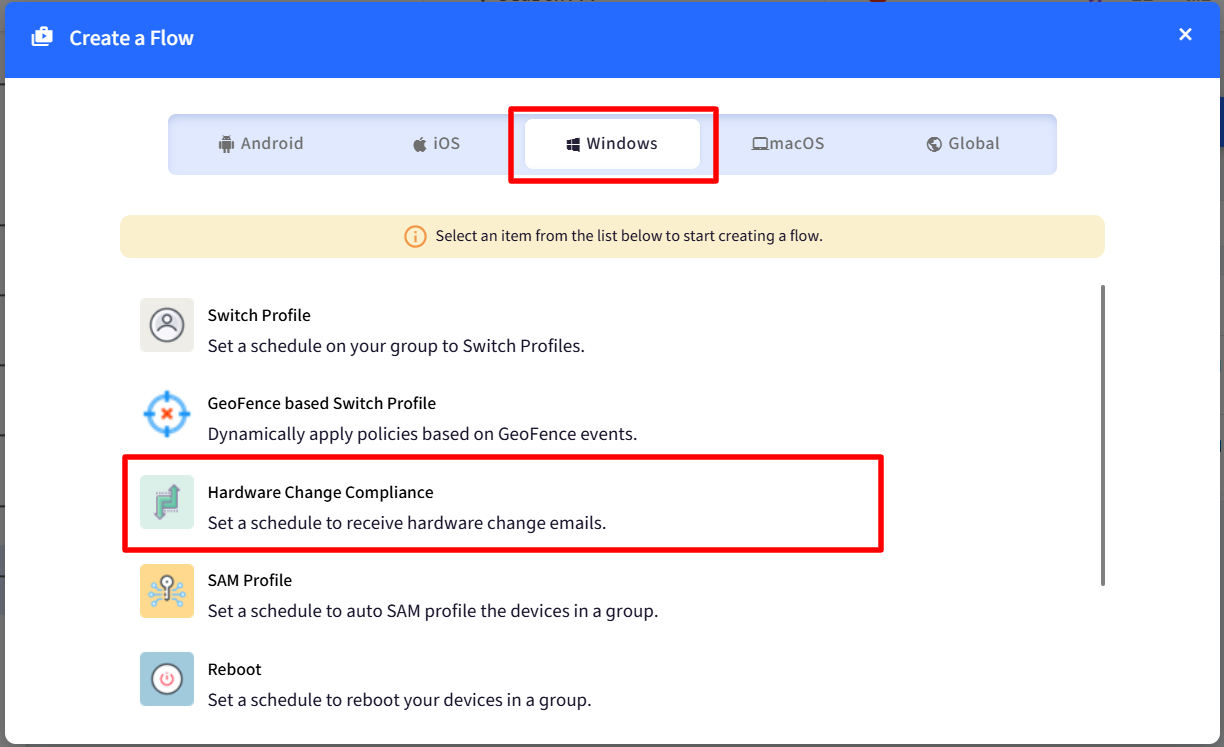
This will open a new window with three tabs: Basic, Email Settings and Select Hardware.
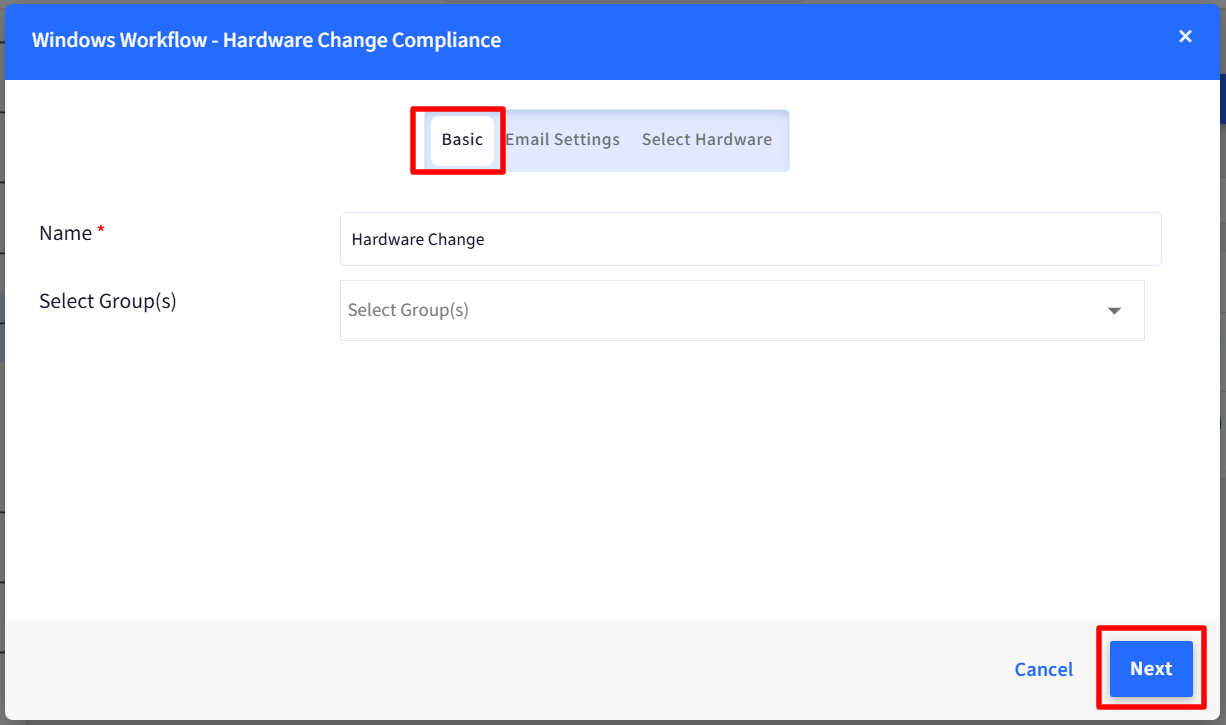
Basic
Name: Name for the Workflow.
Select Groups: Select one or more groups where this Workflow works.
Click Next
Email Settings
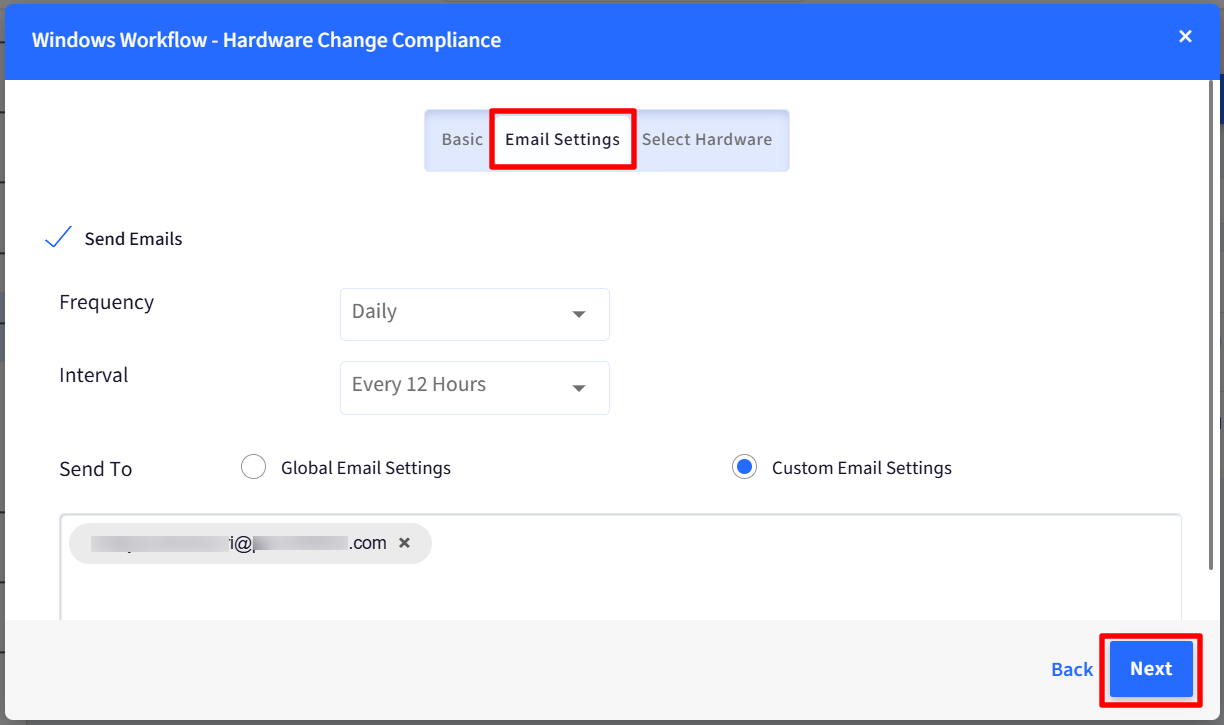
Here you can configure the email IDs to which an email notification will be sent for this Workflow.
Frequency: Set a Frequency at which the emails will be sent. You can set it for Daily or for selected days of the week.
Interval: The time interval after which the notification will be delivered
Send To: You can choose Global Email Settings in which case the email will go to Account owner, Co-account owner and Admins. Or you can choose Custom Email Settings and provide email IDs to which the notification will go.
Select Hardware
Use the Select Hardware tab to choose the change events for the hardware components, you want to monitor.
Alerts are triggered based on inventory scans and notify you when selected hardware is added or removed from a device.
You can quickly select or deselect all components under Added or Removed using the main checkboxes.
Supported hardware includes key components such as the processor, motherboard, BIOS, memory, peripherals, network adapters, USB controllers, cameras, printers, and more.
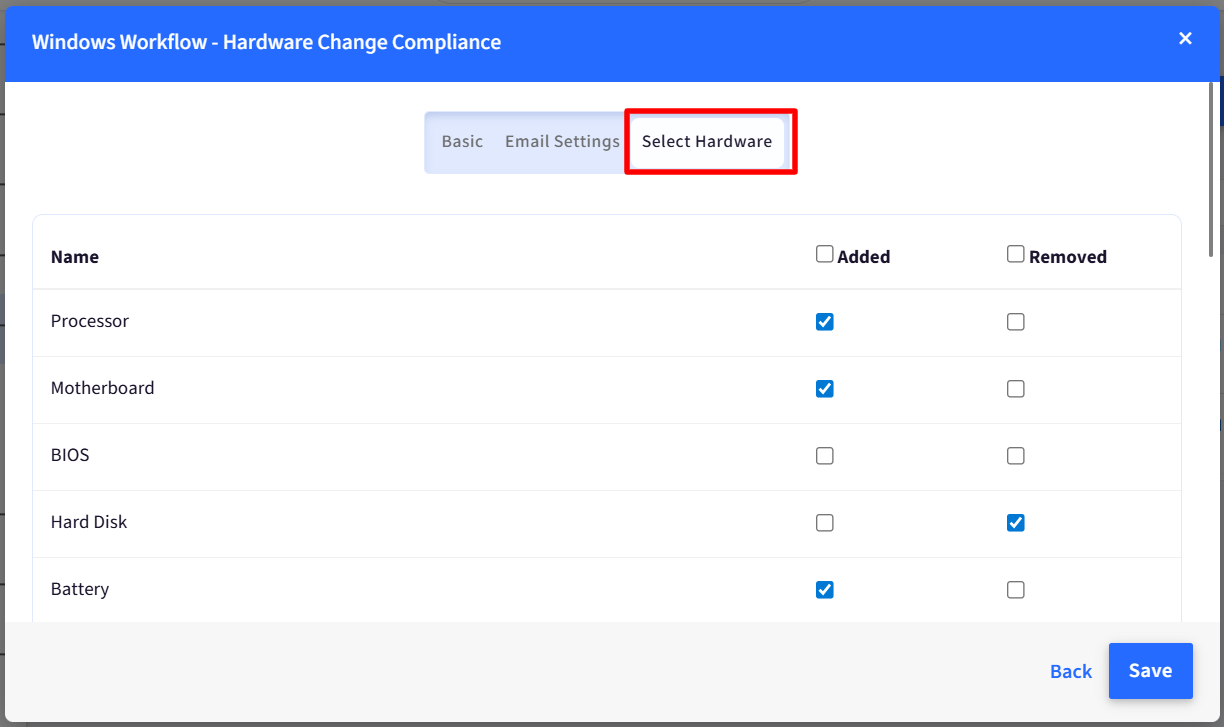
After configuring, click Save
The workflow will be created and displayed on the dashboard.
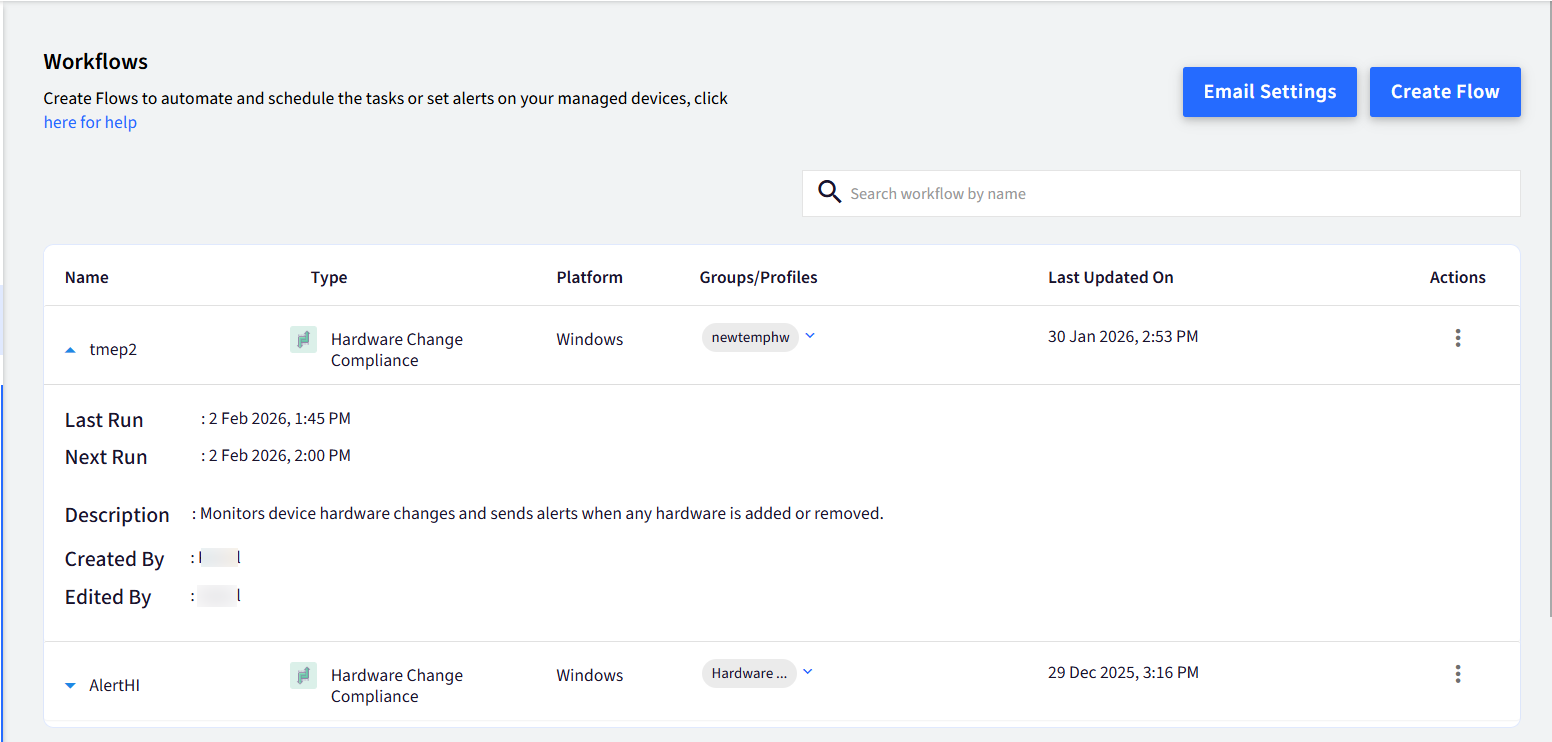
Based on the frequency and interval, you will start receiving notifications over email, with csv file containing Hardware History.

Extended Hardware Insights Report
The Extended Hardware Insights report provides detailed insights into the hardware components connected to your managed Windows devices. This report helps IT administrators maintain accurate hardware records and simplifies asset tracking and auditing.
You can access this report from the Reports section by selecting Extended Hardware Insights.
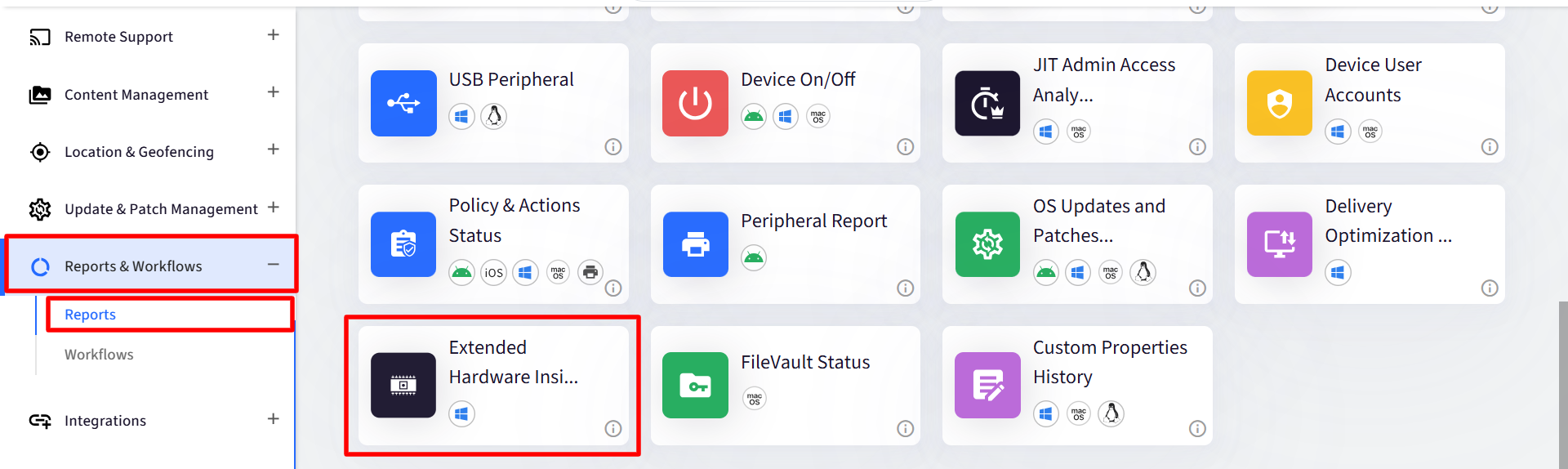
Configure the report
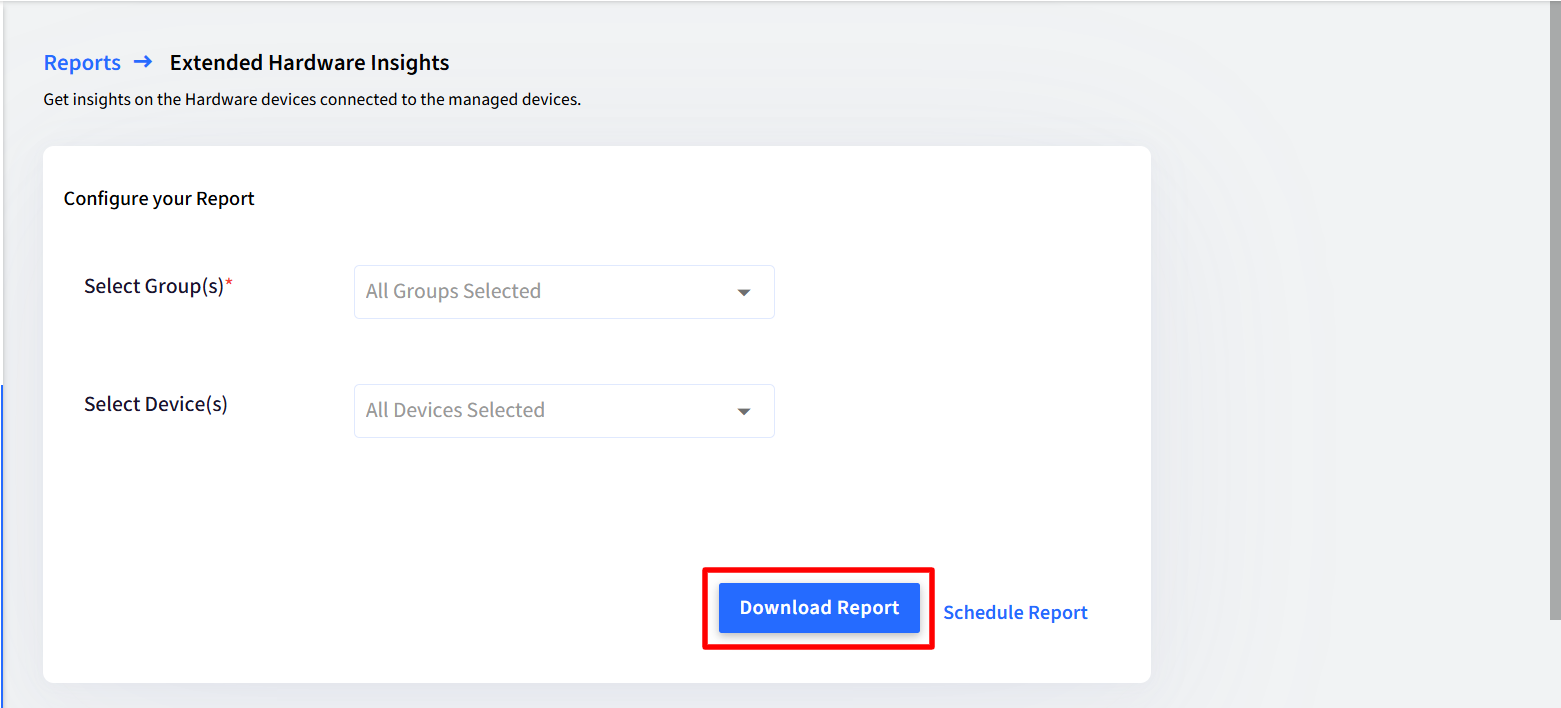
On the report configuration page, you can customize the report using the following options:
Select Device Group: Choose a device group from the dropdown list.
Select Device:
All Devices
A specific device
Click Download Report to export the report in XLSX format.
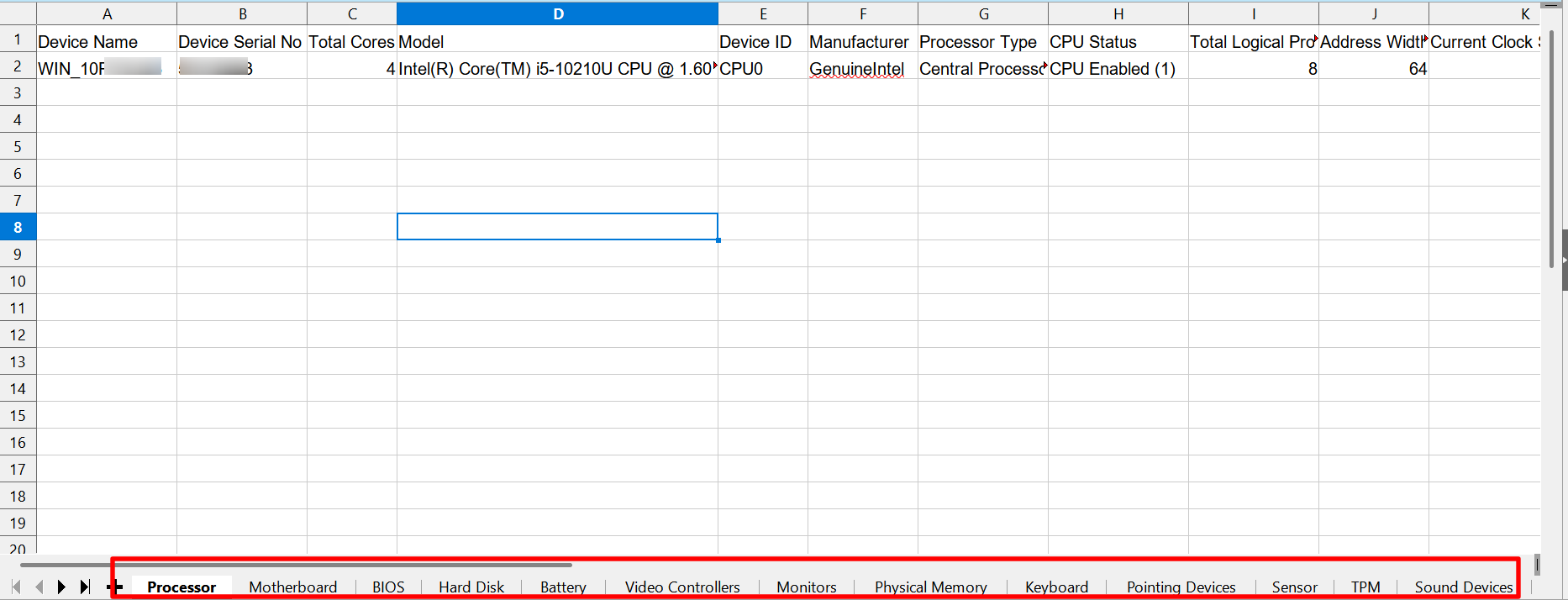
The report will be generated with information on each hardware component under separate tabs.
Schedule the report
You can also schedule the Hardware Inventory report to be generated and delivered automatically at defined intervals.
FAQ
How often does data sync with the backend?
Auto sync with backend happens:
Every 1 hour (if there is any change detected), or
If device is restarted
Why does the add or removal time of a device component differ in the workflow report?
The workflow report reflects the time when the device last synced with the Scalefusion backend, not the exact moment when the component was added or removed.
For example, if a keyboard is removed at 5:45 PM but the device syncs at 6:00 PM, the workflow report will display 6:00 PM as the removal time. This is because real-time component changes are not reported instantly; they are captured and sent to the backend during the next scheduled device sync.
As a result, the reported time may differ slightly from the actual add or removal time.
Known Behaviors
Scalefusion reports a component in the dashboard only if the operating system identifies it as a physical component. Components that the OS classifies as virtual are not reported in the dashboard.
Sound devices connected via Bluetooth may not appear on the dashboard because the operating system classifies them as peripheral devices. Hardware marked as peripheral is not reported on the dashboard.
Battery voltage and capacity values shown on the dashboard may not exactly match the values received from the power system.