The document outlines the enrollment process for OneIdP users to enroll Company Owned macOS devices in Scalefusion.
Pre-requisites
- QR code configuration should be created on Scalefusion Dashboard having Enrollment Type as User Authenticated Enrollment.
- Users with OneIdP domain (default) should be added on Scalefusion Dashboard.
Enrolling Devices for OneIdP Users
- In QR code configurations, expand the configuration from the list and click on Mac. This shows the Enrollment URL and Enrollment Code.
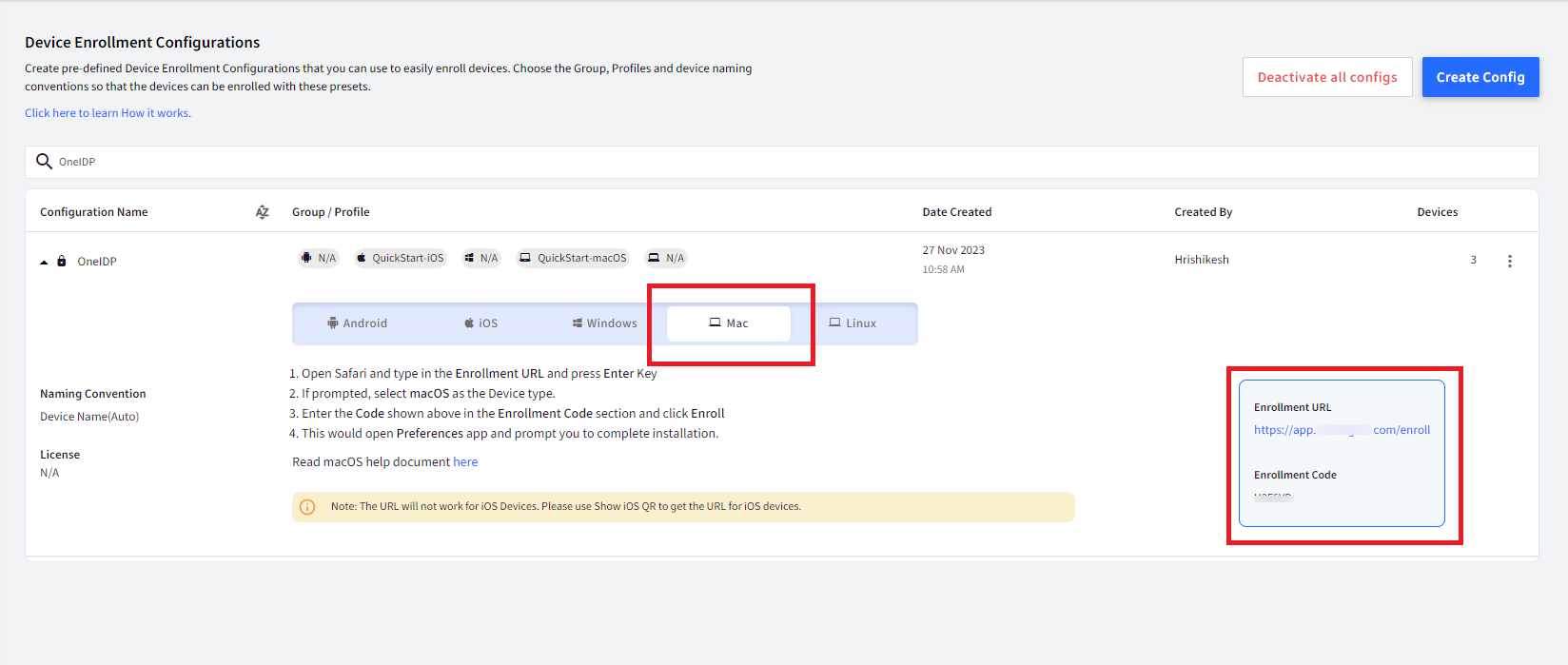
- On your Mac device, open Safari and type in the Enrollment URL shown and press Enter.

- A new Kiosk Device Enrollment window will open. Enter the Code that is there in the Enrollment Code section and click Enroll.

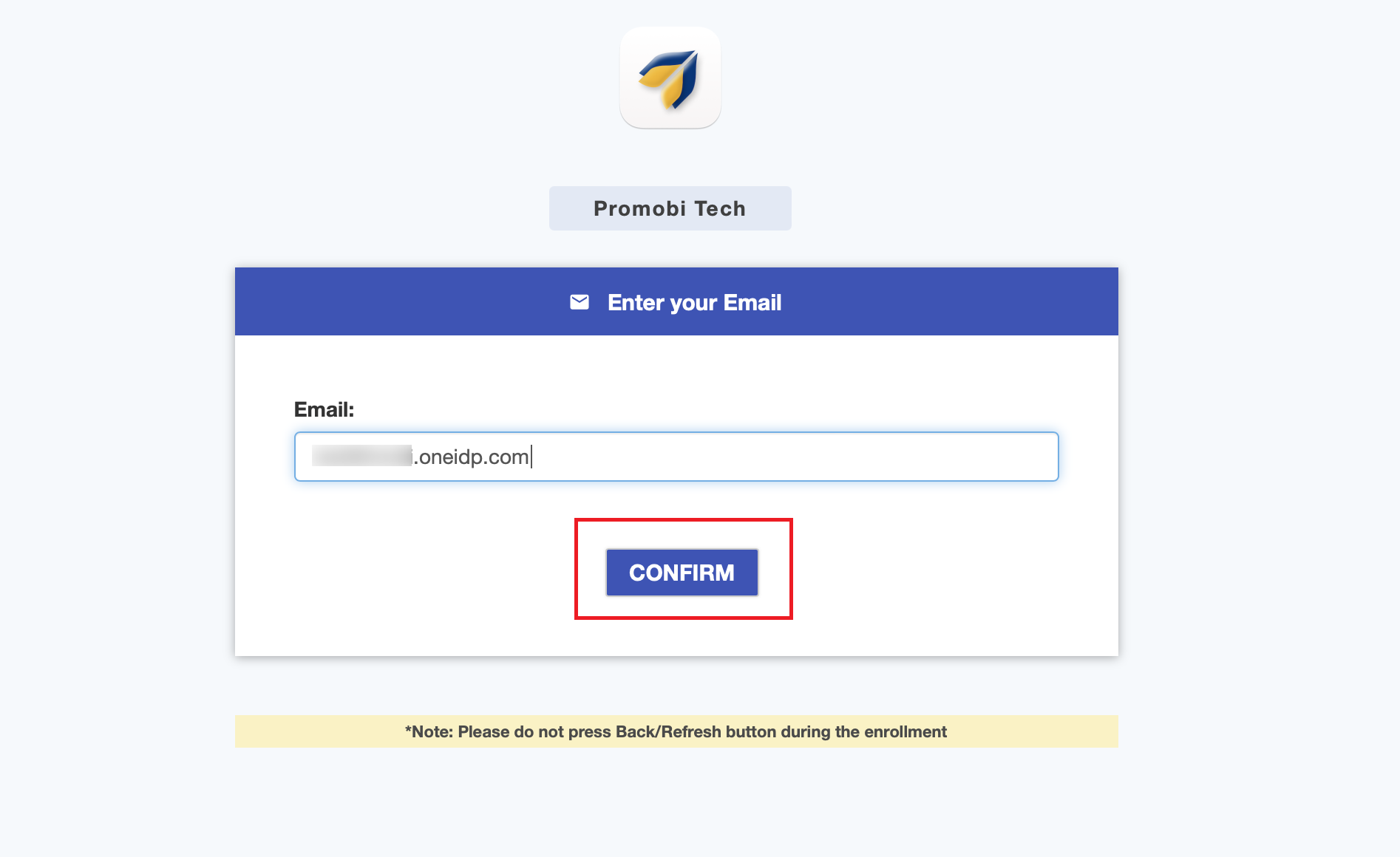
- Next, enter the oneidp email of the user, which you created on Scalefusion Dashboard. Click Confirm.
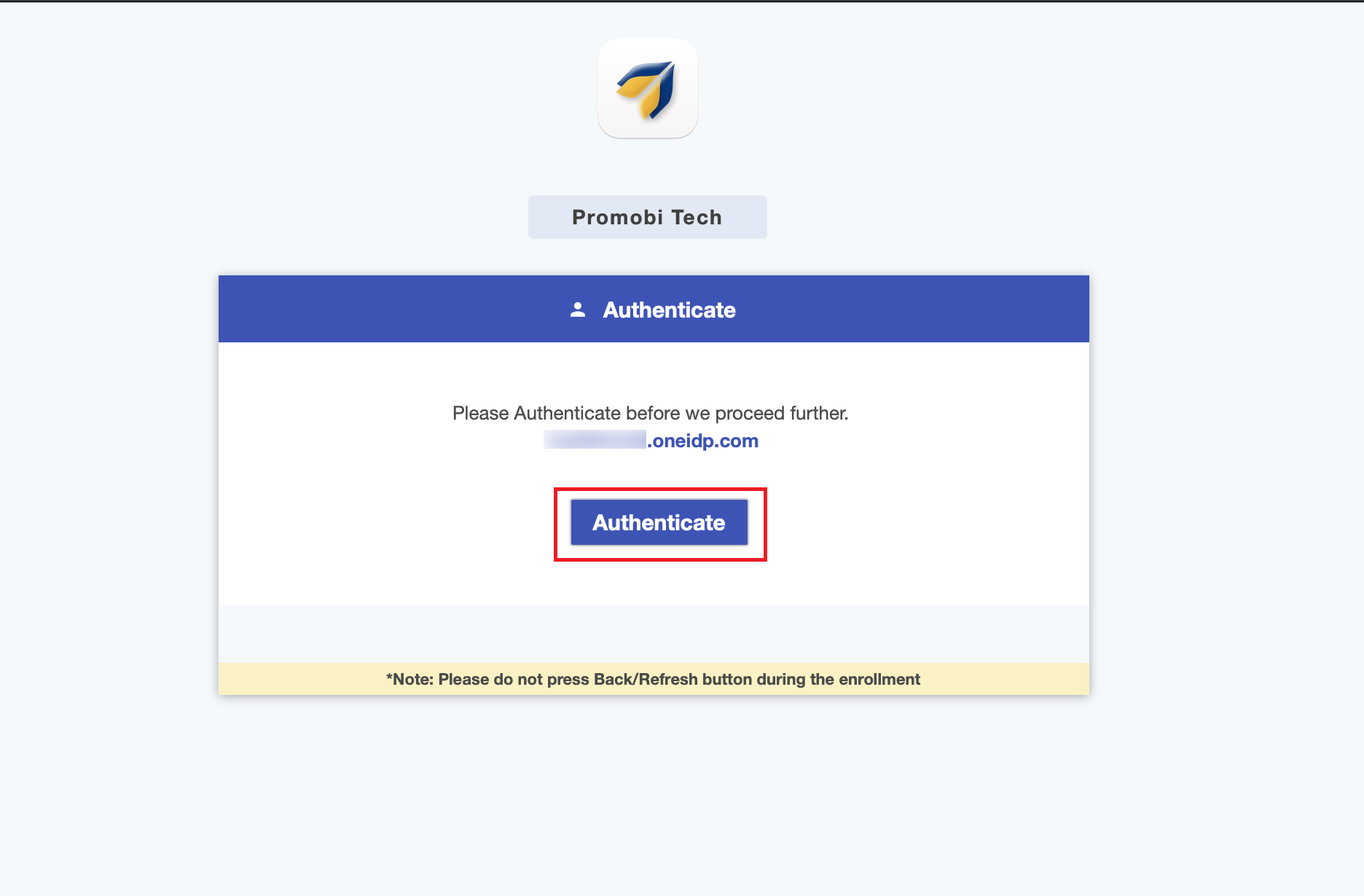
- On the next screen click Authenticate.
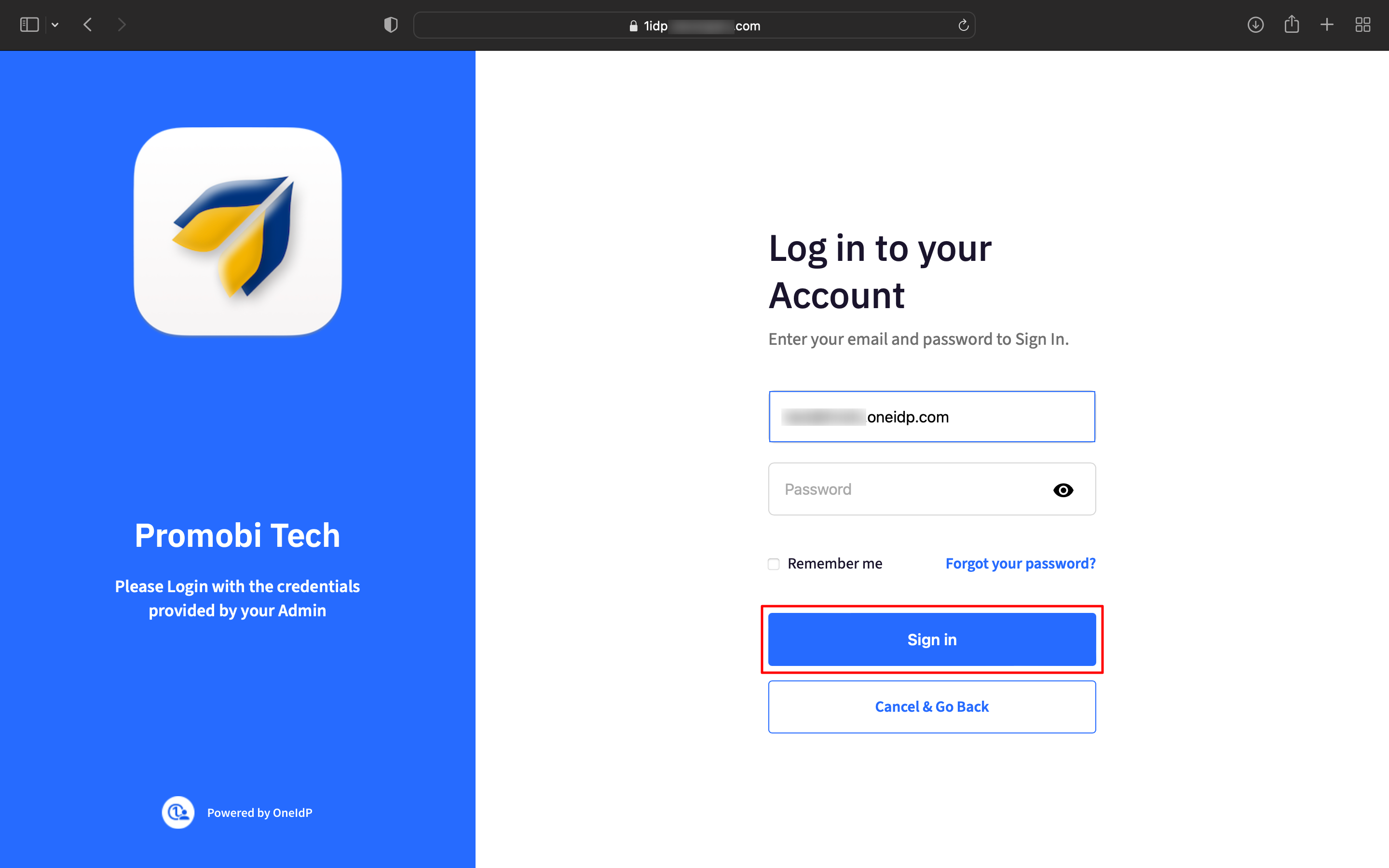
- You will be directed to OneIdP login screen. Enter your password (the password you entered while adding user) and click on sign in.
- The Terms of Service page will be displayed. Review the terms of service and click Accept.
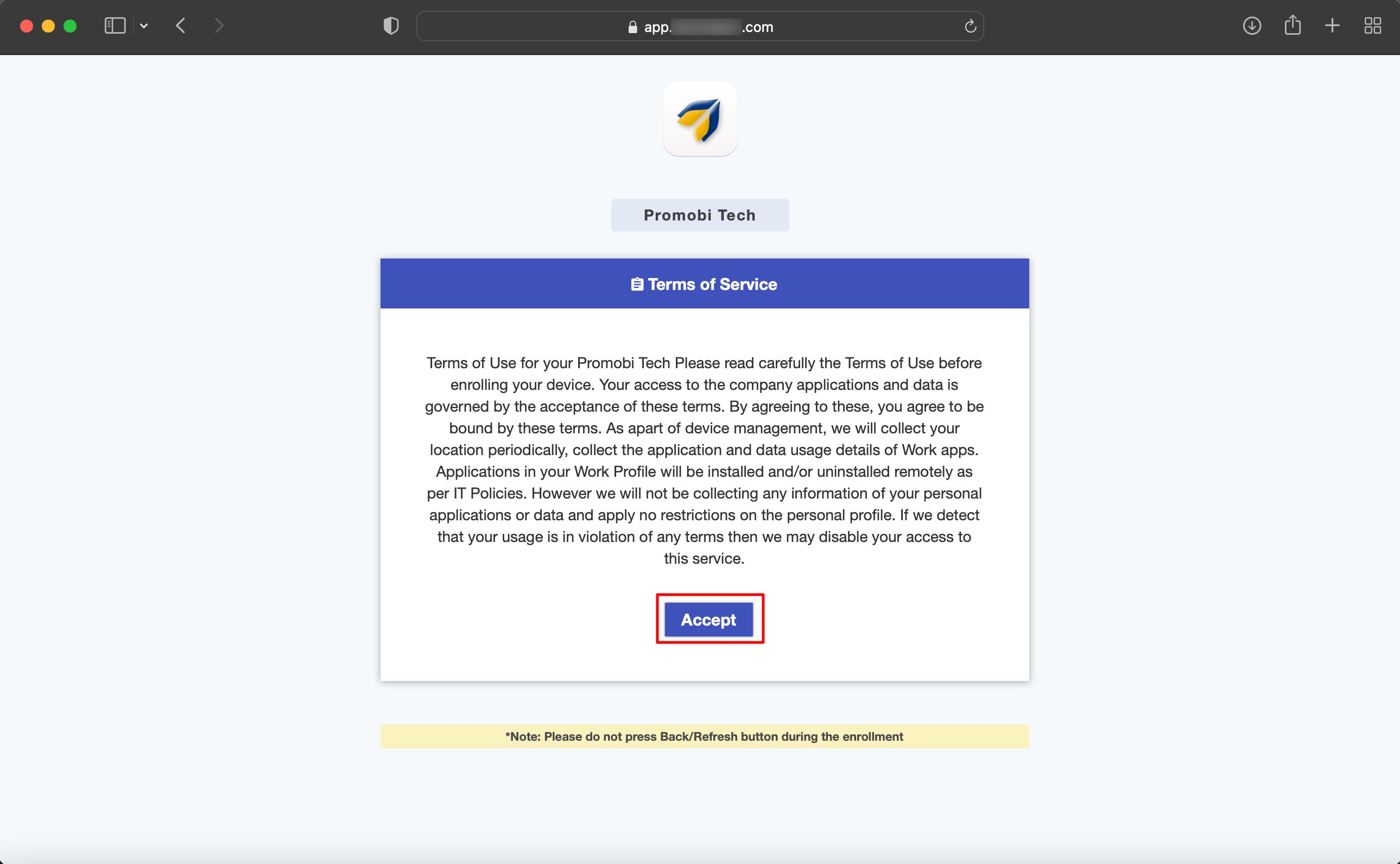
- Follow the next steps to install the MDM Profile. On the next screen, click on Enroll.
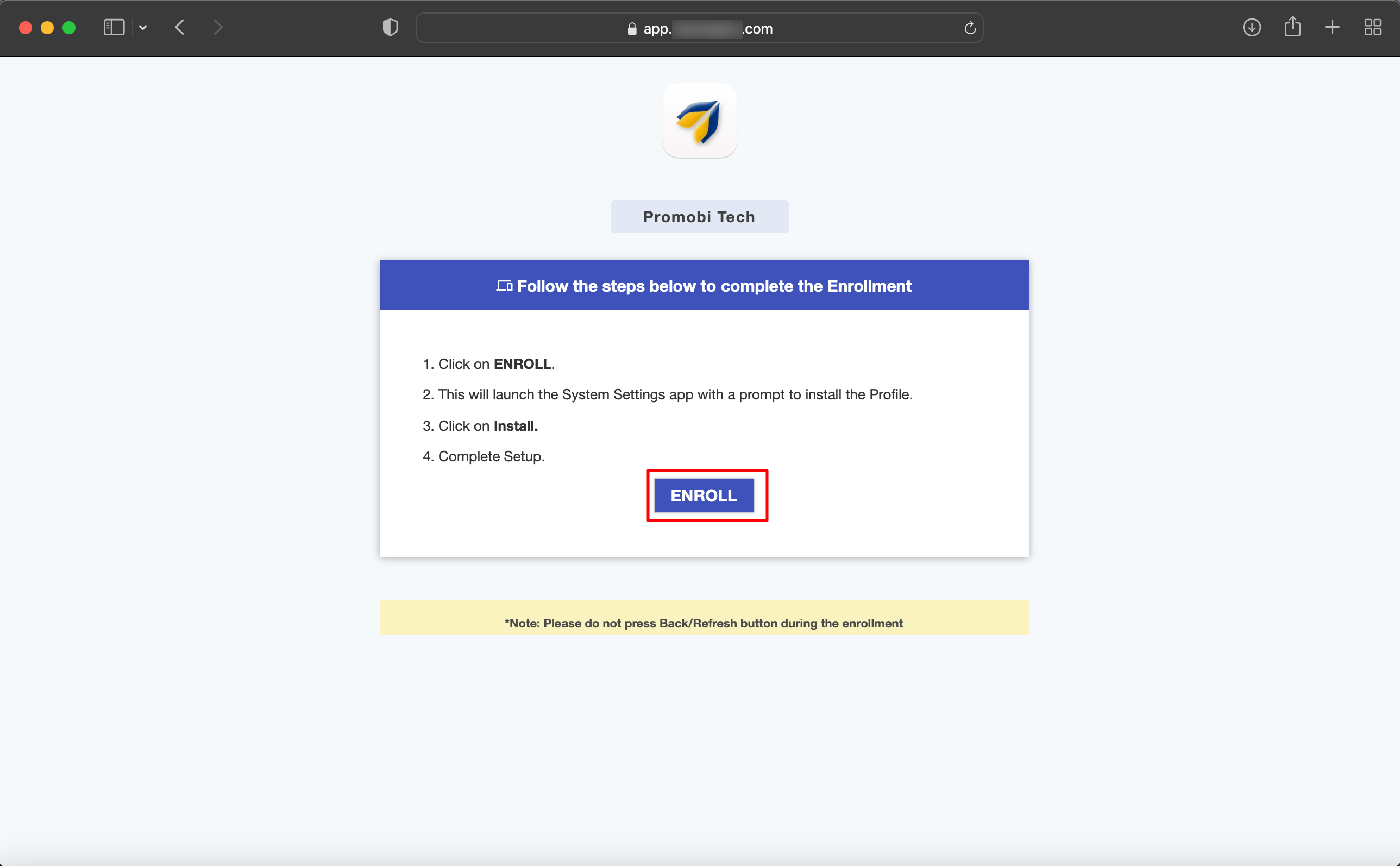
- This will open the System Preferences pane, and the following dialog will be shown. Click on Install to proceed with enrollment.

- Or you can navigate to System Preferences pane > Profiles tab and install the Profile.
- If you are enrolling from a non-administrator user, you will be asked to enter administrator credentials to confirm the installation. Please enter the administrator credentials and Click Enroll.

- This will open the System Preferences pane, and the following dialog will be shown. Click on Install to proceed with enrollment.
- The device will be enrolled in Scalefusion with OneIdP user authenticated.
Other Important Points to Note
- For users belonging to custom domains, users will need to authenticate by entering OTP which they receive on their email address.
- If the setting Enforce Users to sign in using GSuite/O365/custom domain is enabled in User Management, users will need to authenticate by entering their respective domain credentials.
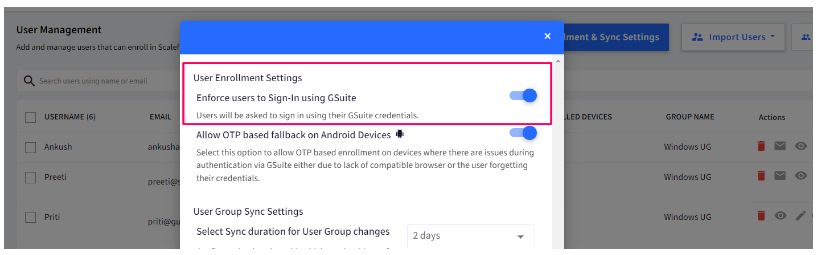
- However, in the above cases if they migrate to OneIdP, they will get the OneIdP login page and can authenticate with OneIdp username and password.
- BYO Enrollment is not supported for OneIdP (default domain) users. It is possible for users belonging to custom domain.