The Device Inventory Report enables administrators to gain a comprehensive view of all managed devices within the organization. It allows admins to customize the report by selecting specific platforms, device attributes, and inventory fields based on their operational needs. Reports can be generated either by applying custom filters across device groups and operating systems or by uploading a CSV containing specific device identifiers, and are downloaded in CSV format.
This article provides details about how to generate Device Inventory Report from Scalefusion dashboard.
Platforms
Android, iOS, Windows, macOS, Linux, ChromeOS, Printer
There are two methods to generate Device Inventory Report:
Method 1: Using Custom Filters
Navigate to Reports & Workflows > Reports and click on Device Inventory
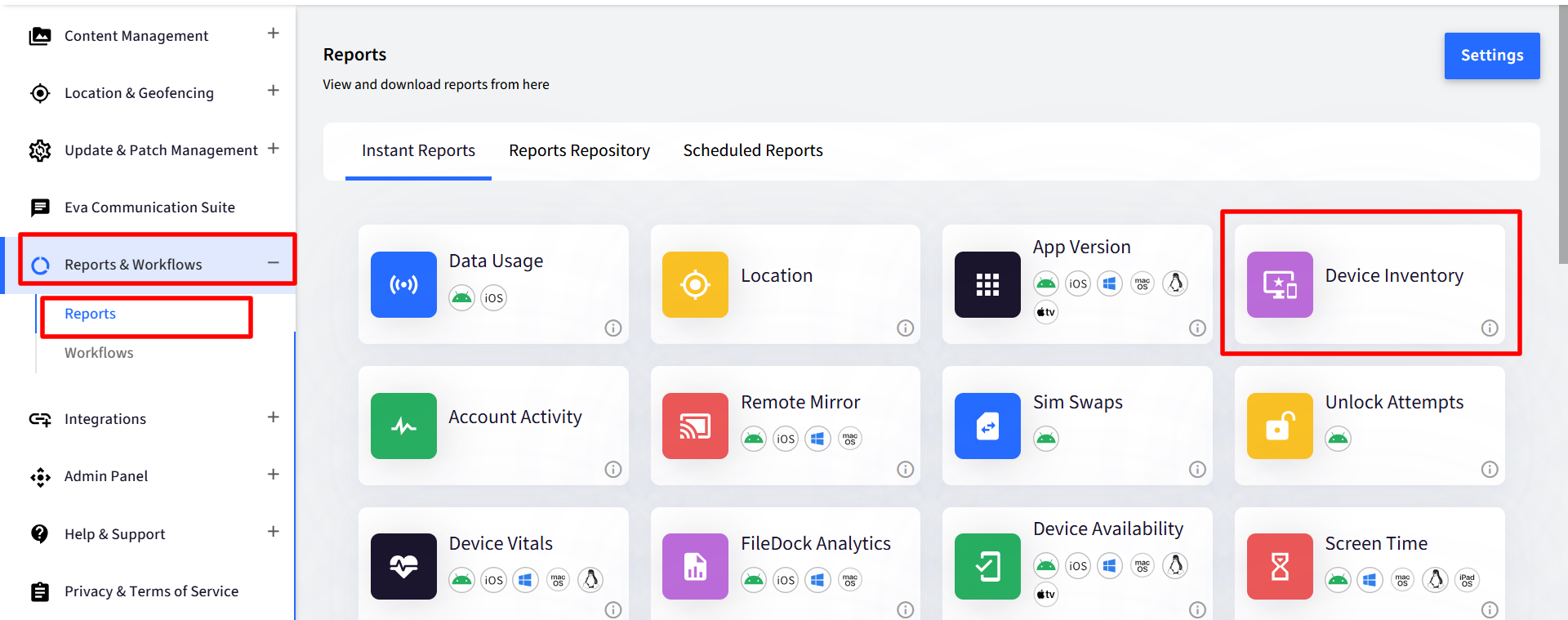
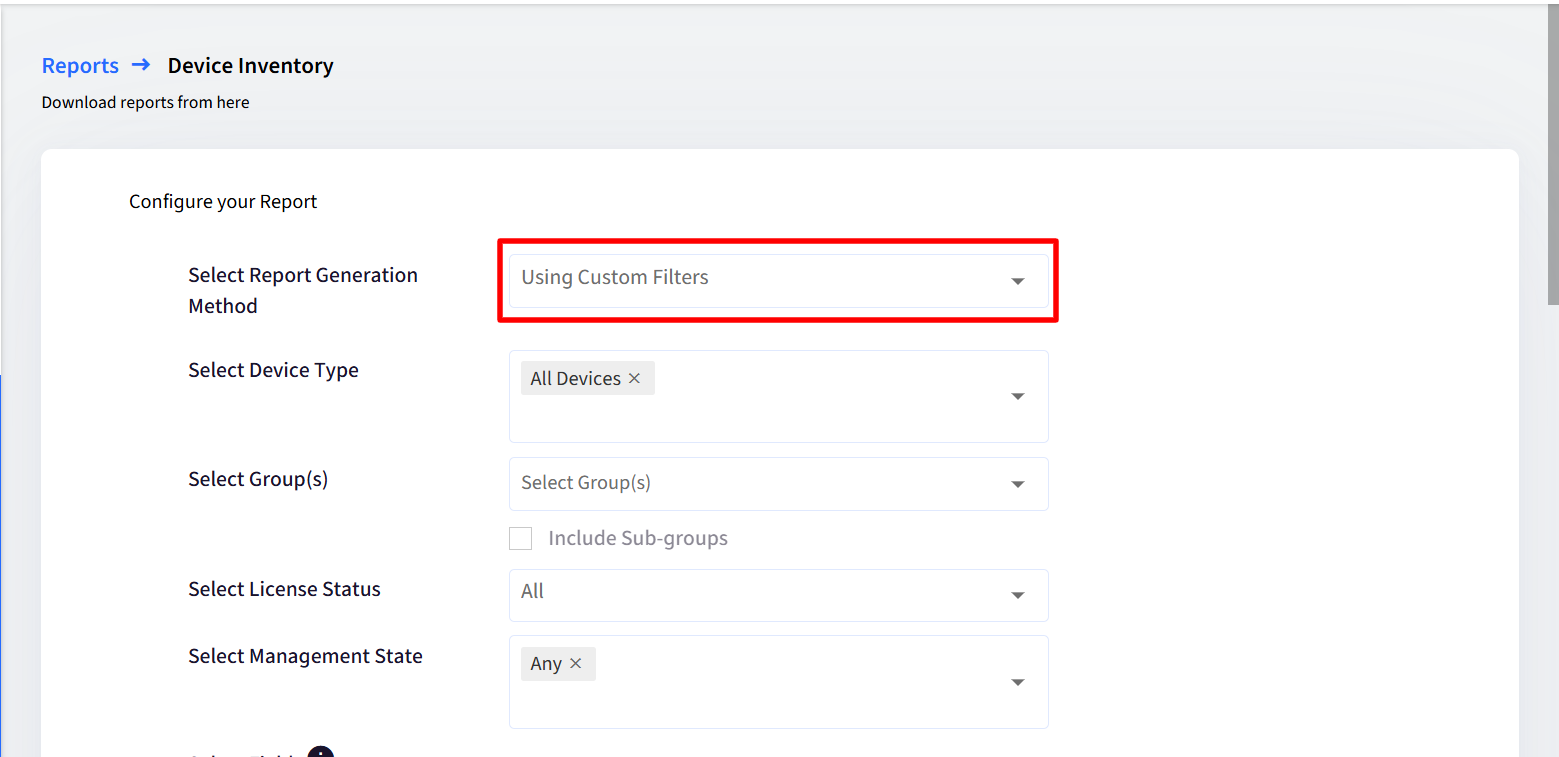
Select Filters to configure your report
Filter
Description
Select Report Generation Method
Select Using Custom Filters
Select Group(s)
Lists all Device Groups and Sub-Groups. More than one group can be selected.
Select Device Type
Lists all OS types. More than one OS can be selected.
Android
iOS
Windows
macOS
Linux
ChromeOS
Select License Status
Select Device's License status from the following:
Licensed
Unlicensed
Select Management State
Lists Device's Status. Multiple statuses can be selected
Any
Locked/Managed
Unlocked/Unmanaged
Inactive
EMM Managed
Non-EMM Managed
Select Fields
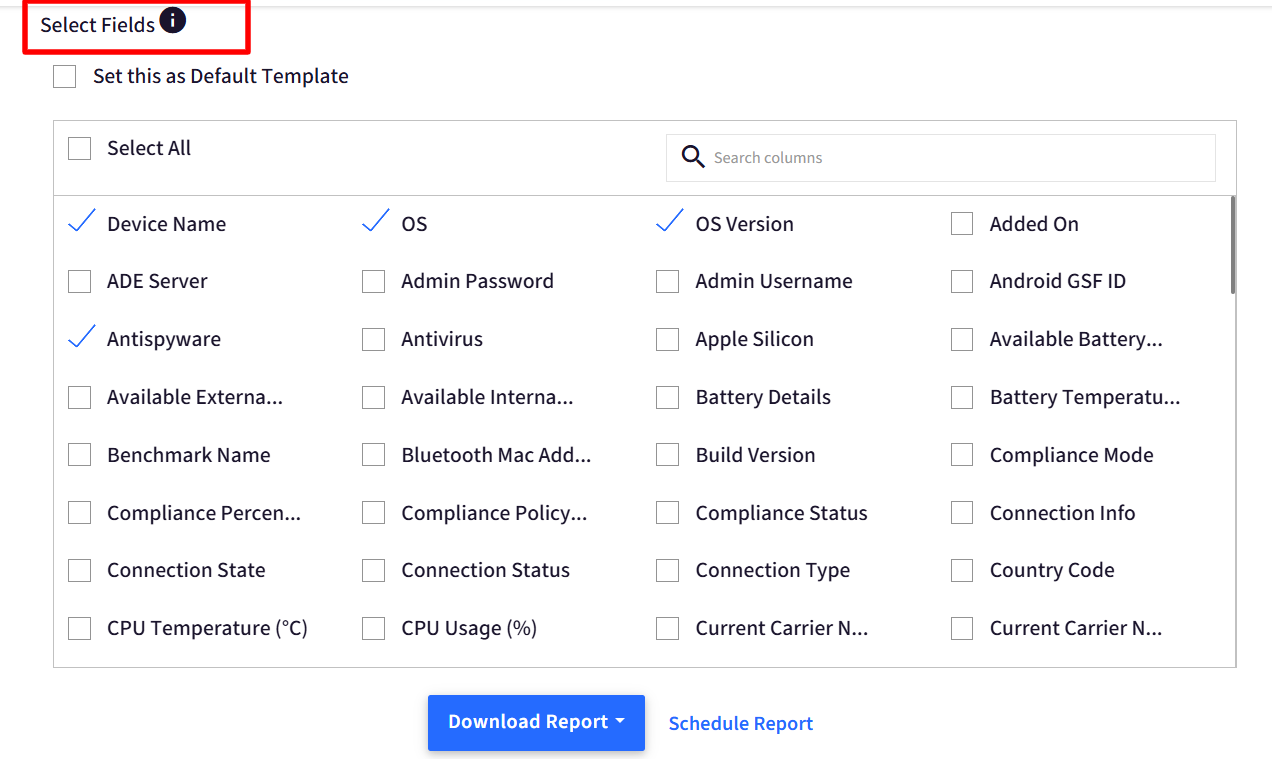
Lists all custom and compulsory fields. Check the fields you require in the report. The following are mandatory and pre-selected:
Device Name
OS
OS Version
If you select Enrollment Status, IMEI/Serial# will be reflected for the devices that are not yet enrolled.
If Encryption Key is selected, the report will display PRK for macOS devices and Bitlocker Key for Windows devices. If both are missing, it will show N/A.
Once field selections are done, click on Download Report. The report will be downloaded in CSV format containing fields as configured by the user.
Not all of the fields will be applicable to all the OS types. In such cases the reports would have empty or N/A value.
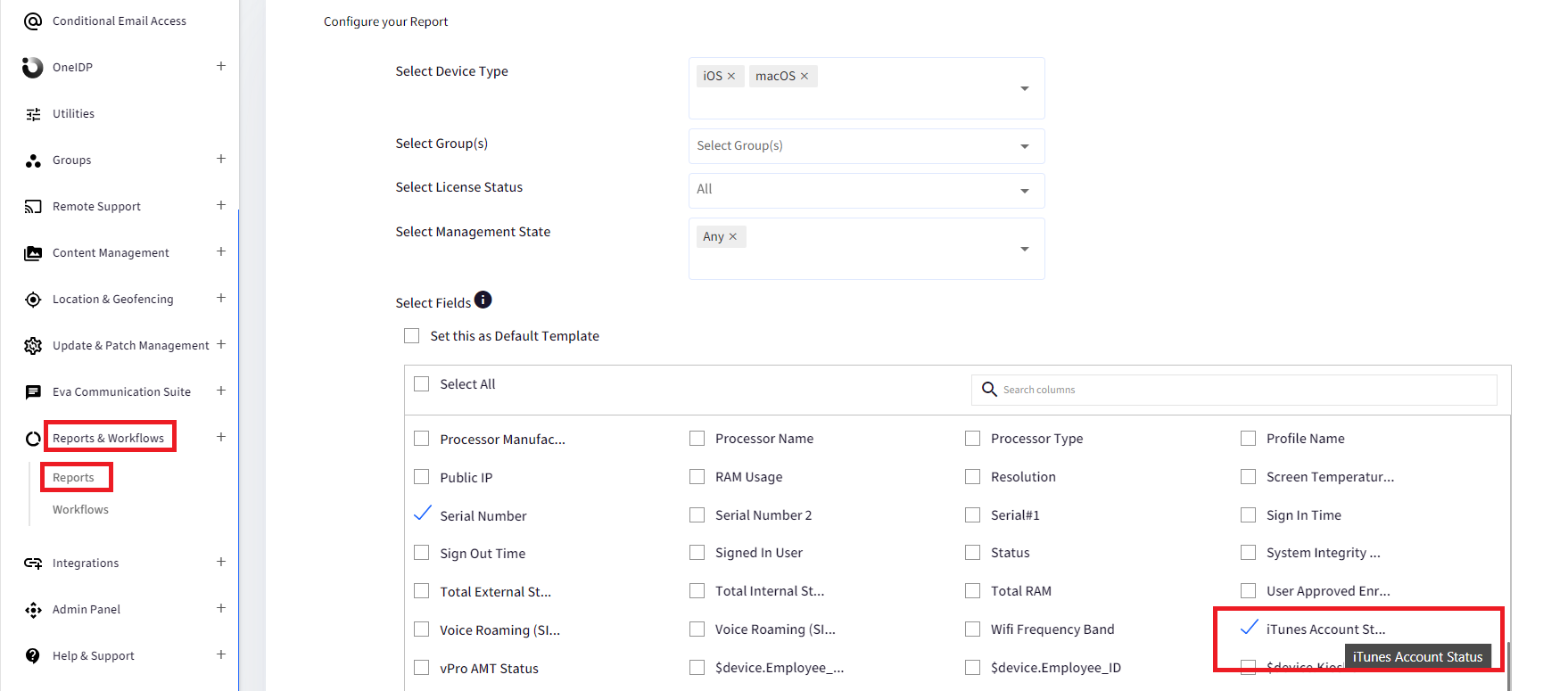
iTunes Account Status for iOS/macOS Devices
In the Device Inventory report, you will also be able to select iTunes Account status field. When this field is selected, the report will show the account status as Configured or Not Configured.

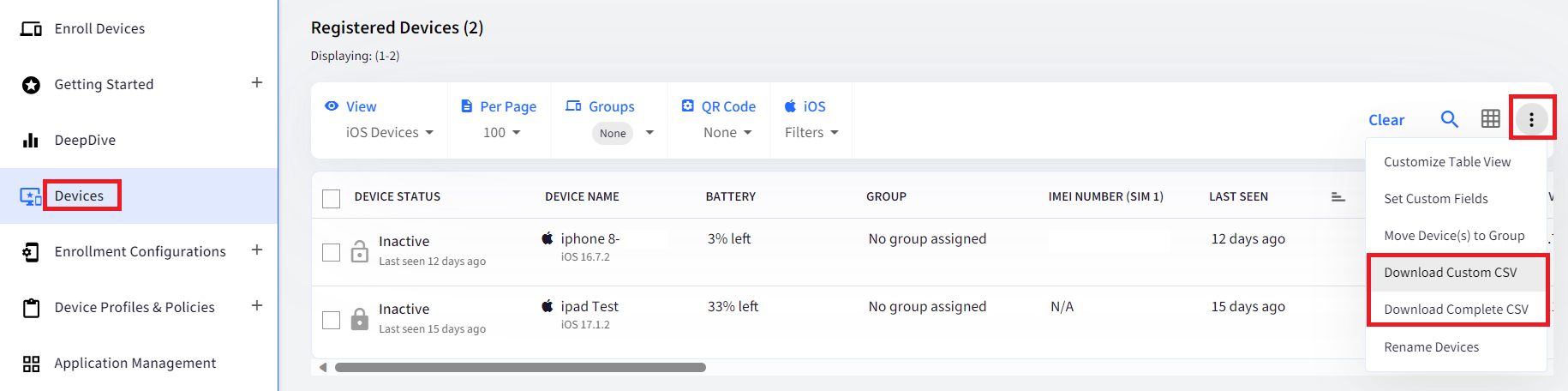
iTunes Account Status field is also available in the "Download Custom CSV" and "Download Complete CSV" reports in the Devices section.
Method 2: Using Device Identifier CSV
Admins can upload a CSV file containing device identifiers such as Device Name, IMEI Number, or Serial Number to generate a Device Inventory Report for a specific set of devices, rather than relying on filter-based selection. To generate report,
In the Report Generation method, select Using Device Identifier CSV from the drop-down.

Download sample CSV
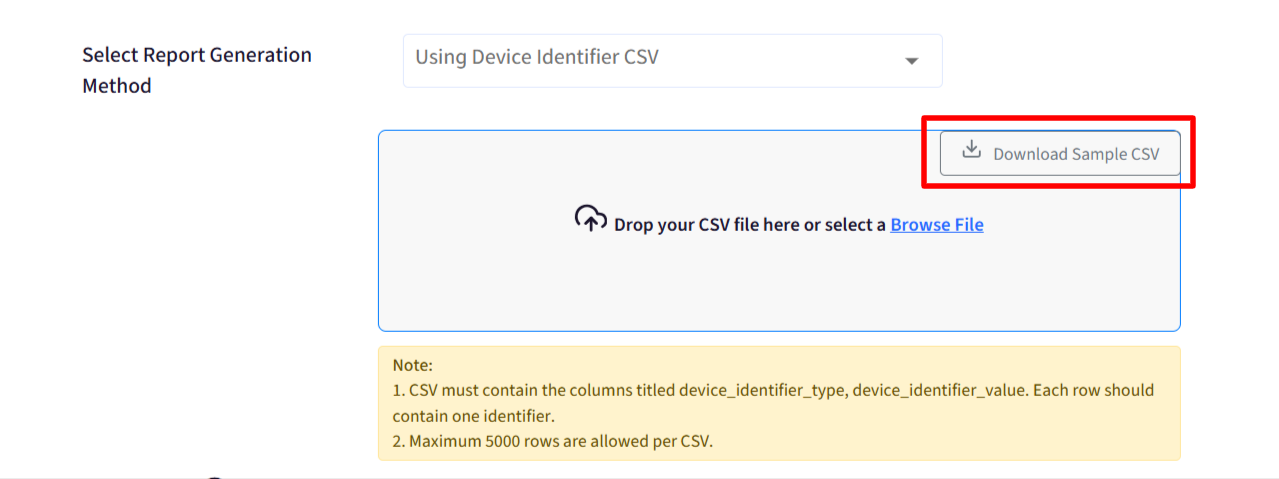
The CSV contains device identifiers with sample values corresponding to each:
Device Name
IMEI Number
Serial Number
User’s email
Signed in User’s email
Onboarding email
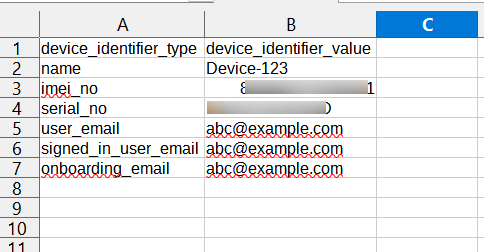
Enter values against the identifiers, save it and upload again.
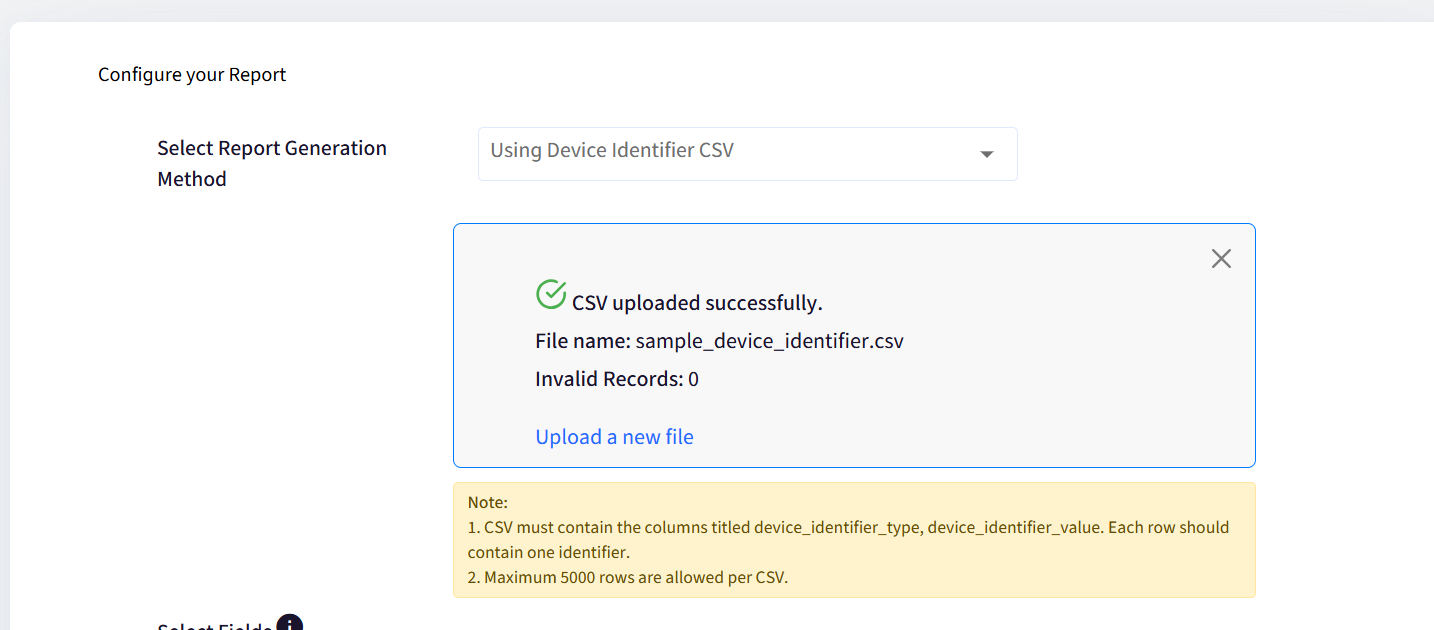
Alternatively, you can upload a new CSV file with device identifier values.
Next, select the fields you require in the report.
Once field selections are done, click on Download Report. The report will be downloaded in CSV format containing fields as configured by the user.
Additional Features
Set this as Default template: The selected combination of fields can be set as default for this user account admin.
Schedule Reports: Device Inventory Report can also be scheduled. If you have opted for Device Identifier values as report generation method and uploaded the csv, the same csv will be available under Schedule Reports section.