---
title: "Deploy XML based configurations on Zebra Devices"
slug: "deploy-xml-based-configurations-on-zebra-devices"
updated: 2025-09-17T11:40:44Z
published: 2025-09-17T11:40:44Z
canonical: "help.scalefusion.com/deploy-xml-based-configurations-on-zebra-devices"
---
> ## Documentation Index
> Fetch the complete documentation index at: https://help.scalefusion.com/llms.txt
> Use this file to discover all available pages before exploring further.
# Deploy StageNow XML based configurations (MXConfig) on Zebra Devices
XML configurations (MXConfig) are specifically used for Zebra devices as they provide a flexible and standardized way to define settings and parameters for the devices. XML allows for easy configuration management, as settings can be easily modified, deployed, and shared across different devices. XML configurations (MXConfig) can be remotely deployed to Scalefusion-managed Zebra devices, enabling centralized management and configuration updates across multiple devices.
This can be achieved via the Remote Commands feature on the Scalefusion Dashboard. All you need to do is create an XML config using [Stagenow](https://www.zebra.com/us/en/support-downloads/software/utilities/stagenow.html) and pass the XML content through **Zebra StageNow Config** Remote Command to run on devices. Let us learn in detail how this can be done.
## Pre-requisites
1. The device should be enrolled in Company-Owned mode with Scalefusion.
2. [Download and Install Zebra StageNow](https://www.zebra.com/us/en/support-downloads/software/utilities/stagenow.html) software on a Windows PC.
3. Basic knowledge of how to configure, export, and download XML config from StageNow to the PC.
## Steps to deploy StageNow XML Config on devices
In this document, we are taking Datawedge Configuration as an example to explain how Stagenow XML Configs can be deployed on Scalefusion managed Zebra Devices.
### Step 1: [Create Stagenow profile](/docs/enrolling-zebra-devices-using-stagenow#step-2-creating-the-stagenow-profile) using **X****pert Mode**
### Step 2: Create XML file
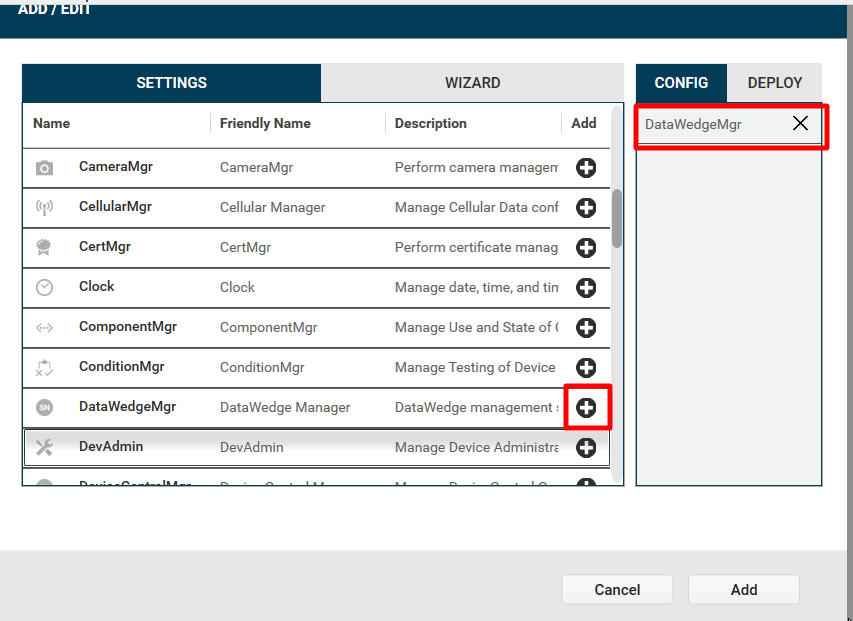
1. Add **DataWedgeMgr** on Stagenow
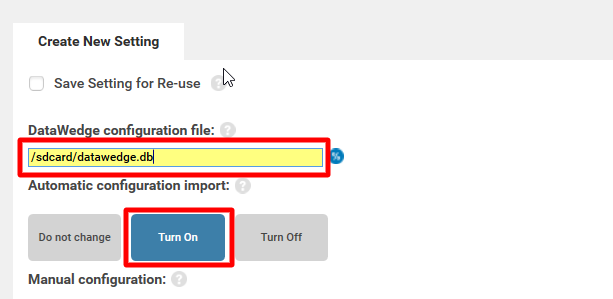
2. Enter the device's path to the **/sdcard/datawedge.db** file and select the button to turn **Automatic configuration import** to **ON**.
3. Click on **Continue** button.
4. Next, click on **Complete Profiles** button.
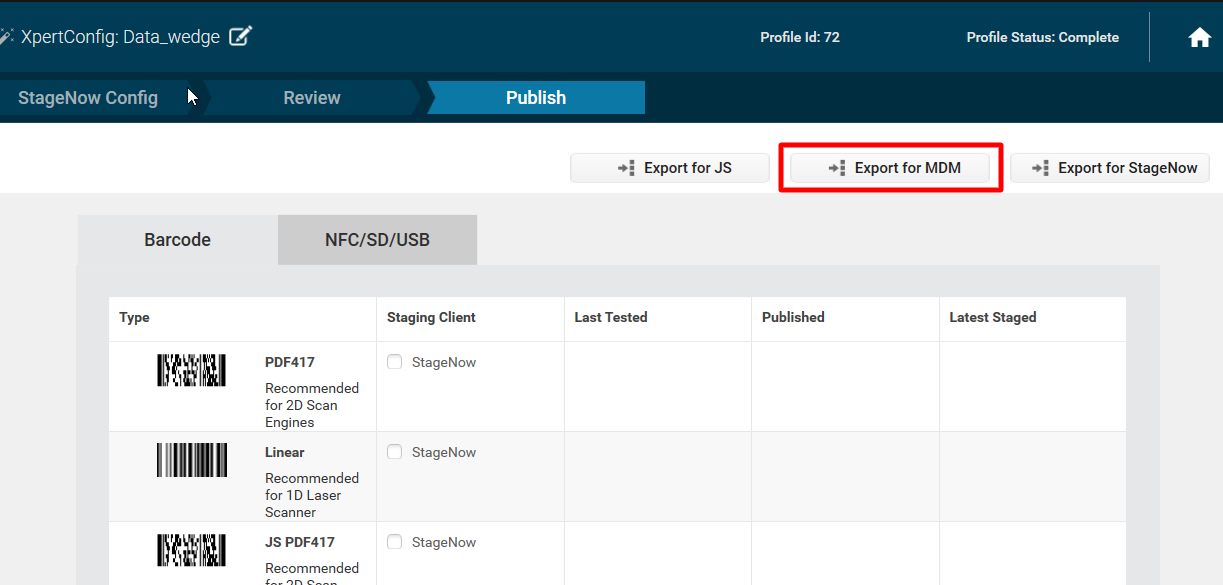
5. Click on **Export for MDM** button to save the configuration as an XML file.
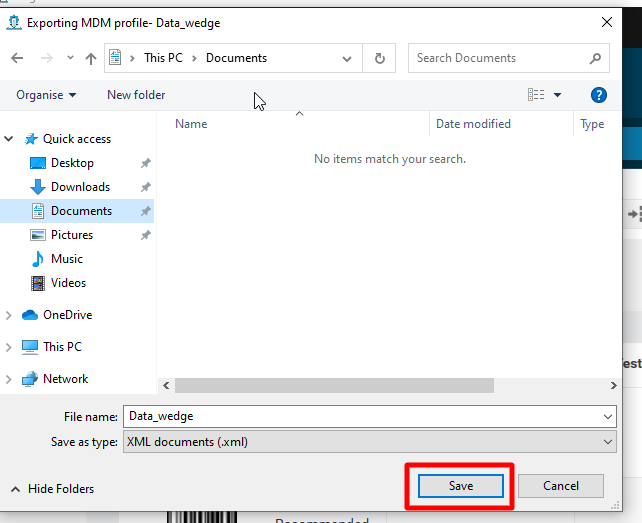
6. Click **Save** to save the file on your Windows PC as an XML.
7. Copy the XML content to deploy on Zebra Devices using Remote Commands on Scalefusion Dashboard.
### Step 3: Create Zebra StageNow Config Remote Command
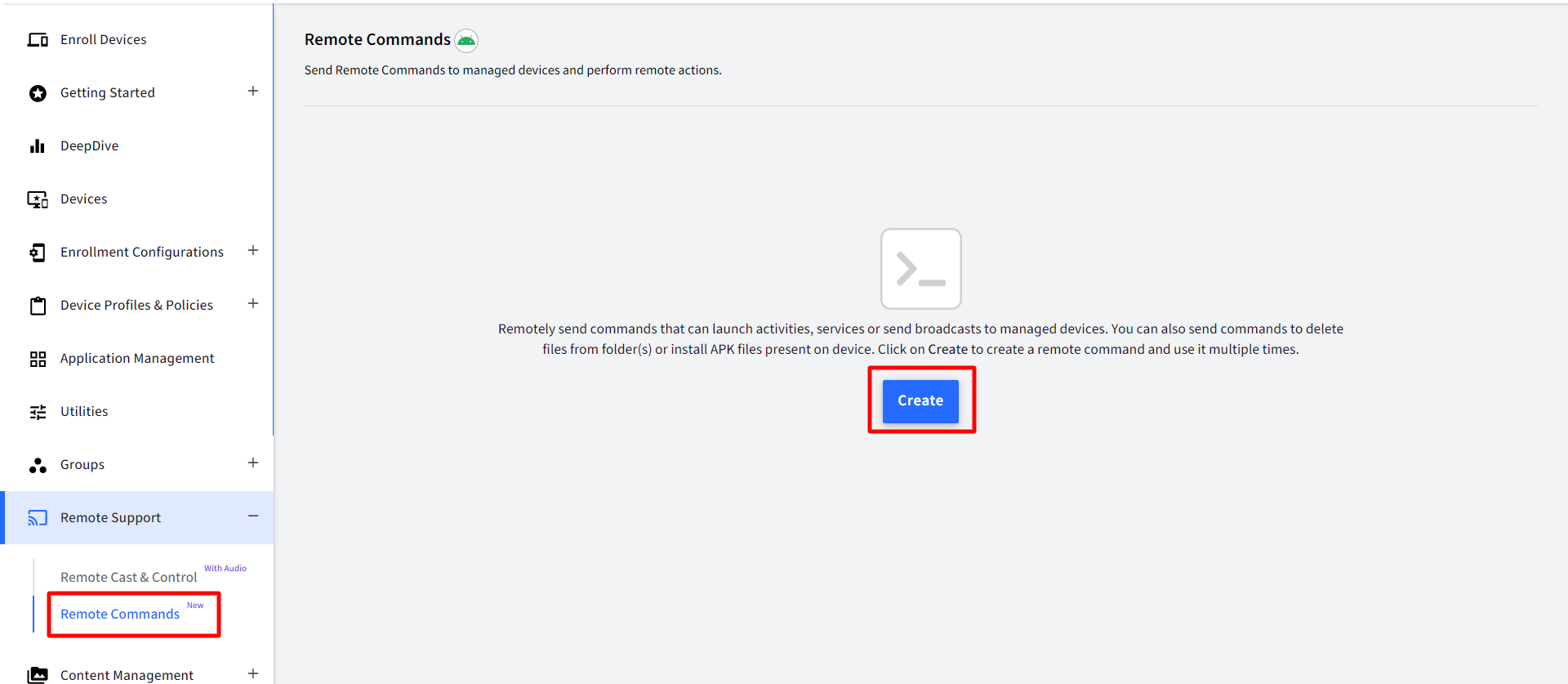
1. On the Scalefusion Dashboard, navigate to **Remote Support > Remote Commands** and click on **Create**
****
2. This would bring up a pop-up with a list of commands to select from. Scroll down and choose **Zebra StageNow Config**.
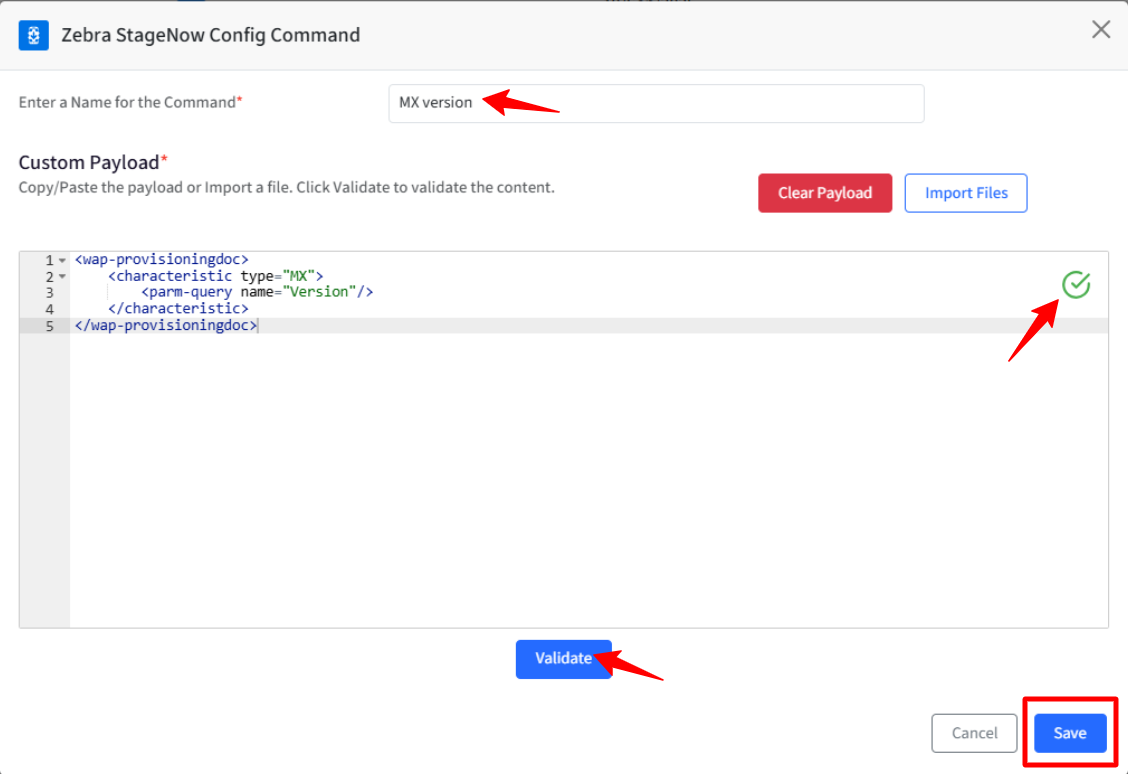
3. In the dialog that opens, enter the following:
1. Enter a name for the command.Text
2. Custom Payload: You can copy/paste the payload, or if you have an XML file, you can import it.
3. Click **Validate**.
4. Once it is validated, click **Save**.
****
XML Config through Custom FieldsYou can also set [Custom properties](/docs/using-custom-fields-as-wildcards) from Groups and add those custom properties in Remote Commands to be applied to a group of devices.
#### Few XML Examples
1. To get the MX version:
```markup
```
2. To turn on/off Battery Saver mode: To turn on, use **1**, and to turn off, use **2**.
```markup
```
3. For Wifi Config:
```markup
```
Likewise, you can create different XML configs and run them on devices using this Remote Command.
### Step 4: Run the command
To execute this remote command on the device, run it from the Dashboard.
1. Click the 3 dots under the **Actions** column and click **Run Now**.
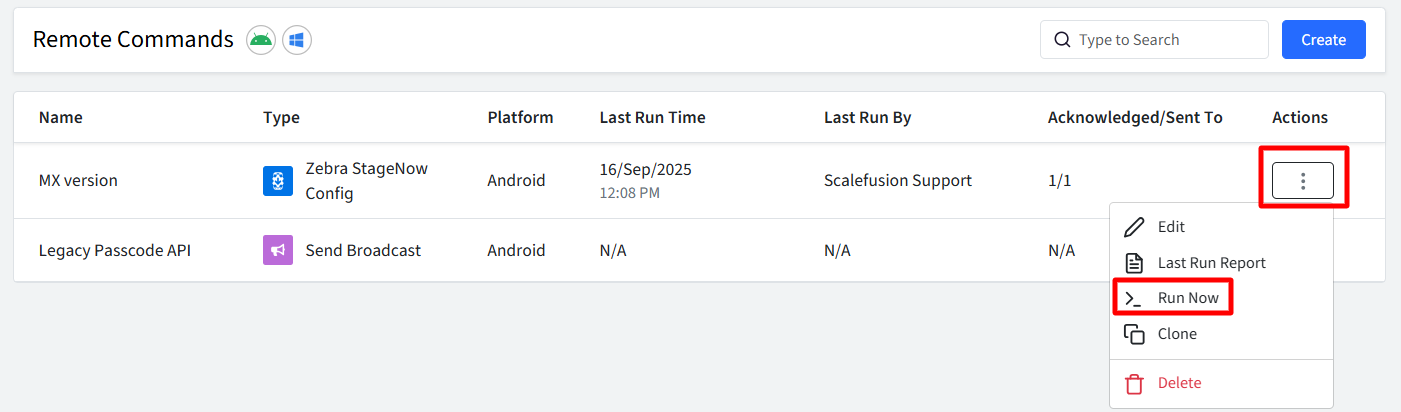
2. Select Device Group or Device and click **Execute**.
3. Once done, you will be able to see the **Last Run time** and Acknowledgment status.
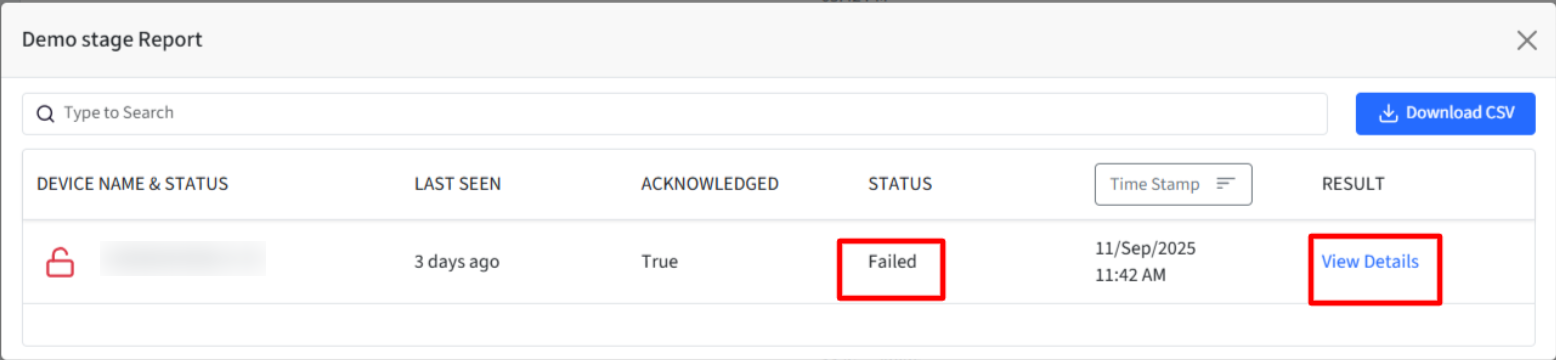
4. Click the 3 dots under the **Actions** column and click **Last Run Report** to see the **Status** of the command.
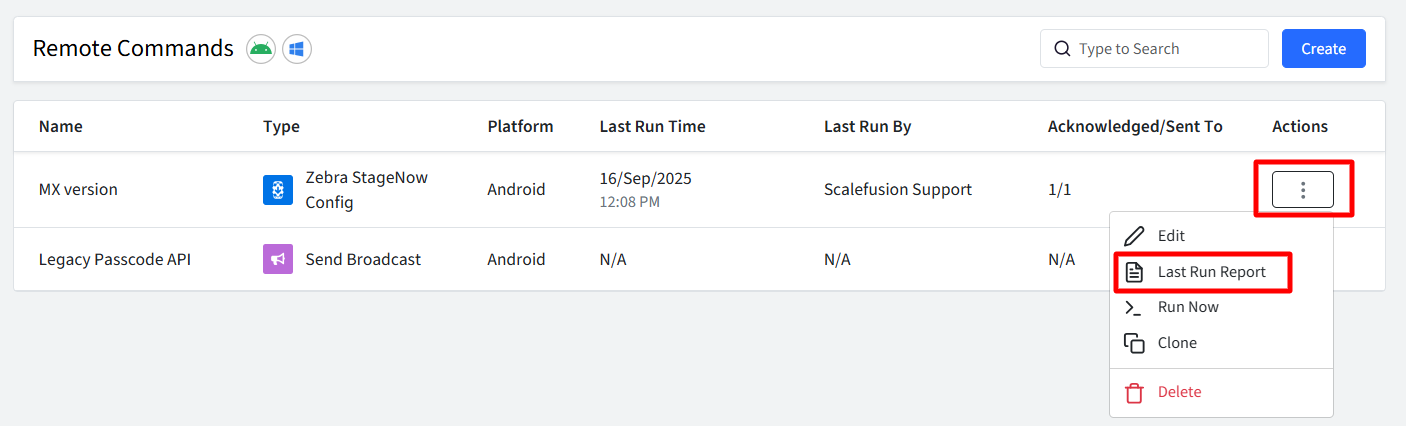
1. If the command executes successfully, the Status will display as ‘**Success**’ and the Result will show as ‘NA’, since no output is returned by the stage upon successful completion.
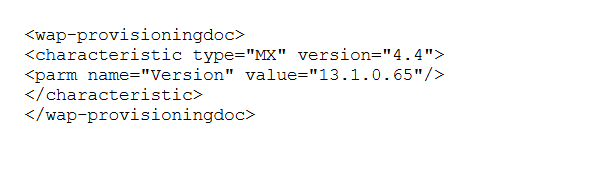
1. There are a few exceptions; for instance, with MX version configuration, you can view details under Results. Click ‘**View Details**’ to download the output. Eg.
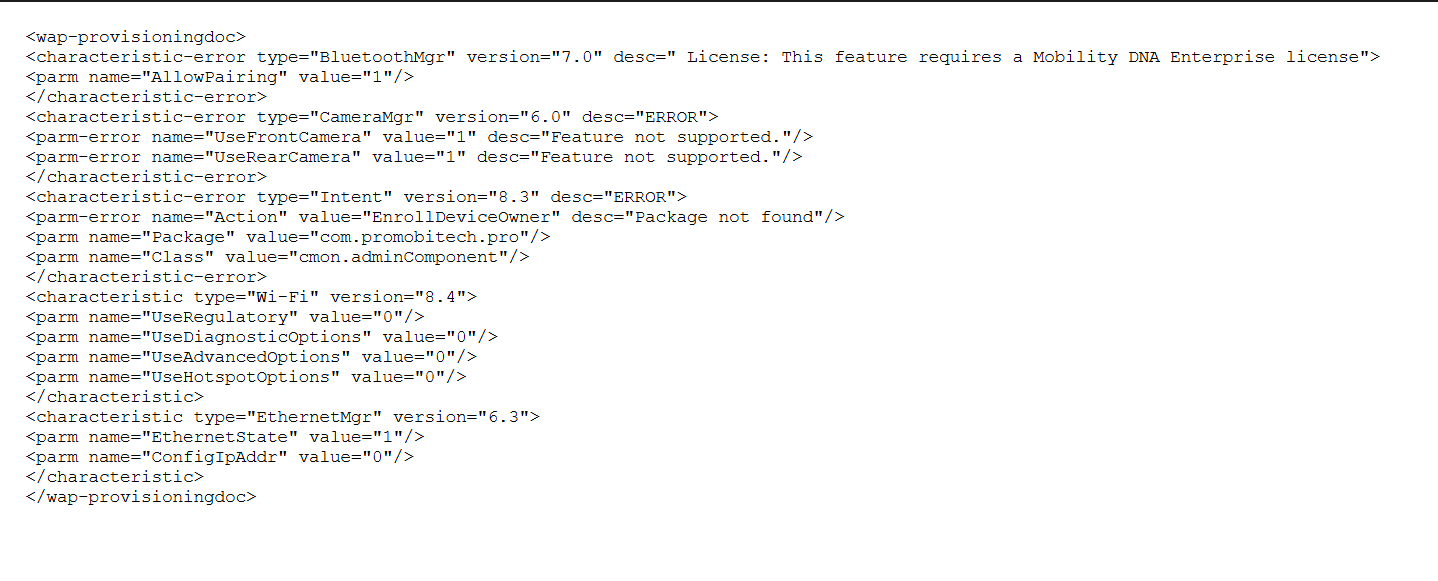
2. If the command does not succeed, the Status will show as '**Failed**', and you can click on '**View Details**' under **Results** to see the reason.
Note:[Click here](/docs/remote-commands-for-android#step-2-execute-run-a-command) to learn more about how to run the command.Note:If you have existing Remote command(s) for Zebra created using the Send Broadcast command, they will continue to function as usual.