---
title: "Create Chrome app configuration for iOS devices"
slug: "create-chrome-app-configuration-for-ios-devices"
updated: 2024-06-17T06:49:48Z
published: 2024-06-17T06:49:48Z
canonical: "help.scalefusion.com/create-chrome-app-configuration-for-ios-devices"
---
> ## Documentation Index
> Fetch the complete documentation index at: https://help.scalefusion.com/llms.txt
> Use this file to discover all available pages before exploring further.
# Create Chrome app configuration for iOS devices
Many users opt for the Chrome browser on their iOS devices for a seamless and integrated browsing experience. Chrome offers synchronization with Google accounts, ensuring a consistent browsing history, bookmarks, and preferences across multiple devices. Its user-friendly interface, quick navigation, and robust performance contribute to a smooth browsing encounter. Additionally, Chrome supports various extensions, enhancing functionality and personalization. Chrome on iOS seamlessly integrates with other services like Google Drive, making it a preferred choice for users seeking a cohesive and interconnected digital experience.
IT Admins can configure Chrome browser on their managed iOS devices to restrict access to non-productive websites.
## Before you begin
1. You must have a Scalefusion Dashboard account.
2. You have created an iOS Device Profile and enrolled an iOS Device.
3. You have published Chrome from the Apple App Store onto the device.
## Creating app configuration
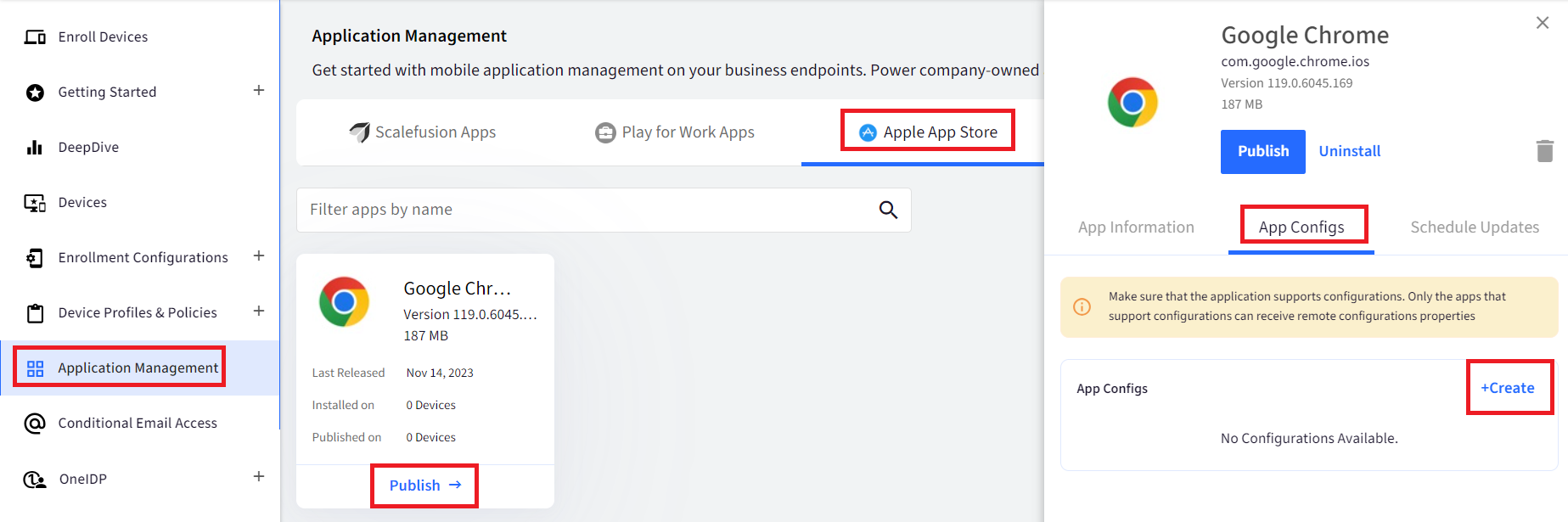
1. From your dashboard, go to **Application Management** > **Apple App Store**.
2. Select **Chrome** application.
1. In case you have not added the Chrome app yet, please follow [our guide](/docs/install-itunes-applications) to add Chrome app on the dashboard.
2. You can also distribute Chrome as VPP application. Please follow [our guide](/docs/how-to-install-vpp-applications) here to know more on VPP applications.
3. Select the **App Configs** tab and click on the **Create** button.
### Configure URLBlocklist
4. The Create App Configuration window will appear.
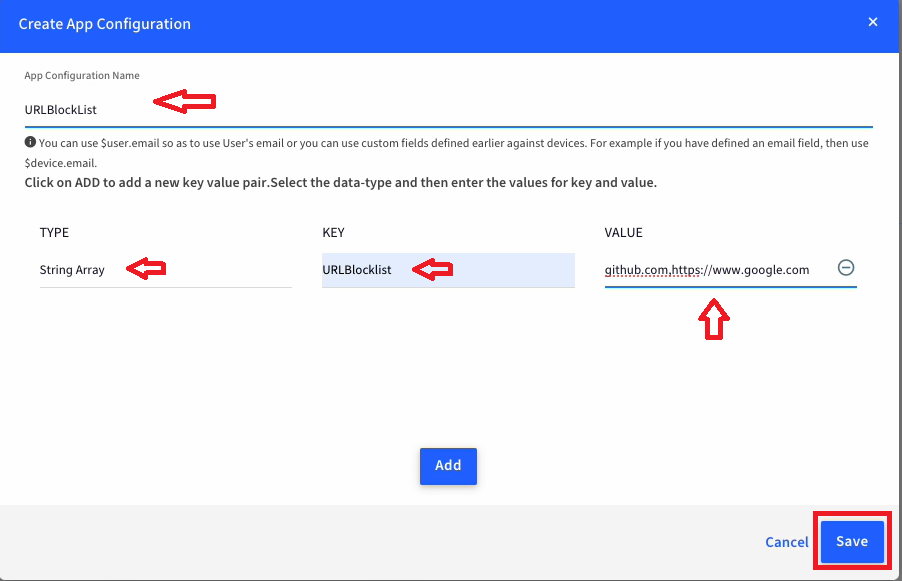
5. In the configuration creator window, start entering the details of the configuration as shown below:
1. Enter a name for this configuration.
2. Click on the Add button to add a key-value pair:
1. Data Type: **String Array**
2. Key field: **URLBlocklist**
3. Value field: add the websites here. Use comma to add multiple websites.
6. Once you have added all the keys and values, Click on **Save** to save the configuration.
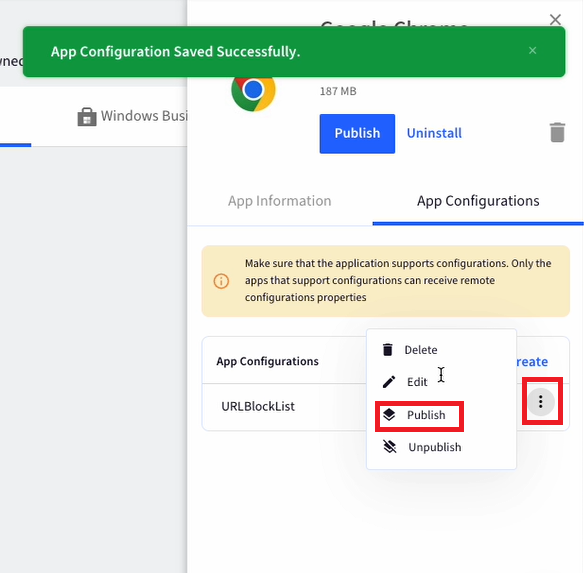
7. In the App Configurations tab > click on **3-dots** > click on **Publish**.
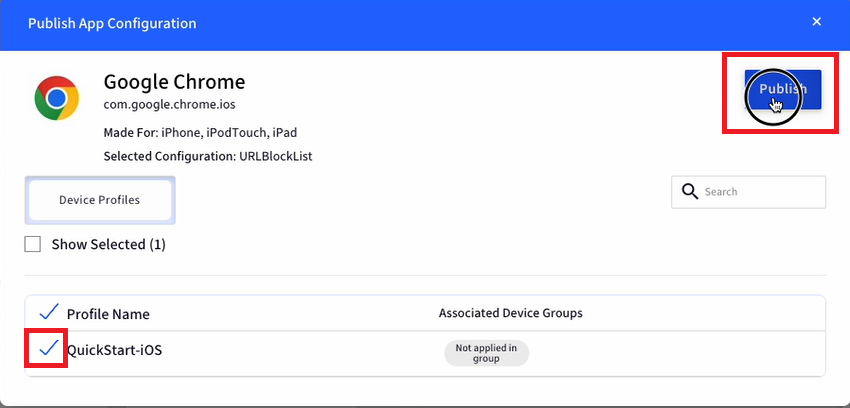
8. Select the Device Profiles and click **PUBLISH**. The configuration will be published to the devices.
9. On the device re-launch Chrome app and you will be able to see that the websites as per the configuration (e.g. github.com and [https://www.google.com](https://www.google.com)) will be blocked.
### Configure URLAllowlist
1. From your dashboard, go to **Application Management** > **Apple App Store**.
2. Select **Chrome**application.
1. In case you have not added the Chrome app yet, please follow [our guide](/docs/install-itunes-applications) to add Chrome app on the dashboard.
2. You can also distribute Chrome as VPP application. Please follow [our guide](/docs/how-to-install-vpp-applications) here to know more on VPP applications.
3. Select the **App Configs** tab and click on the **Create** button.
4. The Create App Configuration window will appear.
5. In the configuration creator window, start entering the details of the configuration as shown below:
1. Enter a name for this configuration. Click on the Add button to add a key-value pair:
1. Data Type: **String Arra**y
2. Key field: **URLAllowlist**
3. Value field: add the websites that you would like to allow here. Use comma to add multiple websites.
6. Click on Add button again and add key-value pair as shown below:
1. Data Type: **String Arra**y
2. Key field: **URLBlocklist**
3. Value field: *****
**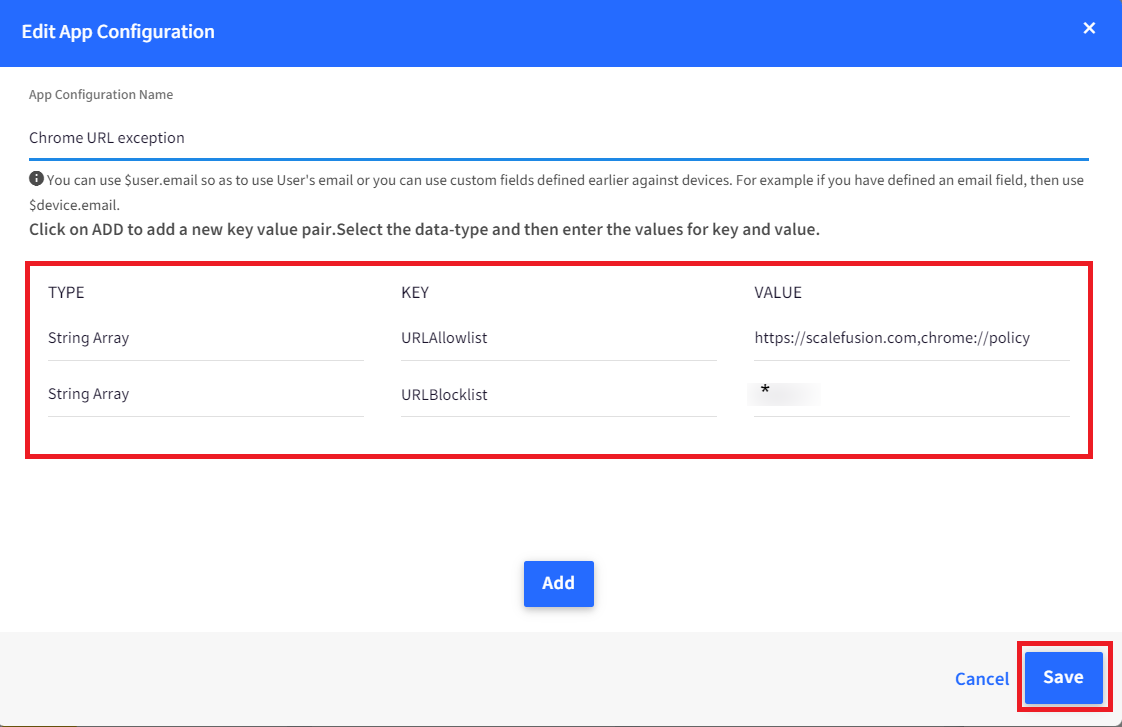**
7. Once you have added all the keys and values, Click on **Save** to save the configuration.
8. In the **App Configurations** tab > click on **3-dots** > click on **Publish**.
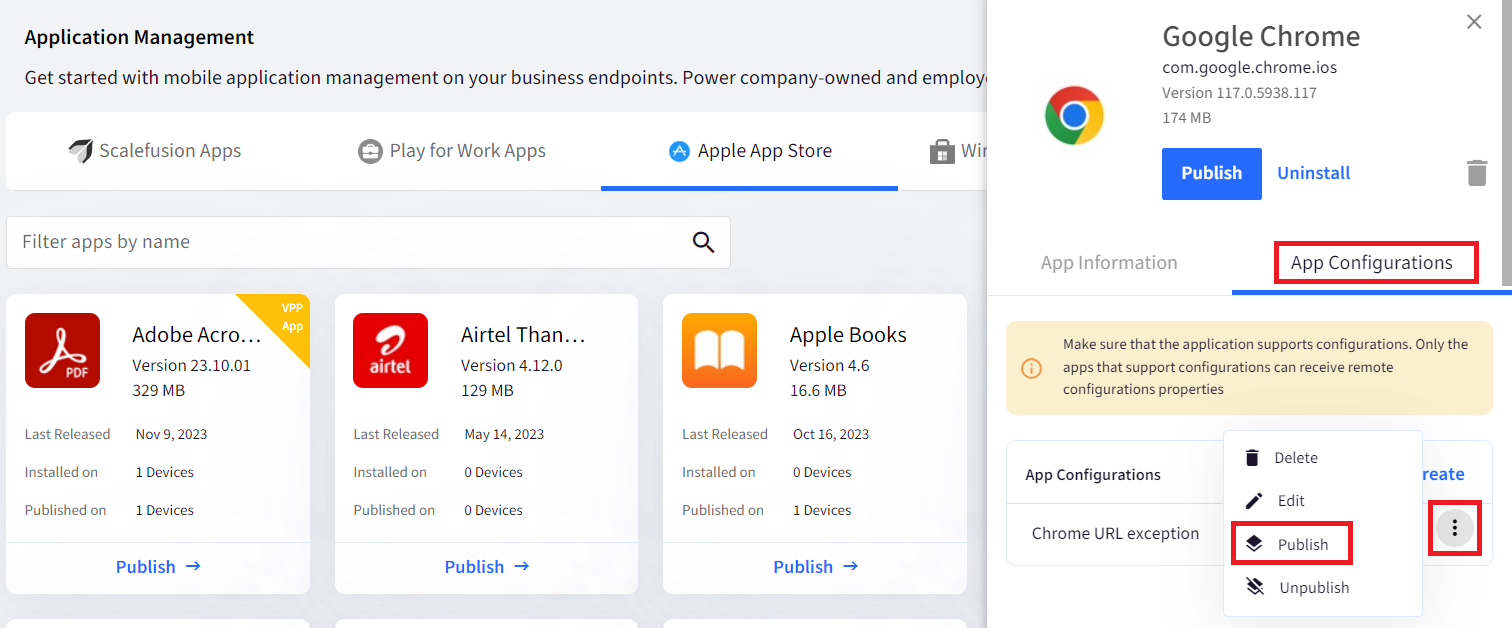
9. Select the Device Profiles and click PUBLISH. The configuration will be published to the devices.
10. On the device re-launch Chrome app and you will only be able access the websites as per the configuration and all other websites will be blocked.
Please note that you can **either** create a *URLBlocklist* configuration **or** a *URLAllowlist* configuration to apply on the devices.