---
title: "Android Enterprise Setup with Any Email"
slug: "android-enterprise-setup-with-any-email"
tags: ["android enterprise setup"]
updated: 2024-09-12T10:18:39Z
published: 2024-09-12T10:18:39Z
canonical: "help.scalefusion.com/android-enterprise-setup-with-any-email"
---
> ## Documentation Index
> Fetch the complete documentation index at: https://help.scalefusion.com/llms.txt
> Use this file to discover all available pages before exploring further.
# Android Enterprise Setup with Any Email
Android Enterprise (AFW) provides a streamlined mechanism to enroll, manage, and secure your company-owned as well as employee-owned (BYOD) devices. For setting up Android Enterprise to manage Android devices, you'll need to register Scalefusion as your Enterprise Mobility Management (EMM) provider with Google.
This document describes in detail how to register with Android Enterprise.
## Before you begin
1. You will need an Email id. It could be:
1. A non-corporate/personal Gmail id.
2. A corporate email id (***recommended***).
3. A Google Workspace email id (***recommended***).
## Steps to Register
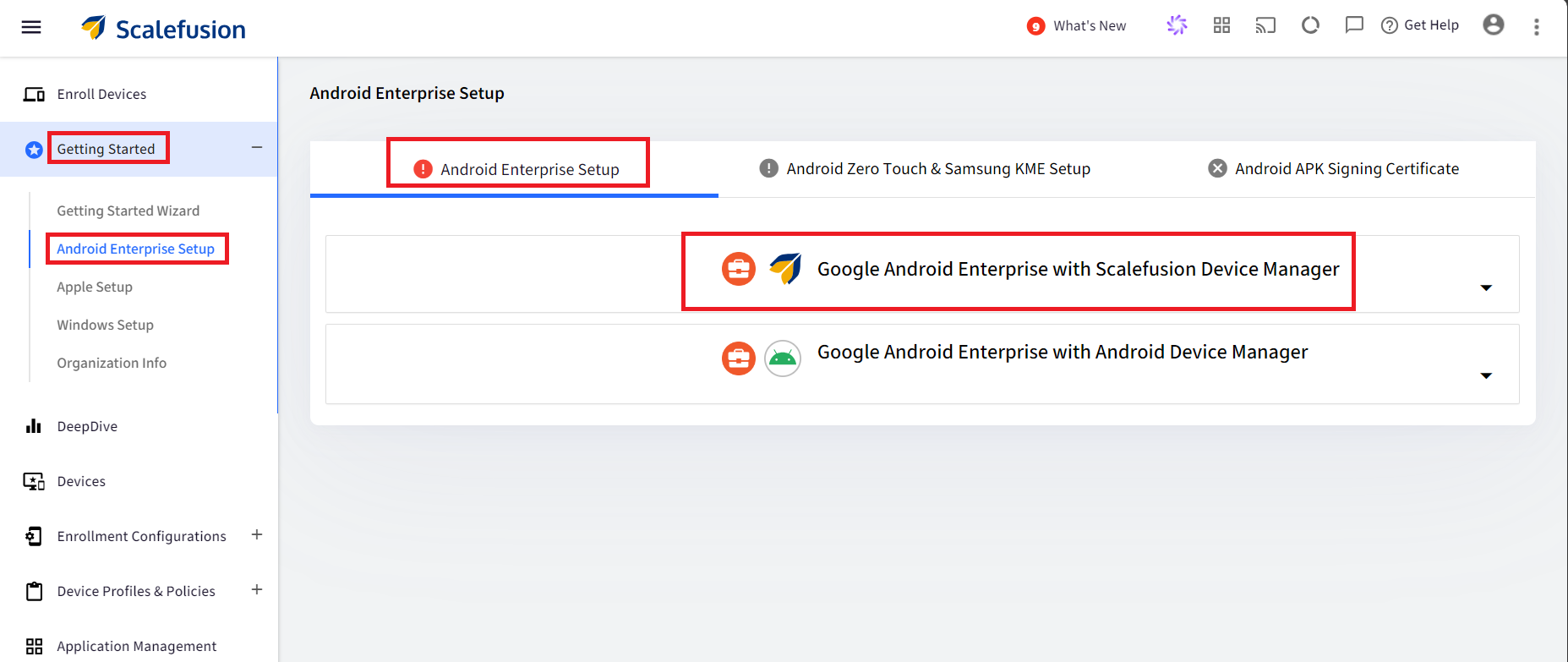
1. Log into the Scalefusion dashboard and navigate to **Getting Started** > **Android Enterprise Setup**.
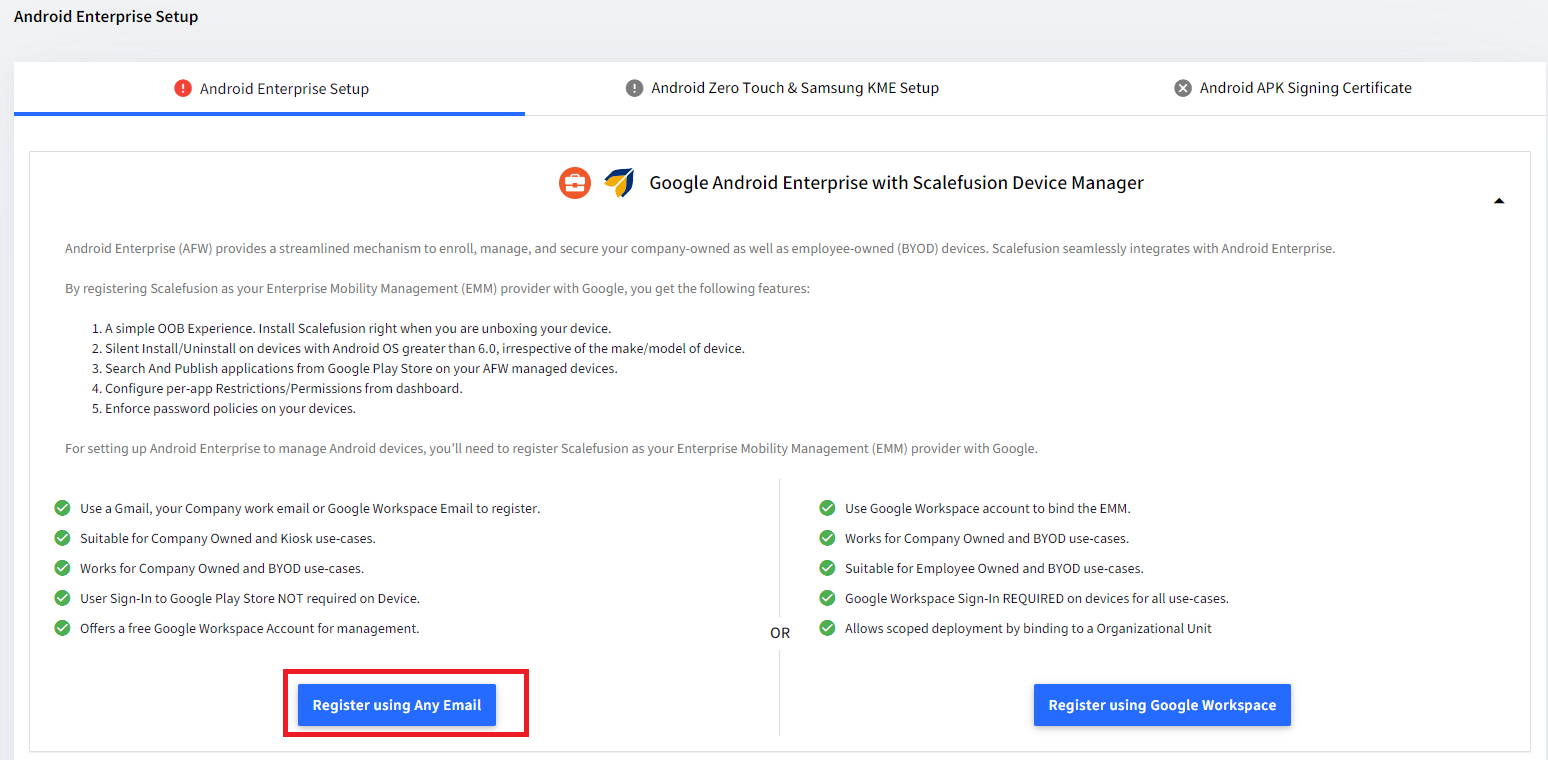
2. In the section, **Google Android Enterprise with Scalefusion Device Manager**, click on **Register with Any Email button**.
### (A) Set up Android Enterprise using a non-corporate/personal Gmail ID
1. Once you click on **Register with Any Email**, you will be taken to the following screen where you will have to enter your email id.
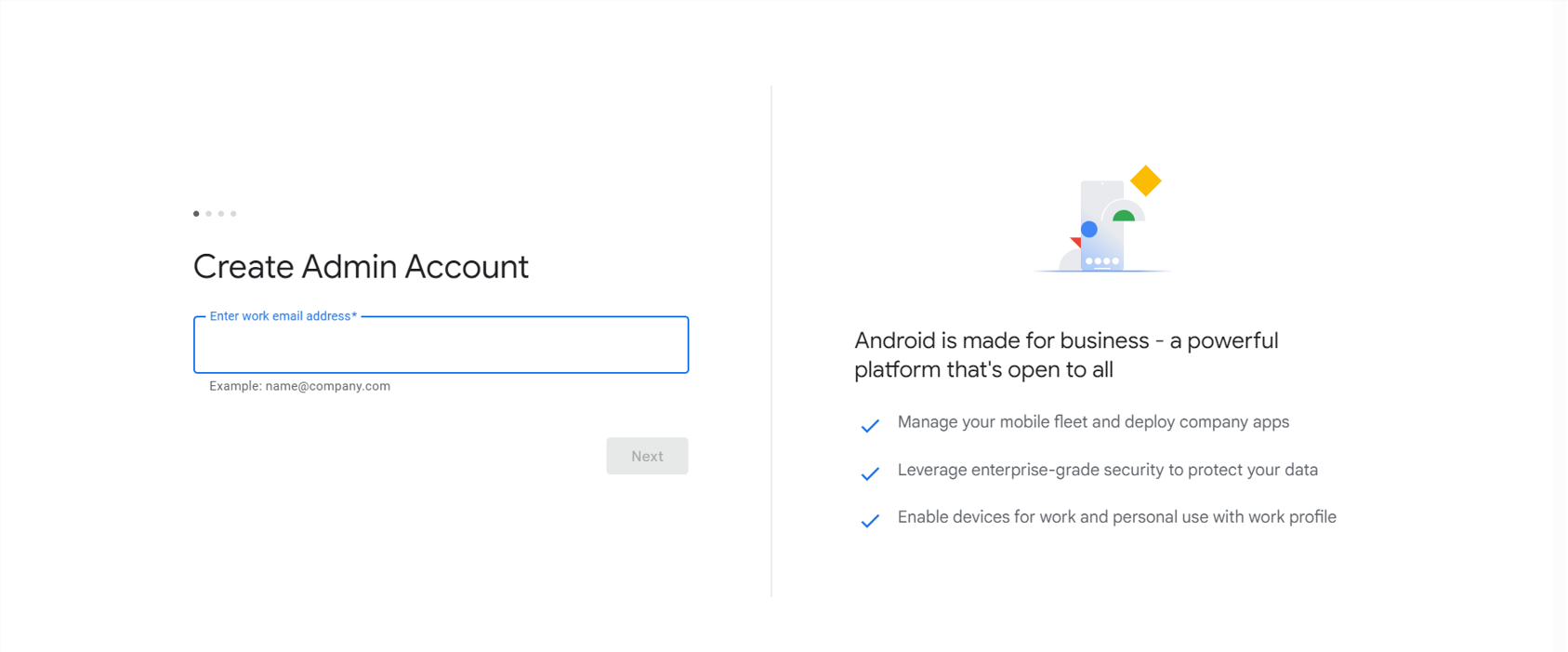
2. Enter your non-corporate/personal Gmail id and click on **Nex****t**.
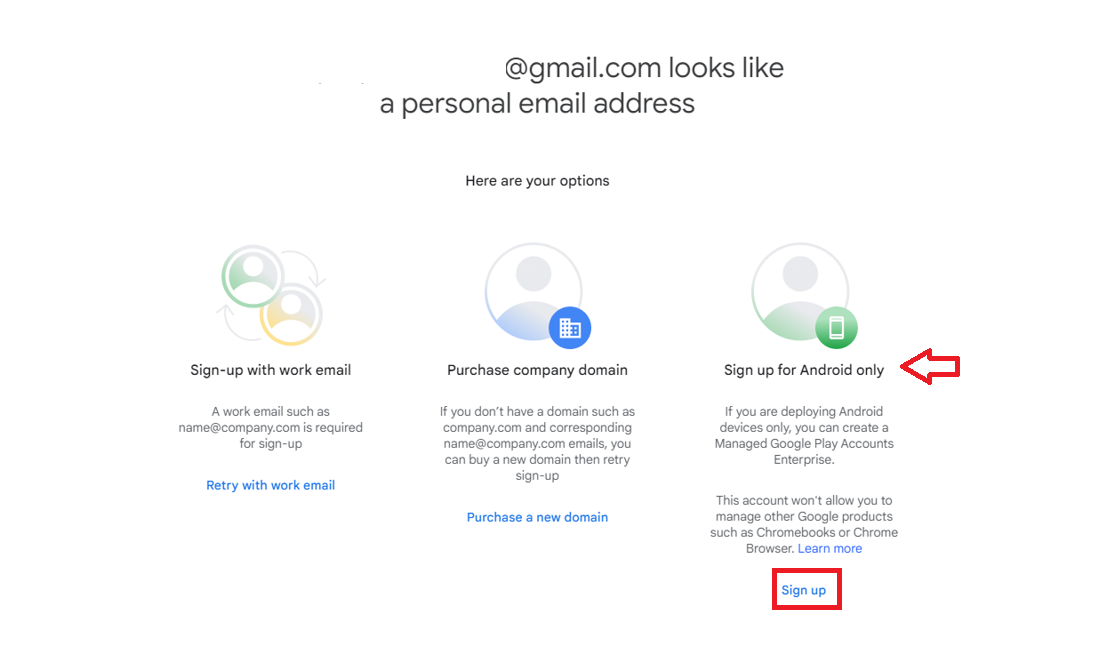
3. You will be shown the below screen where you will see the 3 options. If you do not have a work email or do not wish to purchase the company domain, please click on **Sign up** option under **Sign up for Android Only**.
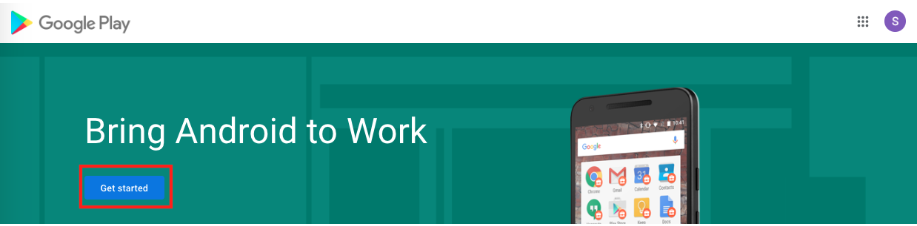
4. You will be redirected to Managed Google Play page. Click on **Getting Started**.
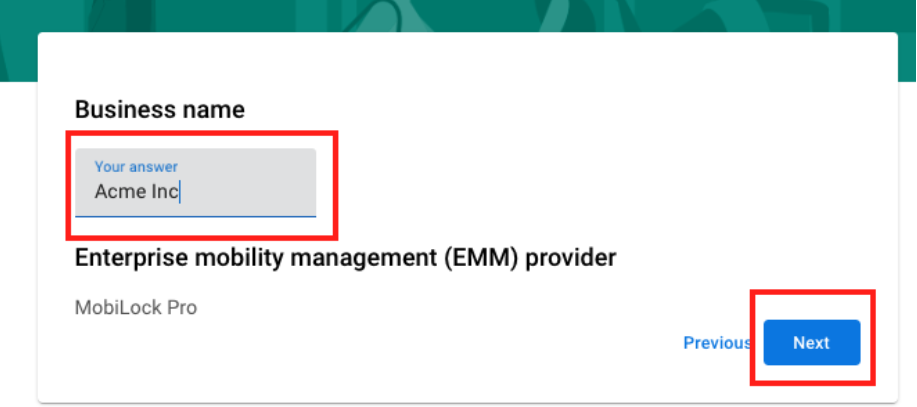
5. Enter your organization/company name and click on **Next**.
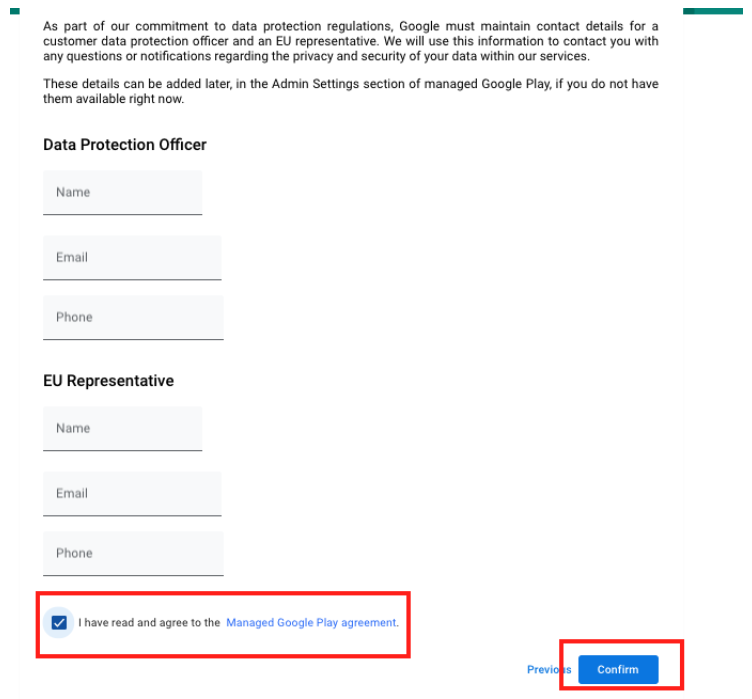
6. On the next screen, fill in the DPO and EU representative details as applicable. If you do not have DPO details or if these are not applicable for your organization, select **I have read and agree to Managed Google Play agreement** and click on **Confirm**.
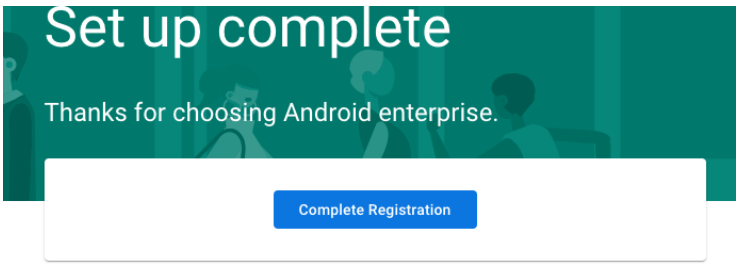
7. The following screen confirms that the registration is complete. Click on **Complete Registration** to navigate back to Scalefusion portal.
8. On the Scalefusion portal you will see the following screen. The Gmail account that you used for enrolling, along with Google-assigned **Enterprise** **ID** will be displayed here.
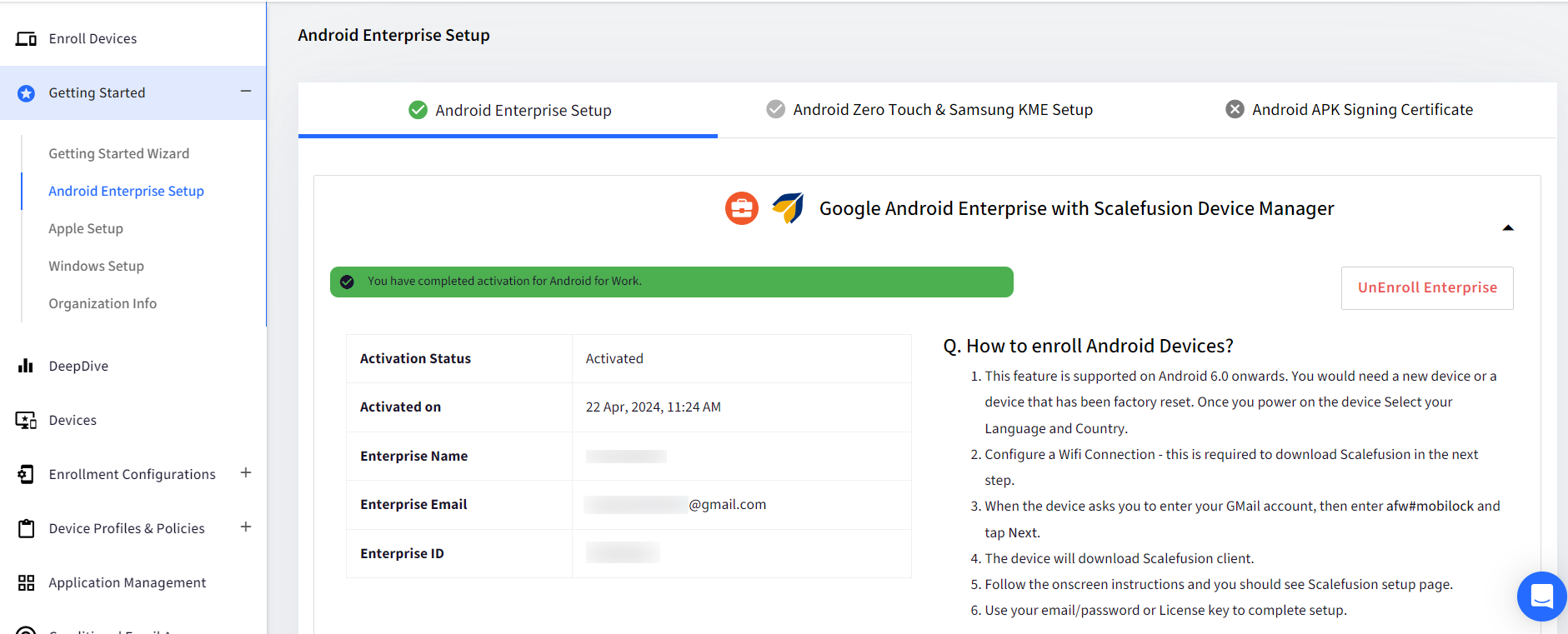
This completes the Android Enterprise Setup using non-corporate/personal Gmail. Now you are ready to start using Scalefusion to manage your corporate and employee-owned devices. Refer to our [Company Owned Device Management guide](/docs/enrolling-corporate-owned-android-devices) or [Employee-Owned Device Management](/docs/enrolling-a-personal-employee-owned-device) guide for further steps.
Please save the Google Account/Gmail address that you have used to bind the Android Enterprise safely. You would need this to accept Android Enterprise Terms and Services that may be updated from time to time.
Once you have completed the setup, please follow [our guide](/docs/management-of-android-enterprise-account) to manage your Android Enterprise account to add additional owners and safeguard your binding from being deleted.
Please be aware that Google intends to phase out the use of non-corporate/personal Gmail accounts for Android Enterprise setup in the future. Once we receive official communication from Google, this document will be revised accordingly. It's important to note that any setups you've already completed will remain unaffected unless Google communicates otherwise.
### (B) Set up Android Enterprise using a corporate email ID (*recommended*).
1. Once you click on **Register with Any Email**, you will be taken to the following screen where you will have to enter your **corporate email id**.
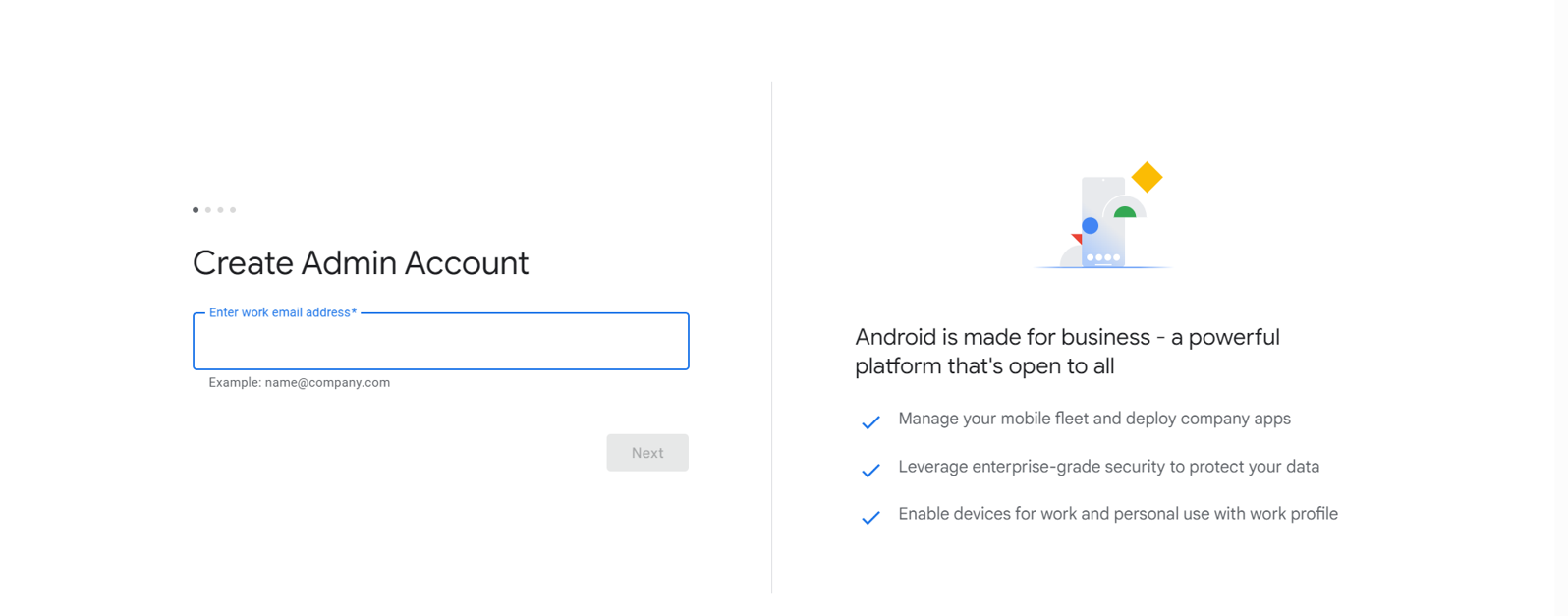
2. Enter your corporate email id and click on **Next**.
3. You will see a screen as below saying that an email has been sent to verify your corporate email id.
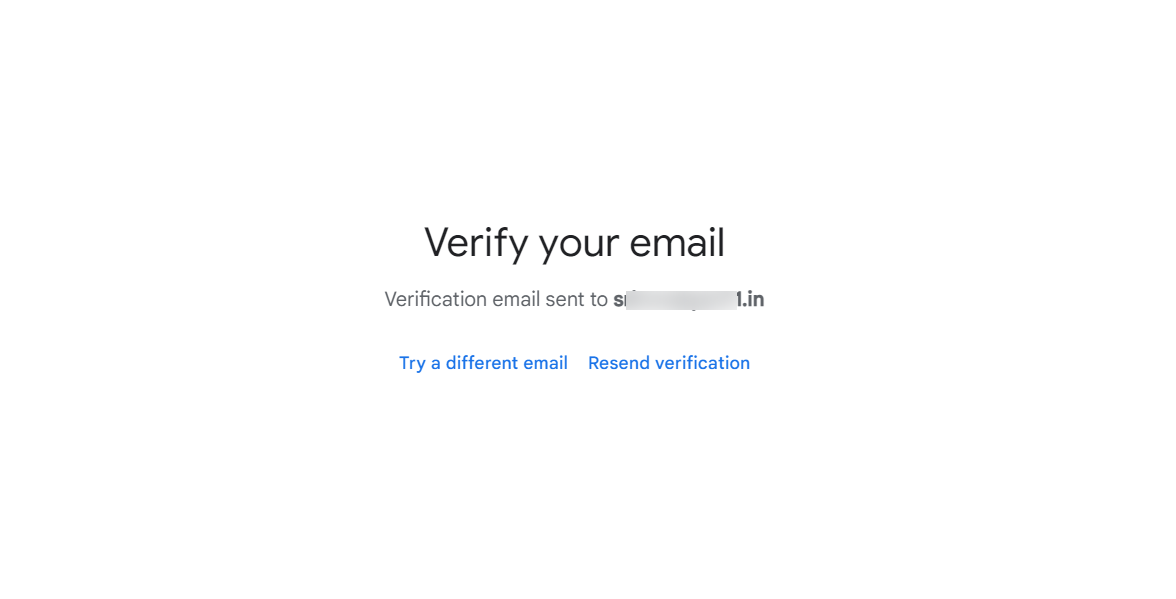
4. Please check your inbox (or your Spam folder) for the email.
5. Open the received email and click on **Verify email address**.
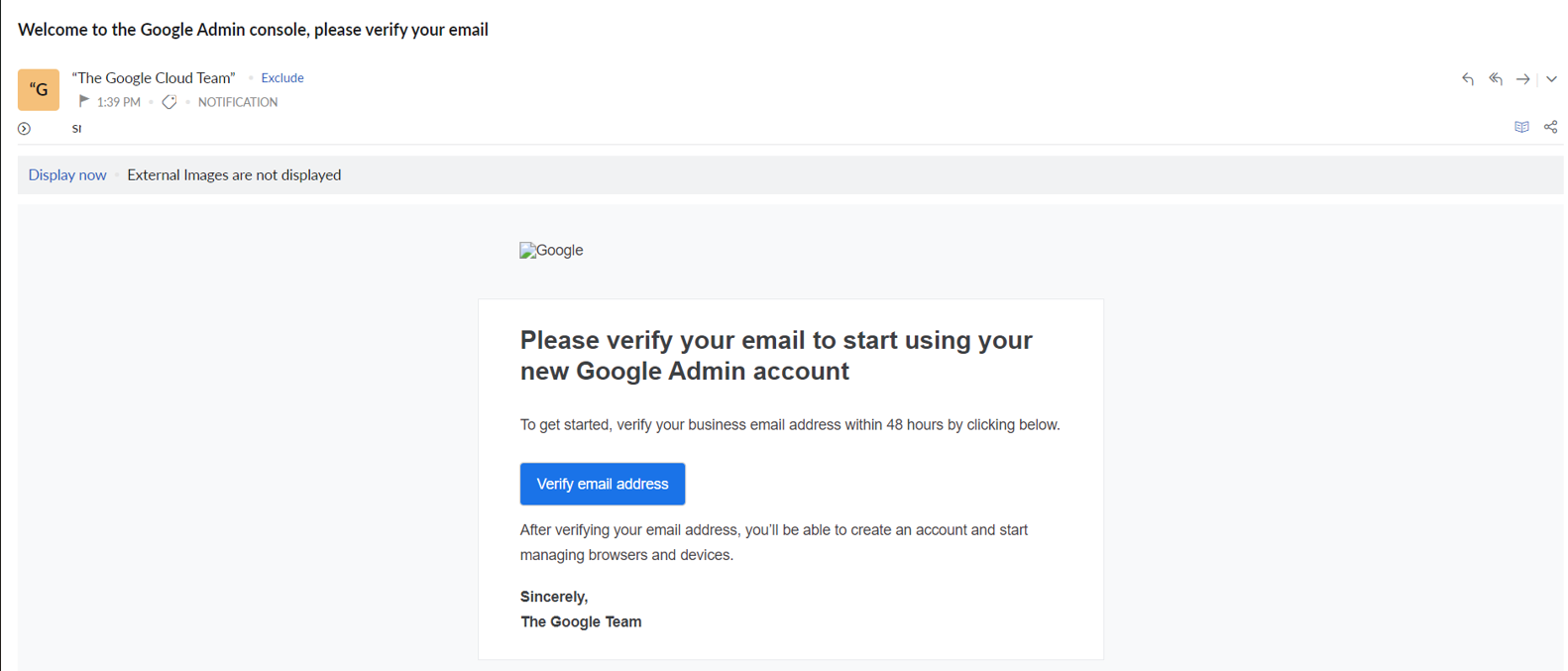
6. You will be asked to sign in again.
7. A **verification code** will be sent to your email.
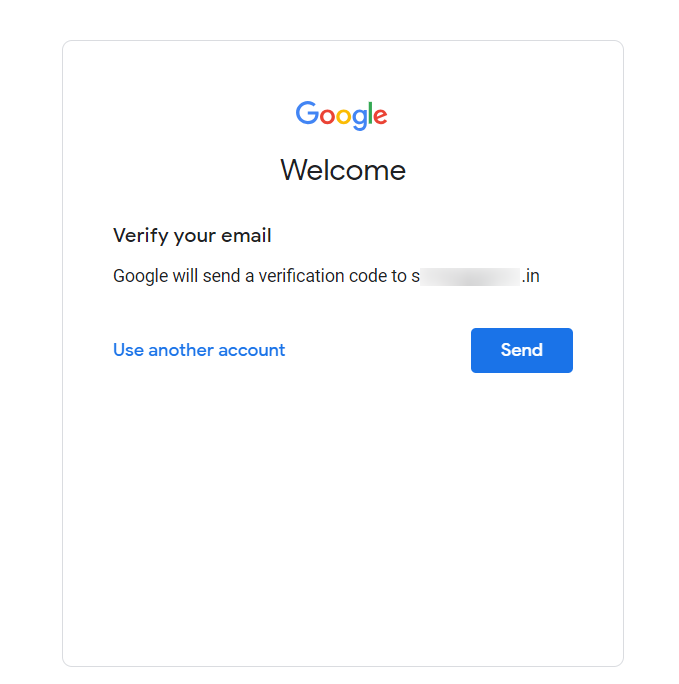
8. Enter the code and proceed further.
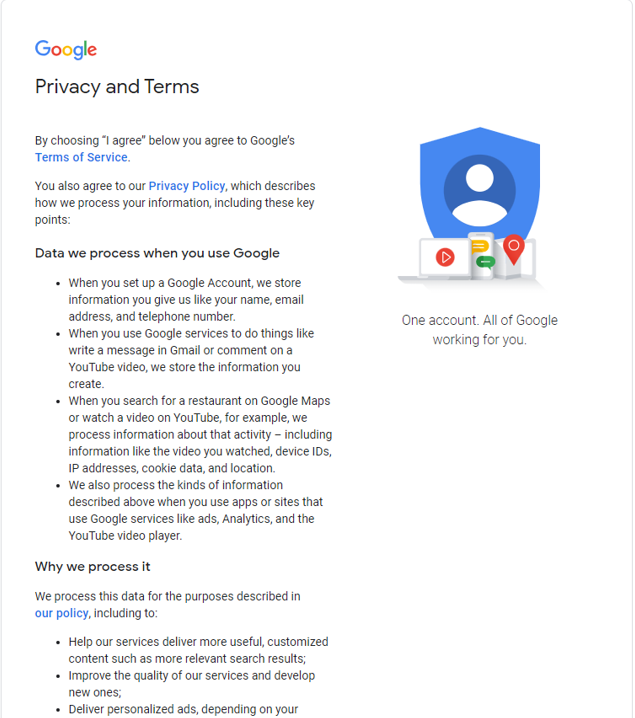
9. **Accept** the **Google's Privacy and Terms**.
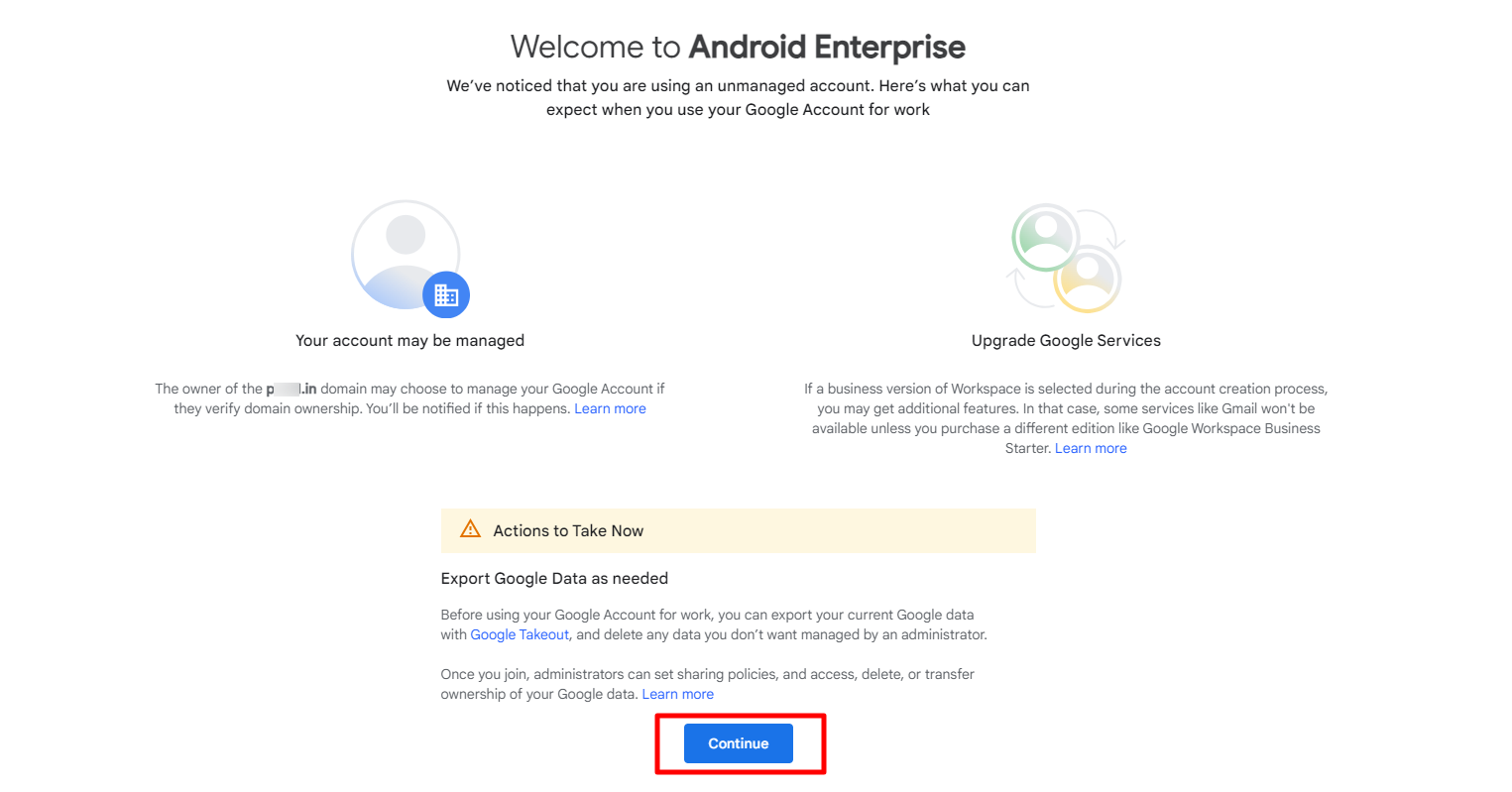
10. In the next screen, click on **Continue**.
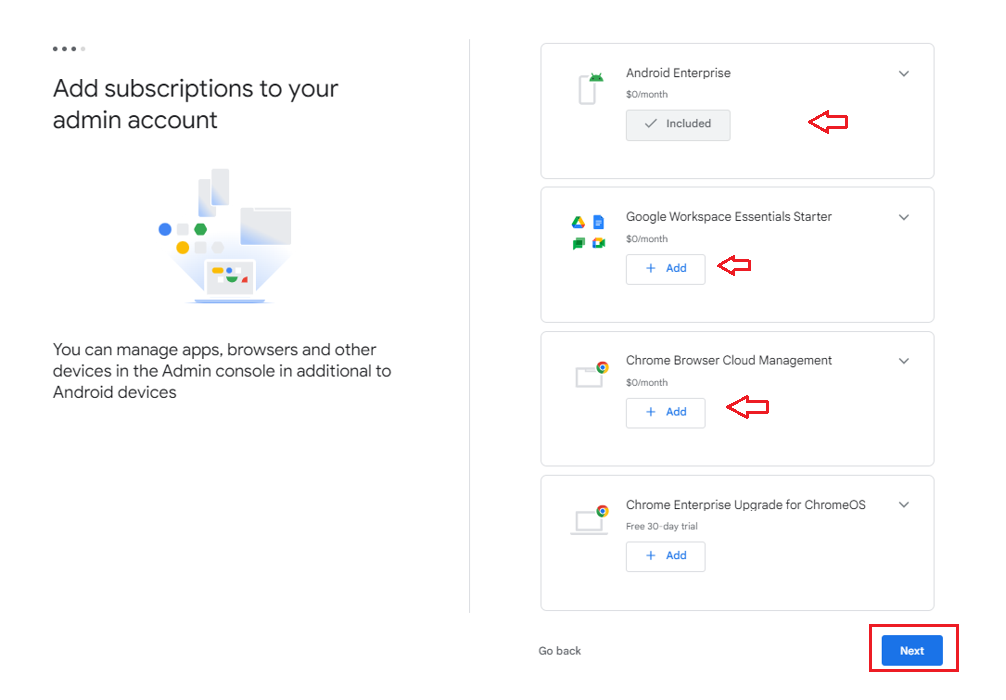
11. Add the subscriptions in the next screen. The first three subscriptions- **Android Enterprise, Google Workspace Essential Starter and Chrome Browser Cloud Management** are **free**. Select these three and click on **Next**.
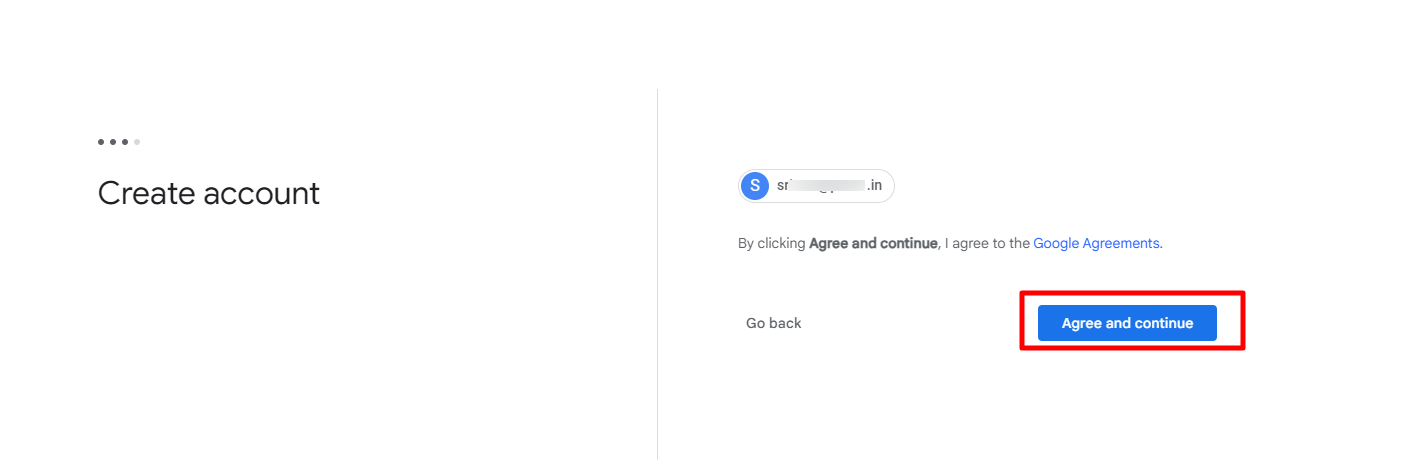
12. Click on **Agree and Continue**.
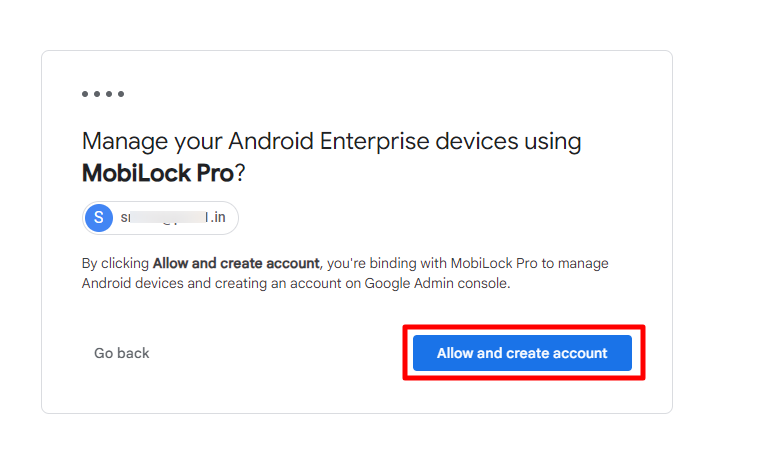
13. On the next screen, click on **Allow and create account**. This will create your free Google Workspace account for Android Enterprise management.
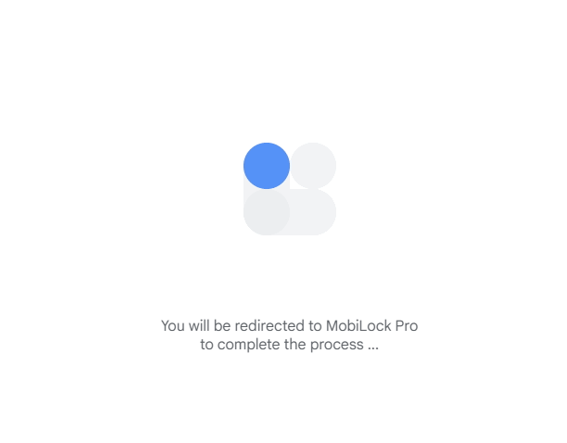
14. You will be redirected back to the Scalefusion dashboard.
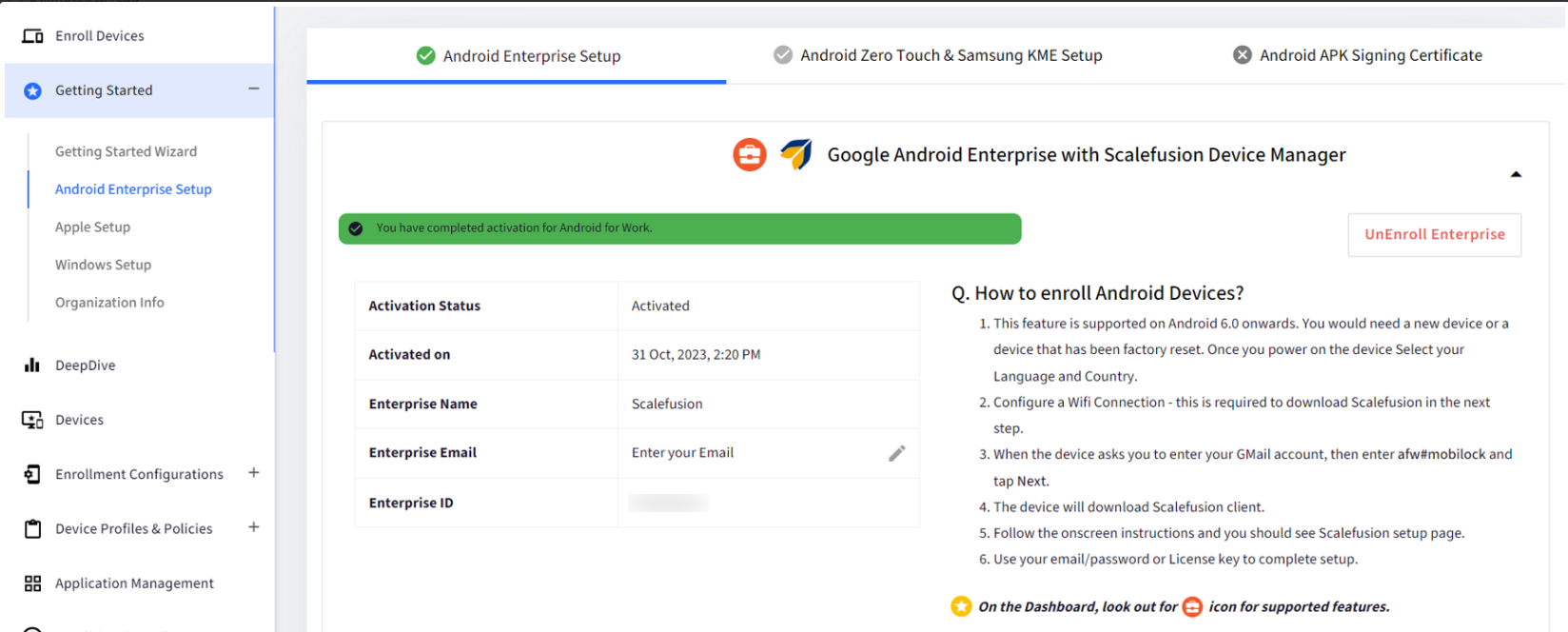
15. On the Scalefusion dashboard the Android Enterprise set up will be complete. You will notice that the Enterprise email field will show as empty and hence, it is recommended to add the **corporate email id** here (it is recommended that you add the same email id that you would have used to do the set up) so as not to forget it.
#### ###
This completes the Android Enterprise Setup using your Corporate Email ID. Now you are ready to start using Scalefusion to manage your corporate and employee-owned devices.
NoteThe steps outlined above may differ depending on the domain your company uses. For instance, if your company operates with a Microsoft domain, you might encounter a "Sign in with Microsoft" screen and need to "Consent to Google Workspace permissions." In such cases, email verification won't be necessary, and the new Google Workspace account will be created directly.


#### (i) Check your newly created Google Workspace account.
1. Log into [https://admin.google.com/](https://admin.google.com/) with your corporate email id that you have used to complete Android Enterprise set up.
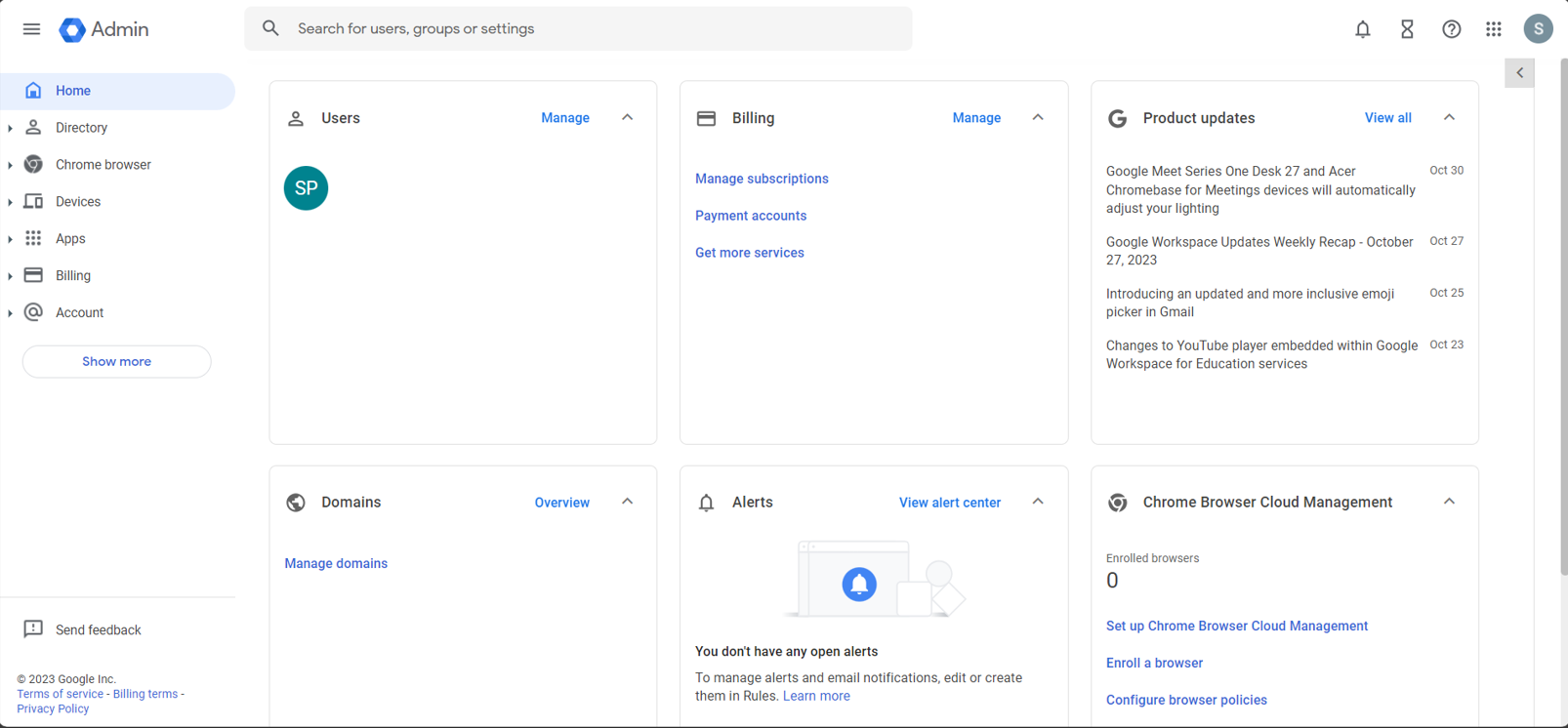
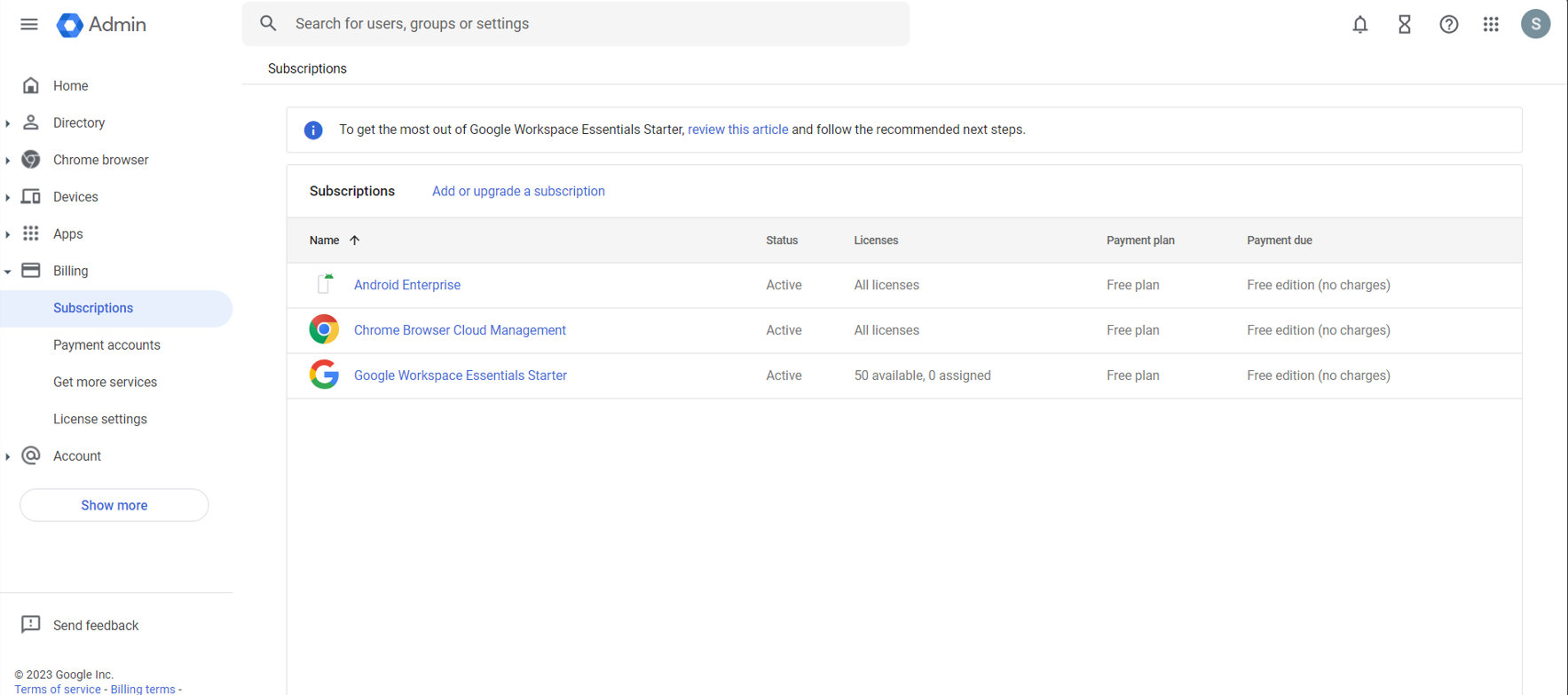
2. Click on **Manage subscriptions** to see the subscriptions added to this free account. These will be the same subscriptions that you would have selected during the set up. (Refer **point 11** in the previous section above.)
### (C) Set up Android Enterprise using a Google Workspace email id (*recommended*).
If your organization is already using a Google Workspace account, you can also use this email id to complete the Android Enterprise set up.
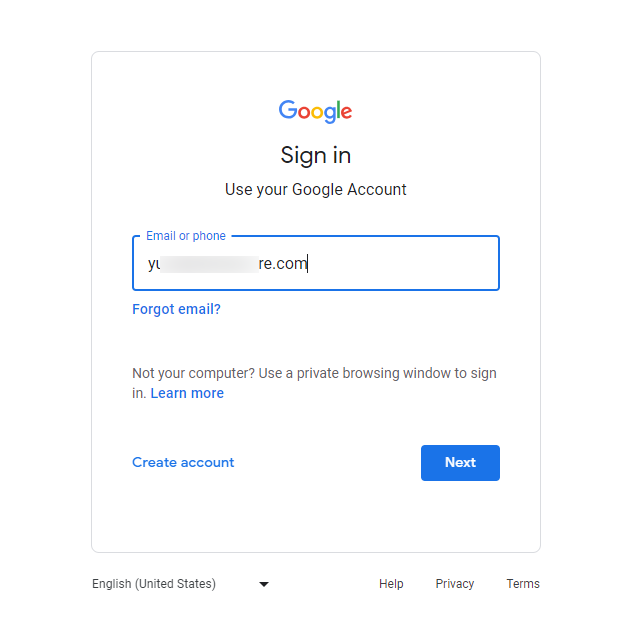
1. Once you click on **Register with Any Email**, you will be taken to the following screen where you will have to enter your **Google Workspace email id**.
2. In the next screen click on **Allow**.
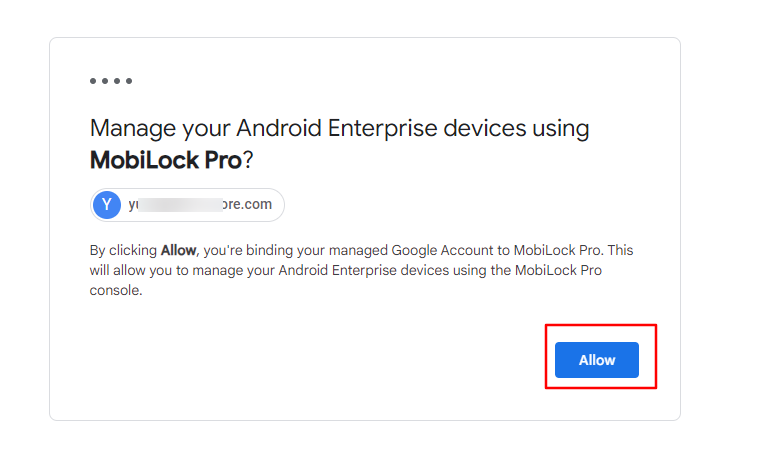
3. You will be redirected to Scalefusion dashboard next.
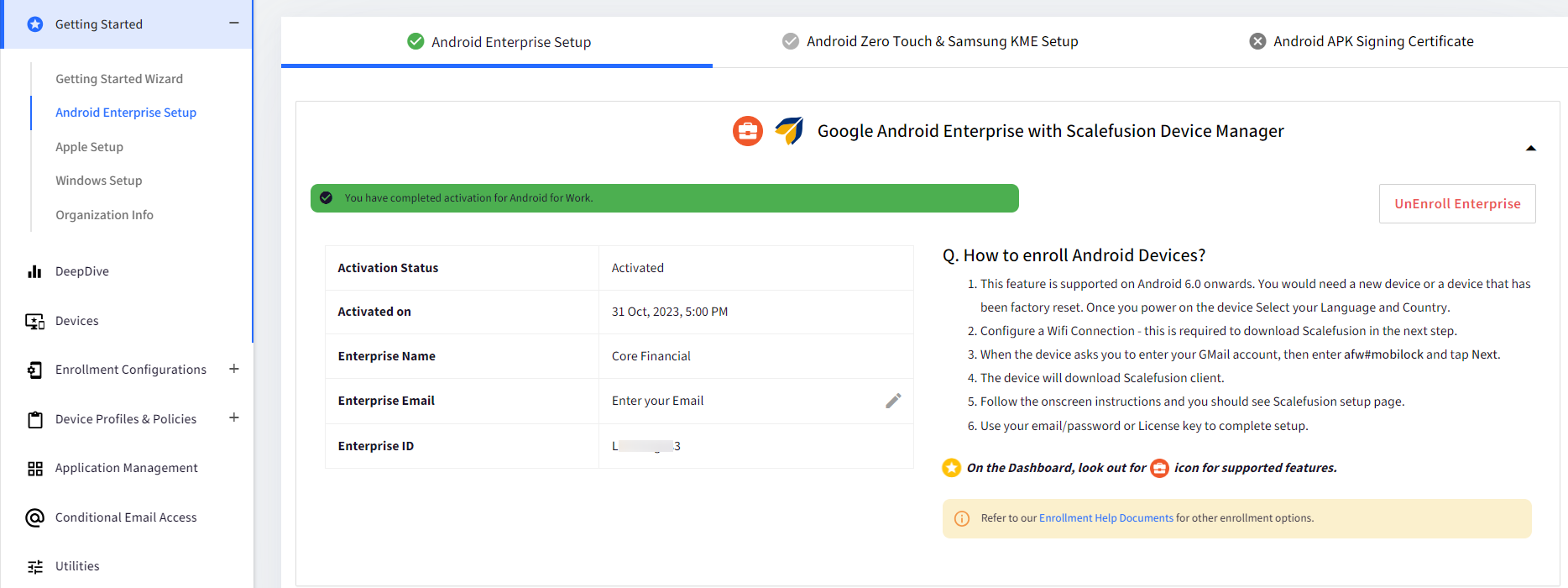
4. On the Scalefusion dashboard the Android Enterprise set up will be complete. You will notice that the Enterprise email field will show as empty and hence, it is recommended to add the **Google Workspace email id** here (that you have used to do the set up) so as not to forget it.
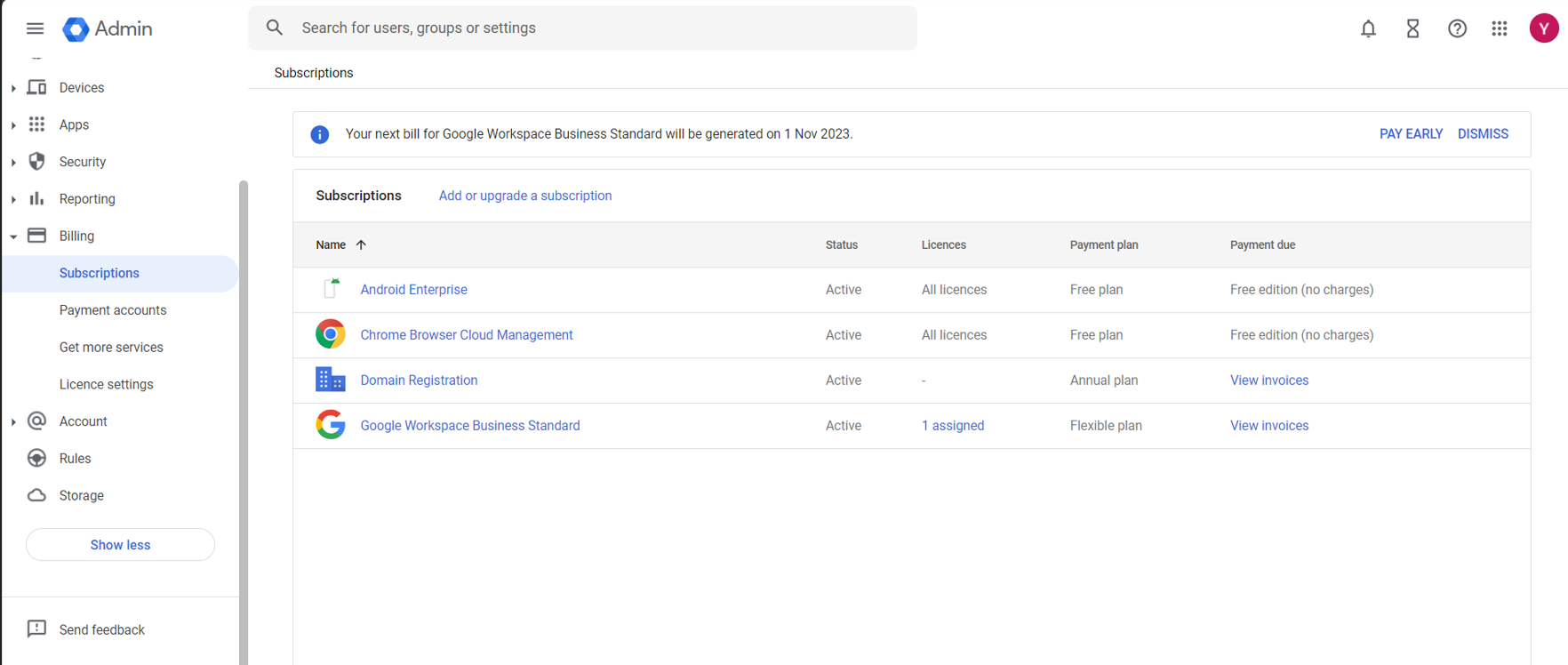
5. In your **Google Workspace Admin account** navigate to **Billing** > **Subscriptions**, here you will be able to see the new subscriptions added for free, mainly, **Android Enterprise** and **Chrome Browser Cloud Management**.
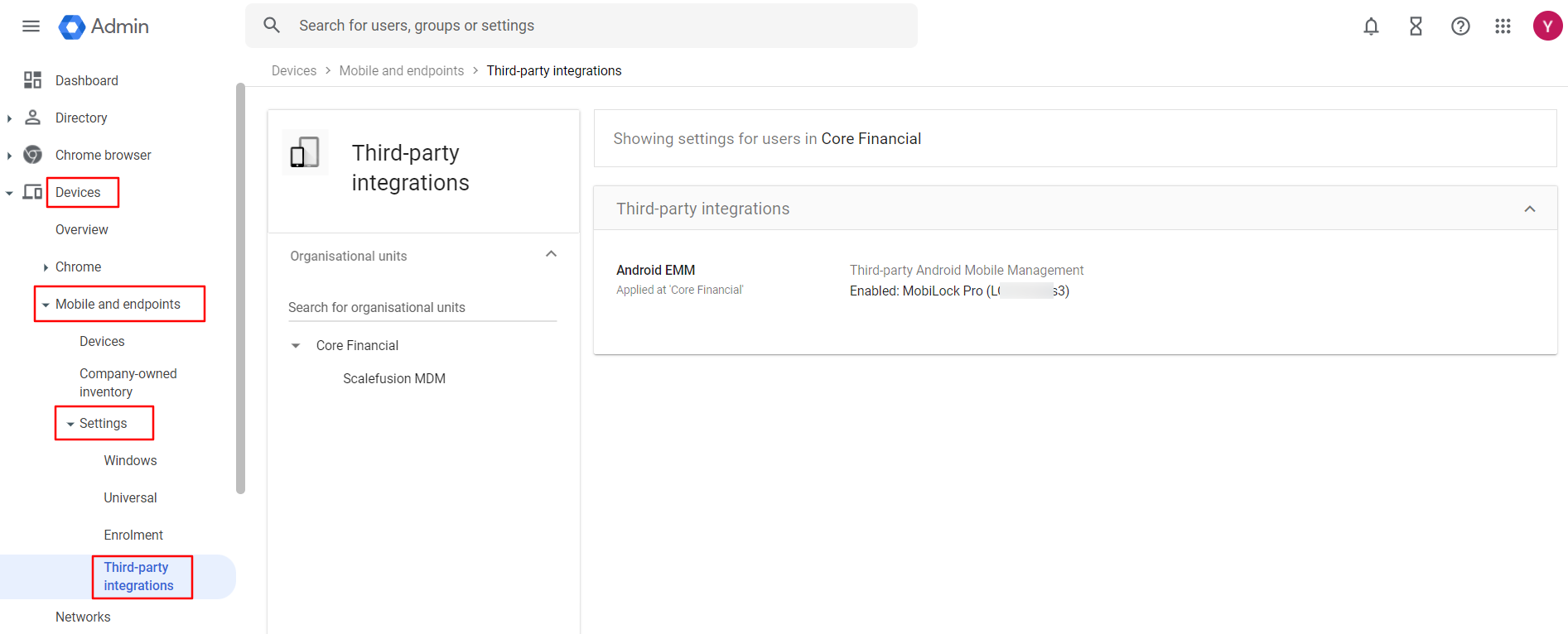
6. In Third-party integrations under Devices, you will also see that Scalefusion (MobiLock Pro) has been automatically populated as the Android EMM service provider, along with the Enterprise ID.
 This completes the Android Enterprise Setup using your Google Workspace ID. Now you are ready to start using Scalefusion to manage your corporate and employee-owned devices.
#### Points to note while doing AE set up using Google Workspace account
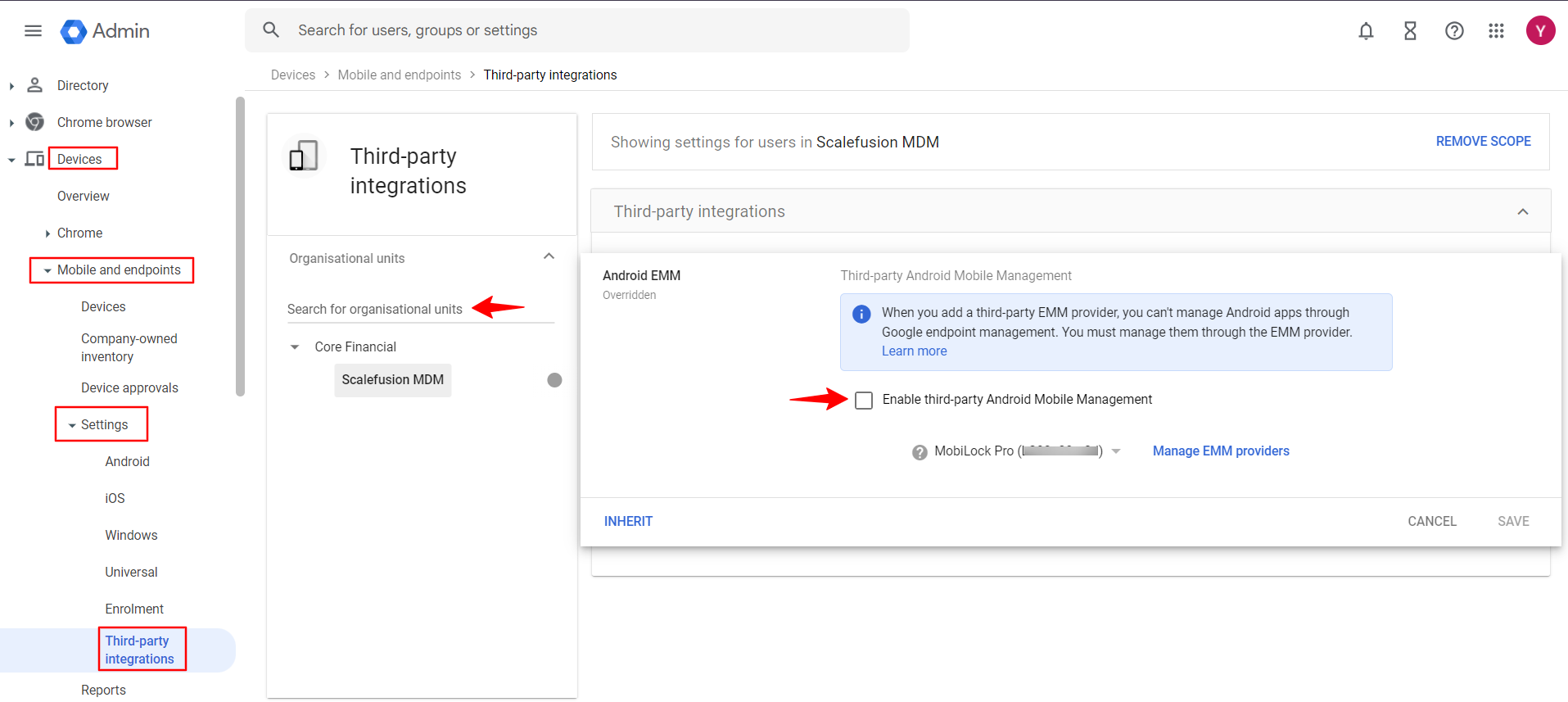
1. Please make sure that on the Google Workspace Admin console the check box to make MDM mandatory is unchecked.
1. Devices > Mobile & Endpoints > Settings > Third Party Integrations > “Enable Third Party Android Mobile Management” should be unchecked.
2. Please make sure that the check box to enforce password is unchecked.
1. Devices > Mobile & Endpoints > Settings > Universal settings > General > Password Requirements > “Require users to set a password” checkbox should be unchecked.
 
## Unenroll and delete the Android Enterprise Setup
You can unenroll and remove the Android Enterprise Setup anytime. To do so please follow the below steps:
### (i) Unenroll and delete the Android Enterprise set up done with non-corporate/personal Gmail ID
1. Log into [https://play.google.com/work](https://play.google.com/work) with the same Gmail credentials that were used for registering into Android Enterprise Setup.
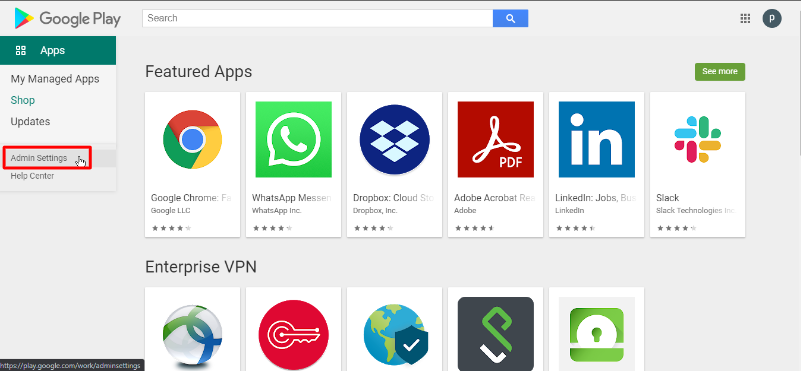
2. Click on **Admin Settings** on the left panel.
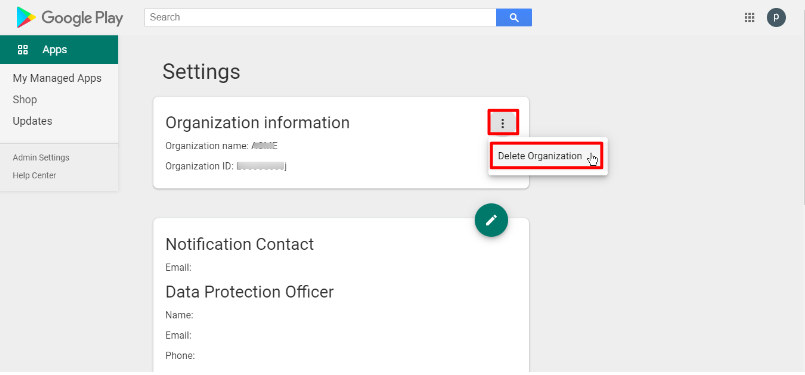
3. In **Organization Information**, click on the 3 dots menu and click on **Delete Organization** under it.
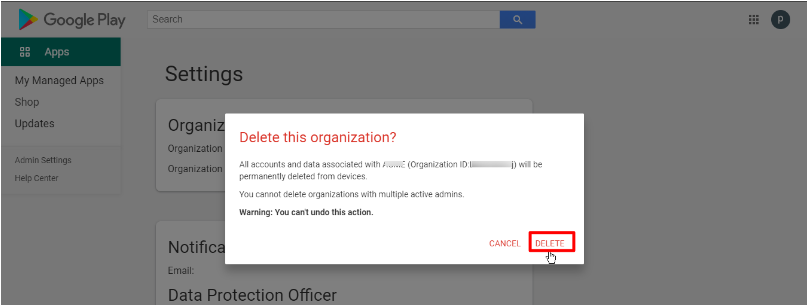
4. A confirmation box will come up. Confirm the action by clicking on **Delete.**
****
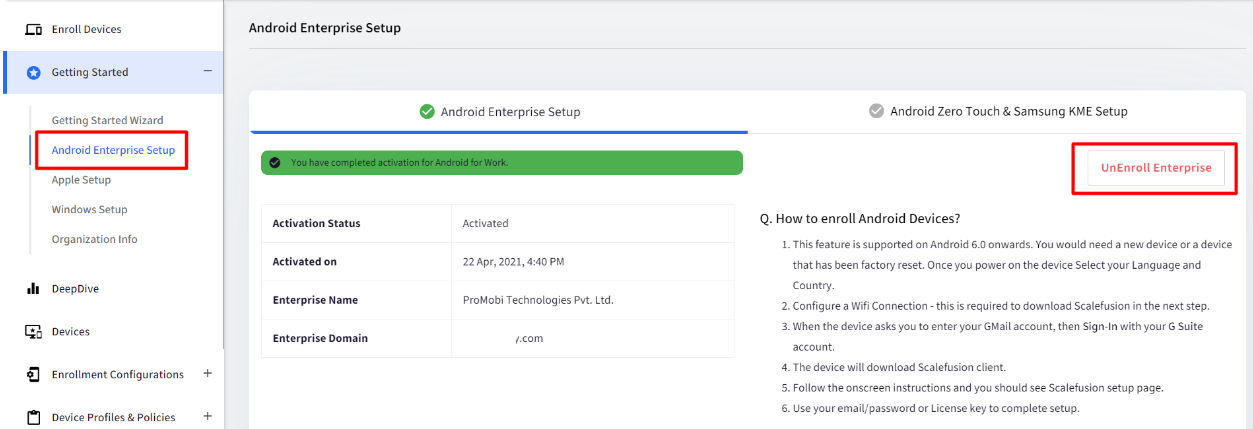
5. Now login to Scalefusion Dashboard and navigate to **Getting Started** > **Android Enterprise Setup**. Here, click on **UnEnroll Enterprise**.
6. You will be asked to enter your Scalefusion Dashboard login password to confirm. Enter the password and click **SUBMIT**.
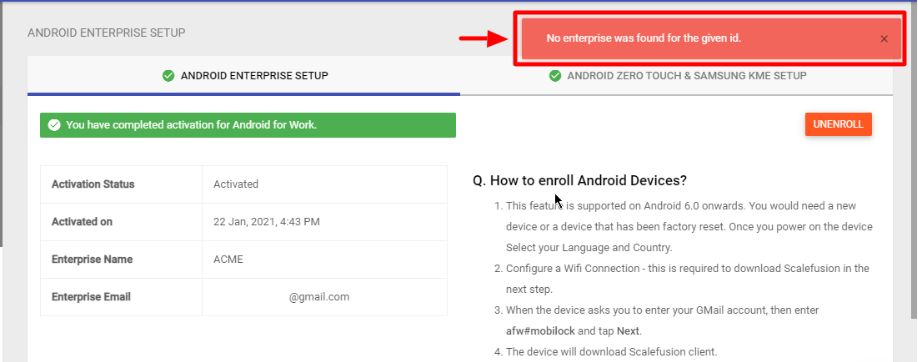
7. You will see a message **No enterprise was found for the given id**. This is because the organization has been deleted. **Refresh** the page.
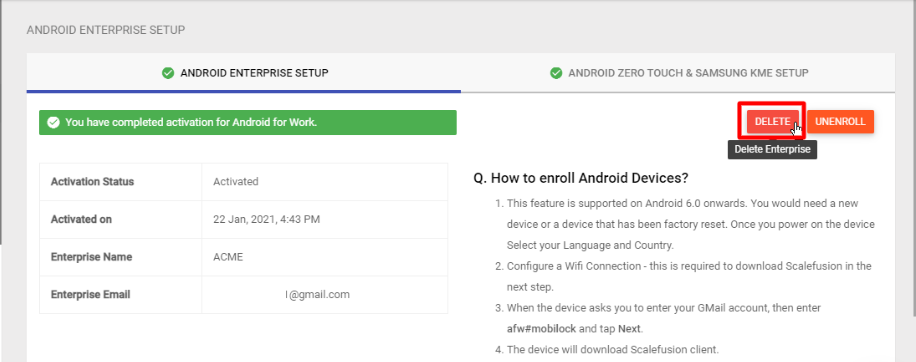
8. On refreshing, the **Delete** Button will appear. Click on this button.
9. On the confirmation box, click **OK**.
10. This completes the unenrollment and deletes the Android Enterprise Setup from your account.
### (ii) Unenroll and delete the Android Enterprise set up done with a corporate email ID
1. Navigate to **Getting Started** > **Android Enterprise Setup**.
2. Click on **UnEnroll Enterprise** button.
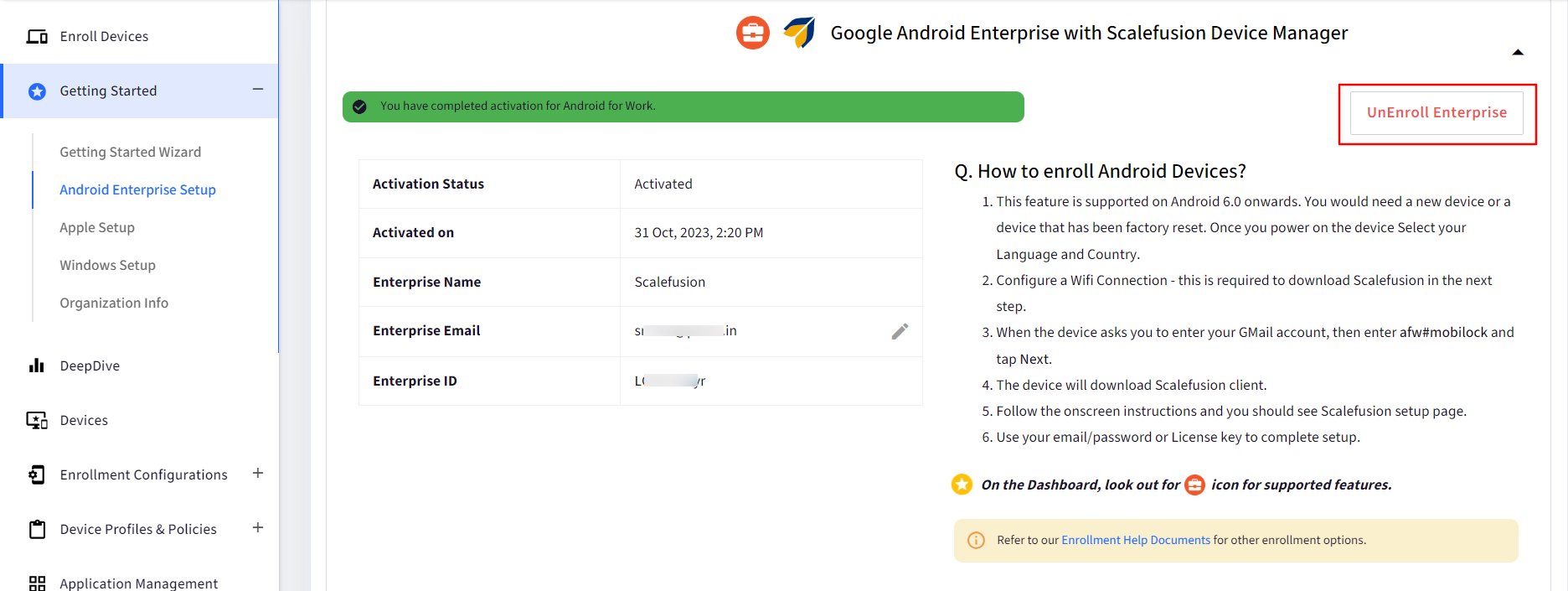
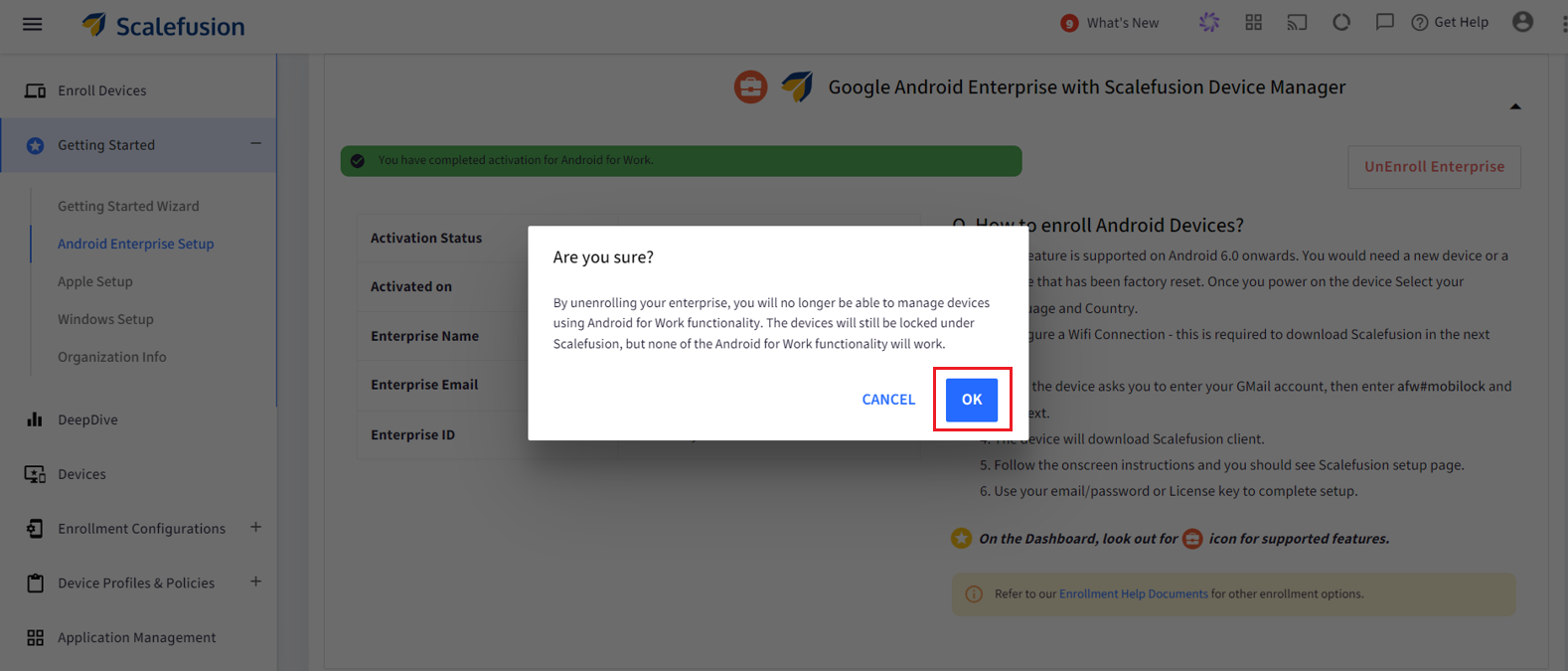
3. Click **OK** in the pop-up that is shown.
4. Enter your Scalefusion dashboard password and click on **Submit**.
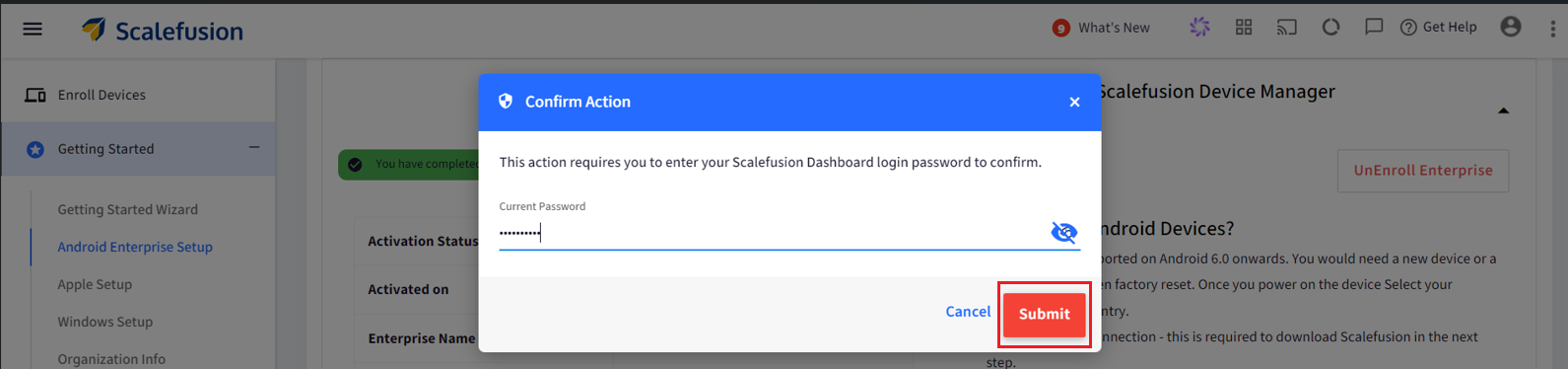
5. You will see that a new button **Delete Enterprise** will be visible now.
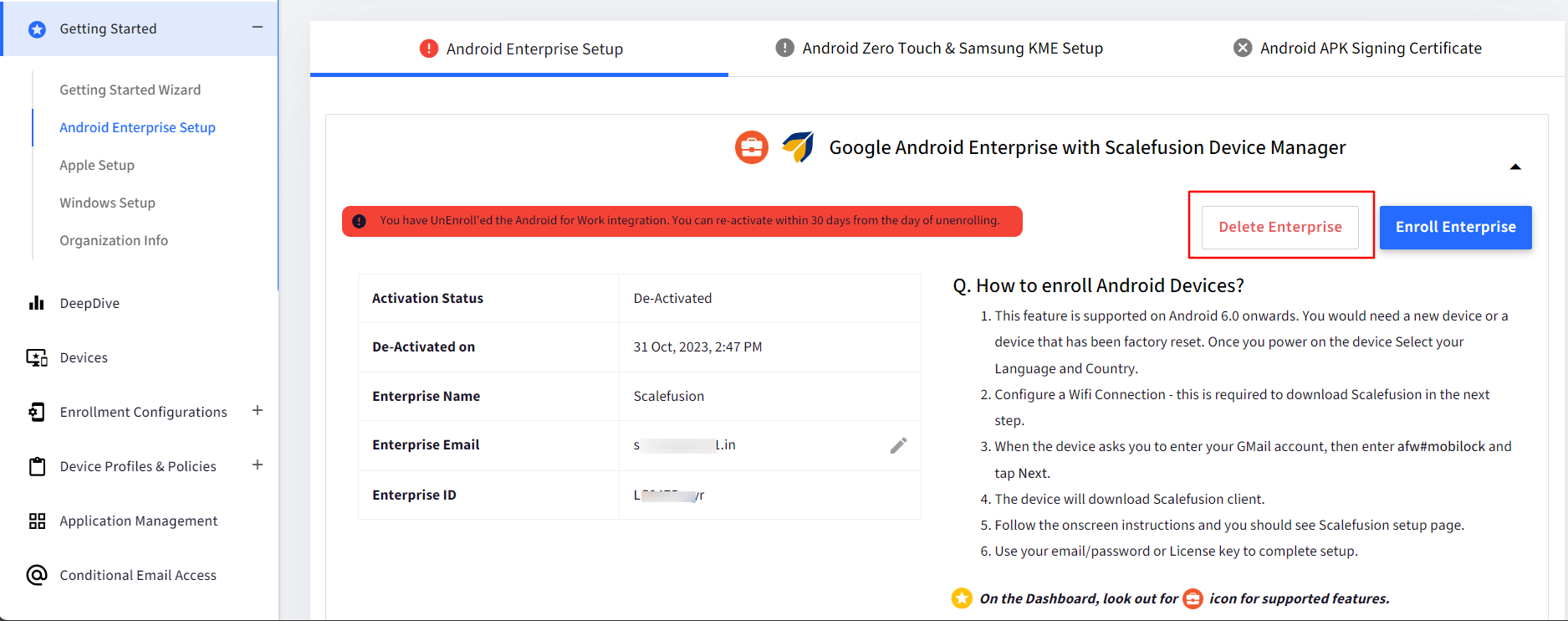
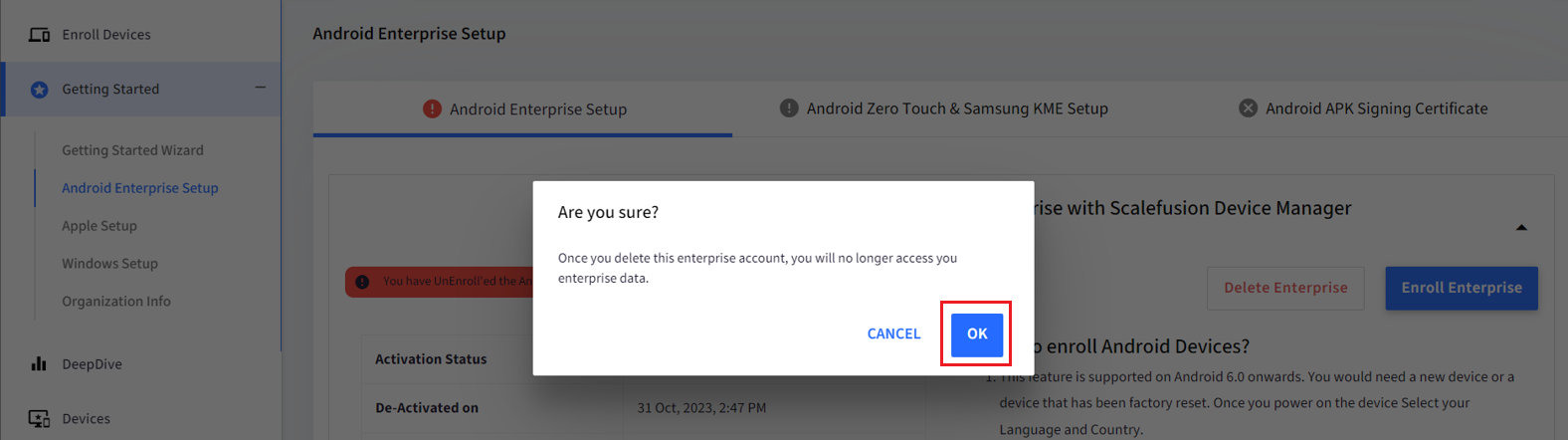
6. Click on **Delete Enterprise** button and click on **OK** in the pop-up window.
7. Next, log into [https://admin.google.com/](https://admin.google.com/) and use the corporate email id that was used for Android Enterprise set up.
8. Click on **Manage Subscriptions**.
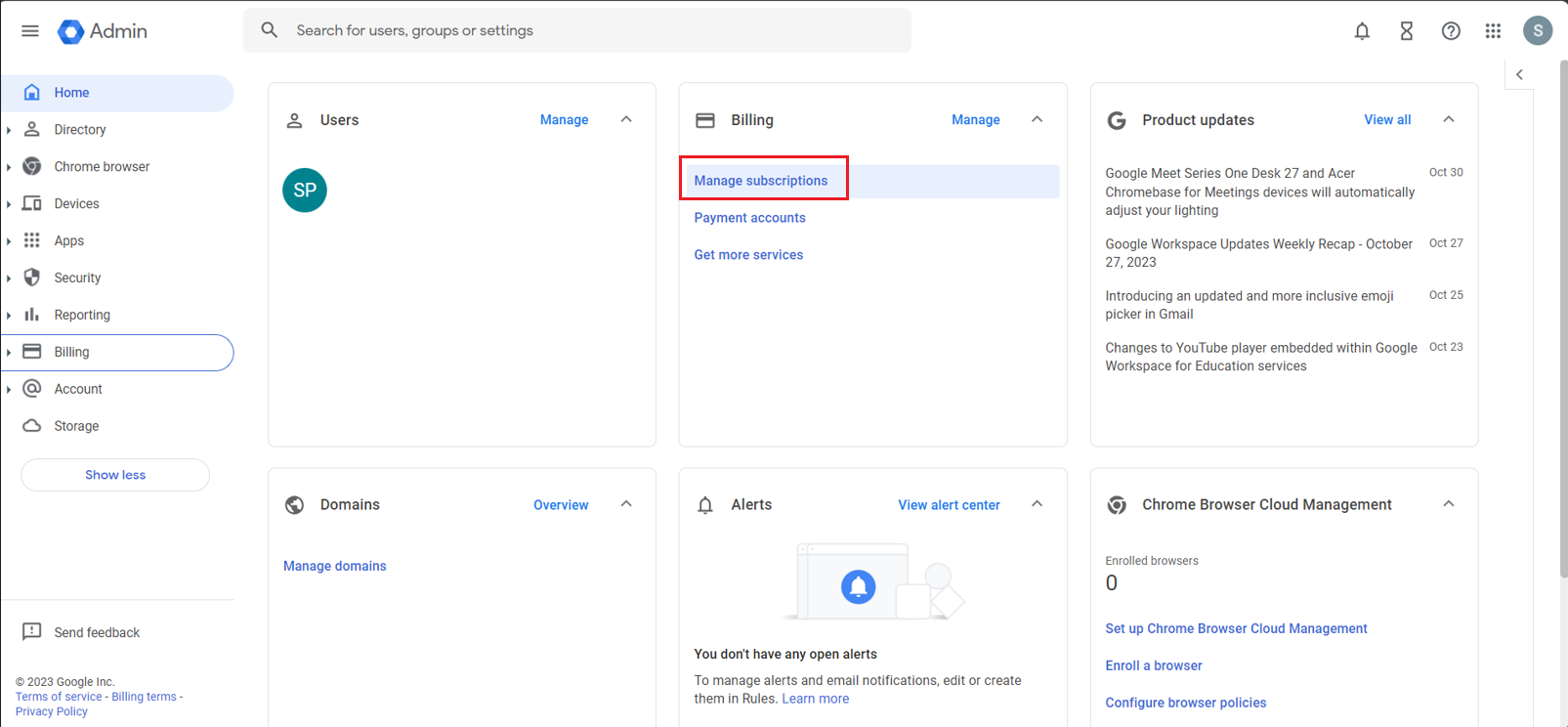
9. Select the **Android Enterprise** subscription and in the next page click on **Cancel Subscription**.
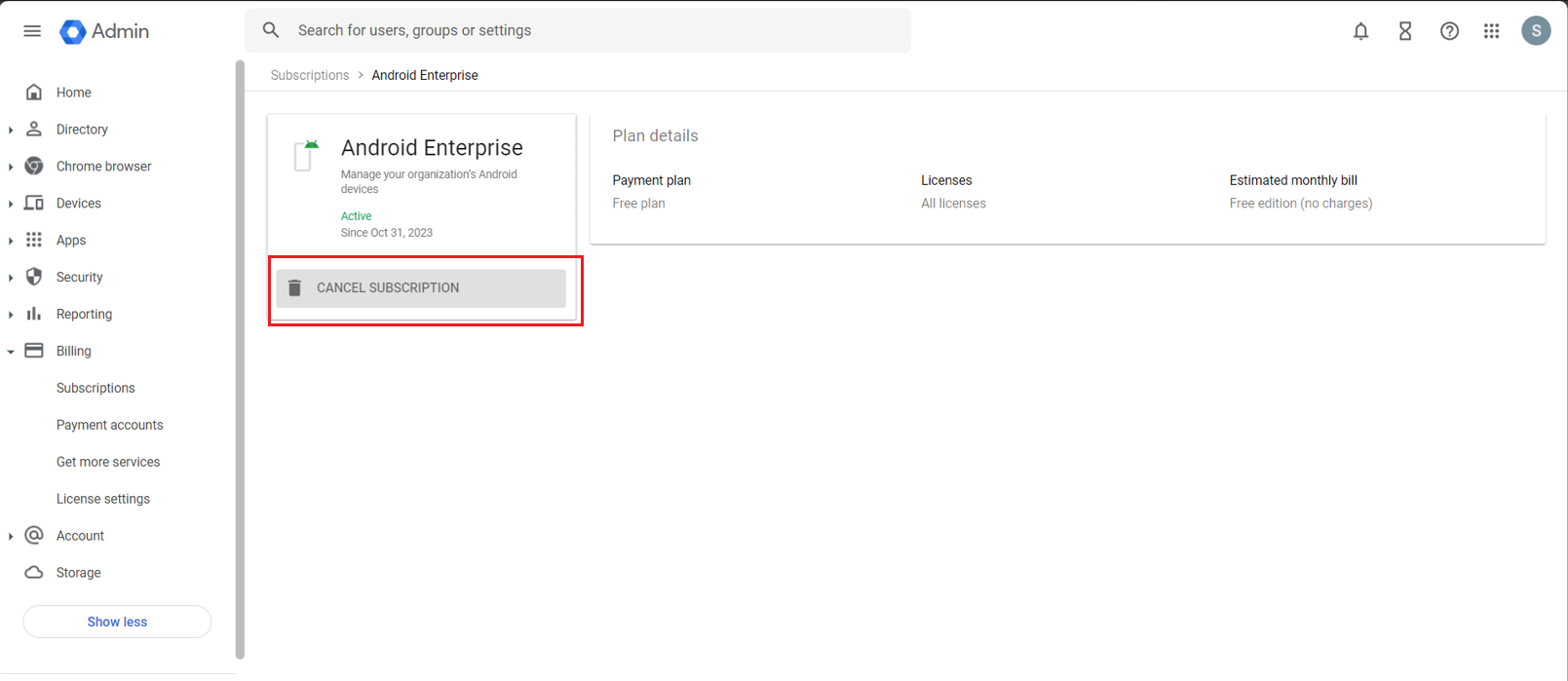
10. Follow the prompts on the screen and cancel the subscription.
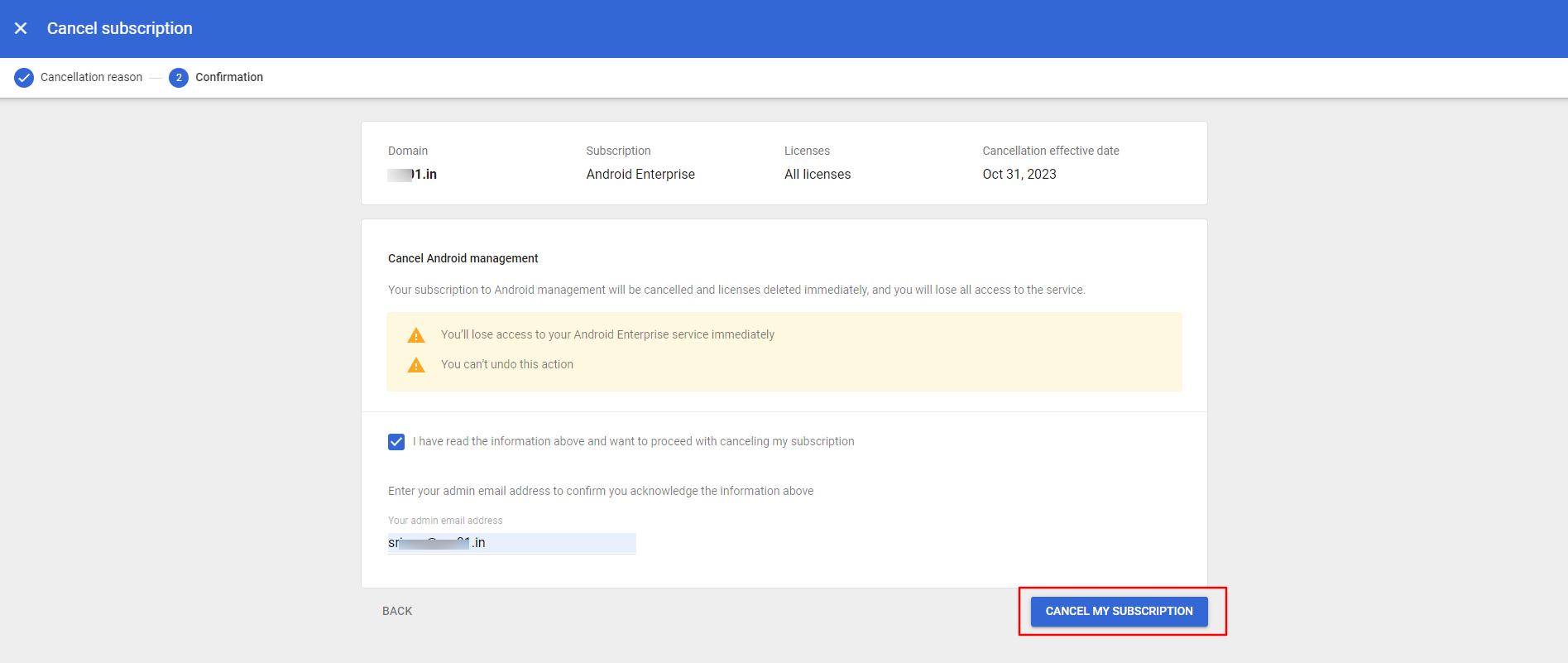
11. This will remove the Android Enterprise registration from the Scalefusion dashboard also and you can redo the set up again.
### (iii) Unenroll and delete the Android Enterprise set up done with Google Workspace ID
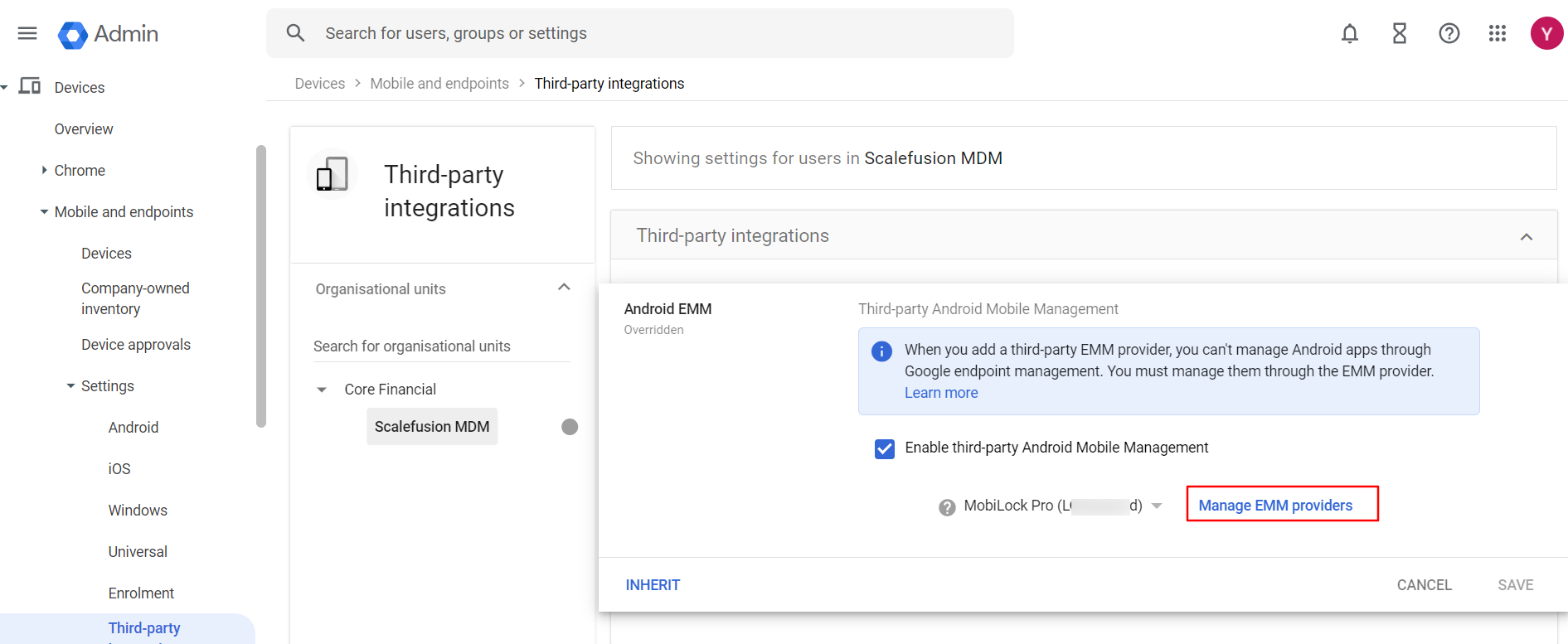
You can remove the Android EMM Provider from the **Third-Party Integrations** section in your Google Workspace Admin console.
1. Follow the same steps to unenroll from Android Enterprise set up on the Scalefusion dashboard as shown in the point (ii) above.
2. Login to your Google Workspace Admin console and navigate to Third-Party Intergrations section.
3. Click on **Manage EMM providers** option.
4. On the next screen, click on **Remove**.
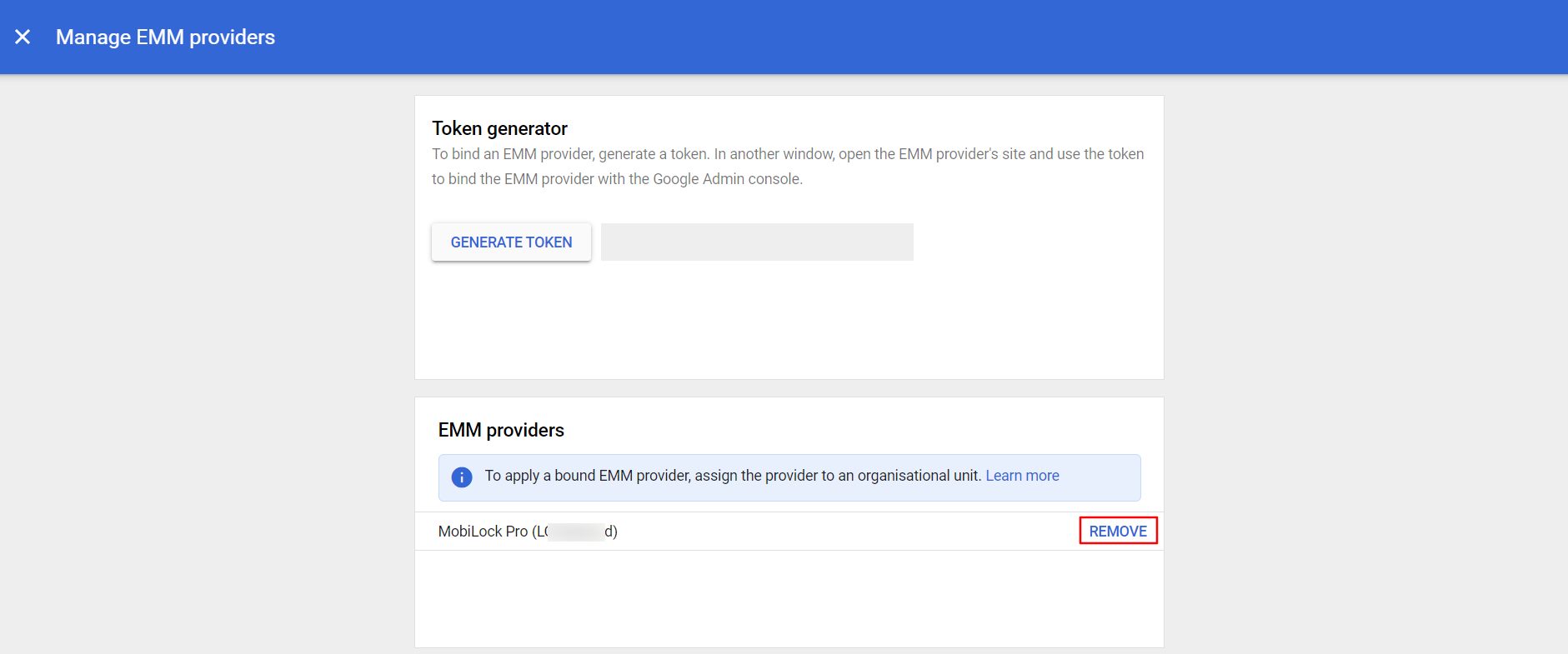
This completes the unenrollment and deletes the Android Enterprise Setup from your account.
Should you require further assistance or guidance while configuring, feel free to contact our Support team. Reach out to them via our live web chat or send an email to [support@scalefusion.com](mailto:support@scalefusion.com)